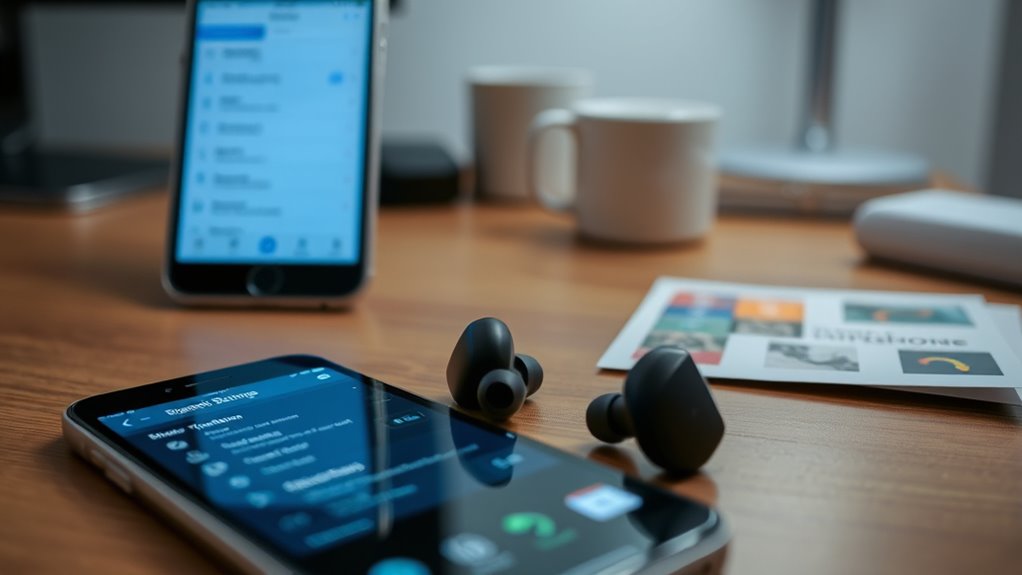

To fix common Bluetooth issues, first check that your device supports Bluetooth and is running the latest software or firmware updates. Restart your device, turn Bluetooth off and on, then re-pair the devices. Keep your devices within range and avoid interference from other electronics. If problems persist, remove the device, reset the connection, and re-pair. Updating drivers and firmware often resolve stubborn issues—continue exploring for more effective solutions.
Key Takeaways
- Ensure your device supports Bluetooth and check for the latest software and firmware updates.
- Reset or “forget” the Bluetooth device, then re-pair it to resolve connection glitches.
- Keep devices within 30 feet and minimize interference from walls, metal objects, and other electronics.
- Restart both devices and toggle Bluetooth off and on to refresh the connection.
- Regularly update device drivers and firmware to fix bugs and improve compatibility.
STREBITO Electronics Precision Screwdriver Sets 142-Piece with 120 Bits Magnetic Repair Tool Kit for iPhone, MacBook, Computer, Laptop, PC, Tablet, PS4, Xbox, Nintendo, Game Console
【Wide Application】This precision screwdriver set has 120 bits, complete with every driver bit you’ll need to tackle any…
As an affiliate, we earn on qualifying purchases.
As an affiliate, we earn on qualifying purchases.
Checking Device Compatibility and Updates
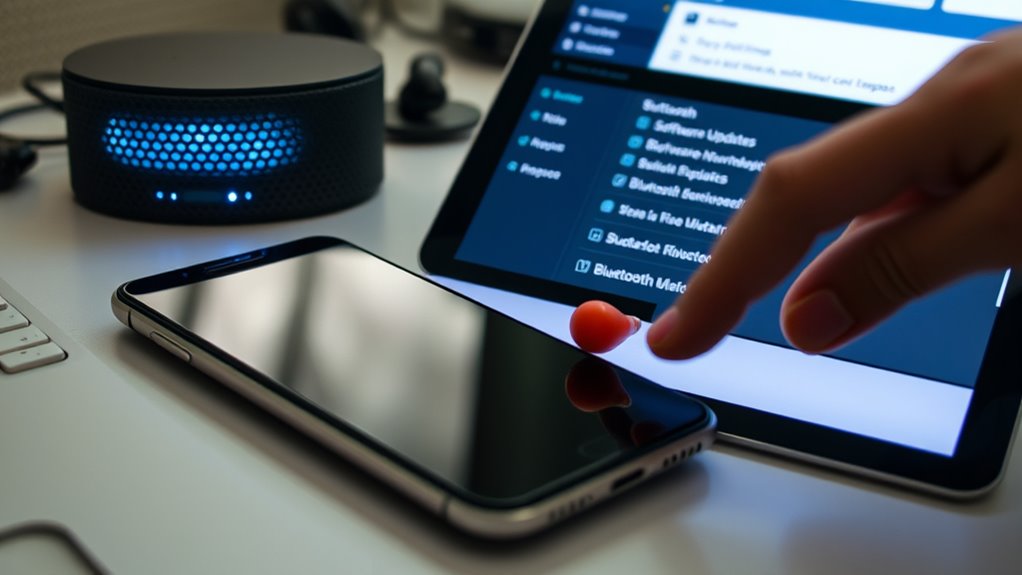
Before troubleshooting Bluetooth issues, it’s vital to verify your device is compatible and running the latest software. Check your device’s specifications to guarantee it supports Bluetooth connections with your other devices. Compatibility issues often cause connection failures or limited functionality. Next, update your device’s operating system to the newest version. Software updates fix bugs, improve performance, and enhance Bluetooth support. Visit your device manufacturer’s website or settings menu to check for updates. If your device is outdated or incompatible, it might not connect properly or at all. Confirming compatibility and running the latest software is the foundation for a stable Bluetooth connection. Skipping this step can lead to unnecessary troubleshooting and frustration down the line. Verify these basics before moving forward with more advanced fixes. Additionally, understanding the Bluetooth technology standards can help determine if your devices are fully compatible.

TP-Link USB Bluetooth Adapter for PC, Bluetooth 5.3 Long Range Receiver, Plug and Play, Adjustable Antenna, Supports Windows 11/10/8.1/7 for Desktop, Laptop, Keyboard, Mouse, etc (UB500 Plus)
𝐁𝐥𝐮𝐞𝐭𝐨𝐨𝐭𝐡 𝟓.𝟑 𝐒𝐮𝐩𝐩𝐨r𝐭 – Applies the latest Bluetooth 5.3 plus EDR technology and is backward compatible with Bluetooth…
As an affiliate, we earn on qualifying purchases.
As an affiliate, we earn on qualifying purchases.
Resetting Bluetooth Settings on Your Device
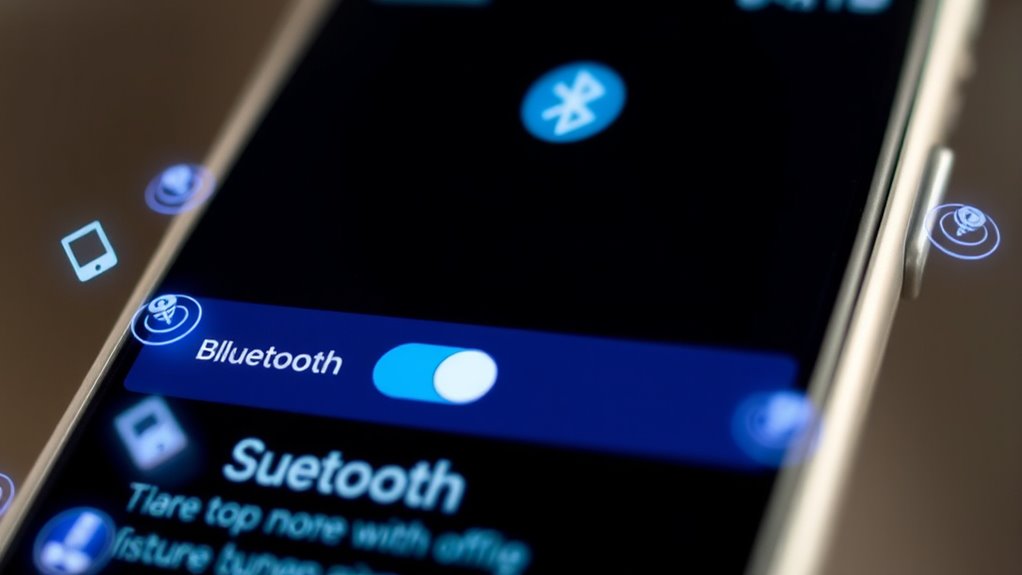
Sometimes, resetting your Bluetooth settings can resolve persistent connection issues that other troubleshooting steps haven’t fixed. This process clears any saved Bluetooth data on your device, which might be causing conflicts or errors. To do this, go to your device’s settings menu, find the Bluetooth section, and look for an option to reset or forget all Bluetooth connections. On some devices, you may need to toggle Bluetooth off and on again, or restart the device entirely. Resetting helps remove corrupted pairing information and refreshes the Bluetooth cache. After resetting, try pairing your device again. Keep in mind, you’ll need to re-enter any passwords or reconnect to previously paired devices. This simple step often restores a stable Bluetooth connection without further hassle. Incorporating load‑planning tools can also help identify and manage device compatibility issues that might interfere with Bluetooth performance.
TP-Link USB Bluetooth Adapter for PC, Bluetooth 5.3 Long Range Receiver, Plug and Play, Adjustable Antenna, Supports Windows 11/10/8.1/7 for Desktop, Laptop, Keyboard, Mouse, etc (UB500 Plus)
𝐁𝐥𝐮𝐞𝐭𝐨𝐨𝐭𝐡 𝟓.𝟑 𝐒𝐮𝐩𝐩𝐨r𝐭 – Applies the latest Bluetooth 5.3 plus EDR technology and is backward compatible with Bluetooth…
As an affiliate, we earn on qualifying purchases.
As an affiliate, we earn on qualifying purchases.
Ensuring Devices Are Within Range and Free of Interference
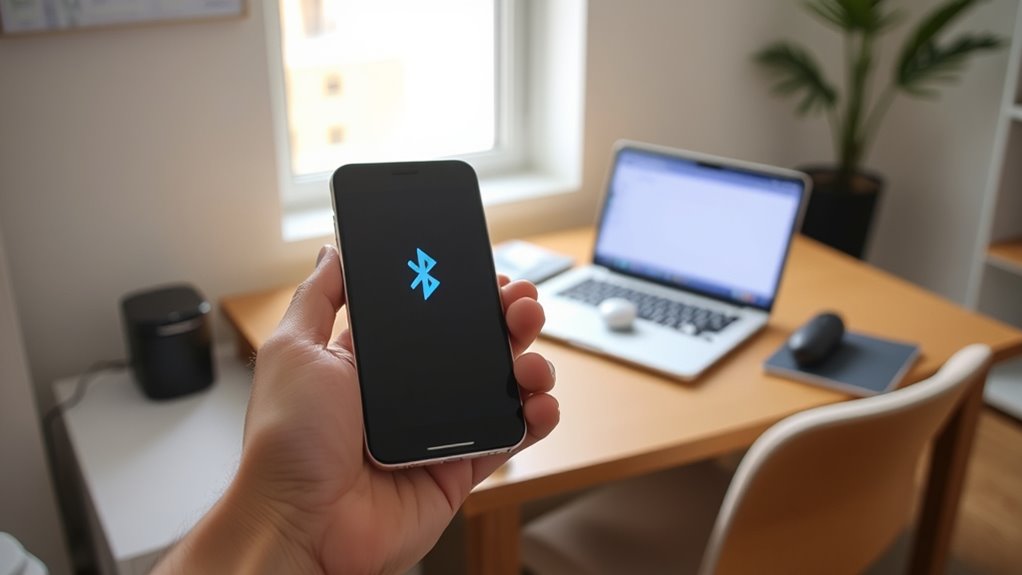
Make sure your devices stay within a reasonable distance, ideally no more than 30 feet apart. Keep electronic devices like Wi-Fi routers and microwaves away from your Bluetooth devices to reduce interference. Staying mindful of these factors can greatly improve your connection stability. Additionally, utilizing high-quality waterproof running watches can help ensure your device remains reliable in various weather conditions.
Maintain Adequate Distance
To guarantee a stable Bluetooth connection, you need to keep your devices within their effective range and minimize interference. Staying within this range reduces signal degradation and prevents disconnections. Here are three key tips to maintain the proper distance:
- Keep devices close, ideally within 10 meters or 33 feet, to ensure a strong connection.
- Avoid physical obstructions like walls, furniture, or metal objects that can block signals.
- Stay away from other electronic devices that emit radio waves, such as Wi-Fi routers or microwaves, which can cause interference.
- Be aware of European cloud innovation initiatives that promote the development of energy-efficient and secure wireless communication standards, helping to improve Bluetooth reliability in future devices.
Minimize Electronic Interference
Electronic interference is a common culprit behind Bluetooth connection issues, but you can diminish its impact by keeping your devices within their effective range and away from other radio-emitting electronics. Devices like Wi-Fi routers, microwave ovens, cordless phones, and wireless cameras emit signals that can disrupt Bluetooth signals. To minimize interference, position your Bluetooth device away from these sources. Avoid using multiple wireless gadgets in close proximity, especially on the same frequency band. Turn off or relocate other electronics that could cause interference during pairing or use. Keep your Bluetooth devices within a reasonable distance—typically about 30 feet or less—and ensure there are minimal obstacles between them. Being aware of radio frequency interference sources can help you better troubleshoot and prevent connection issues. Taking these steps helps maintain a stable connection and reduces dropouts caused by electronic interference.

BlueDriver Bluetooth Pro OBDII Scan Tool for iPhone & Android – No Subscription Fee – OBD2 Car Scanner and Code Reader – Diagnose Check Engine, ABS, SRS, Airbag & 7000+ Issues on Vehicles 1996+
[Pro OBD2 Scanner] – BlueDriver is the easiest way to scan and understand your vehicle like a professional…
As an affiliate, we earn on qualifying purchases.
As an affiliate, we earn on qualifying purchases.
Removing and Re-Pairing Bluetooth Devices
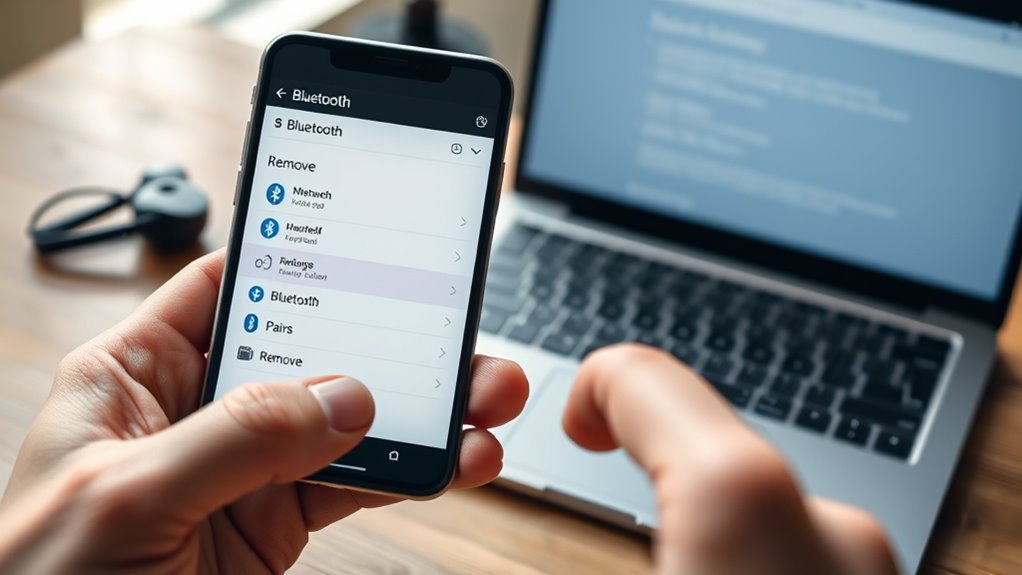
When Bluetooth devices stop connecting properly, removing and re-pairing them often resolves the issue. This process resets the connection and clears any glitches. To do it effectively:
- Forget the device in your Bluetooth settings.
- Turn off Bluetooth on your device and the device itself.
- Restart both devices before pairing again.
- If you’re troubleshooting a device like an electric dirt bike or a bike generator, ensure it is in pairing mode for successful reconnection.
This method ensures any corrupted pairing data is cleared, often restoring a smooth connection. Make sure to have the device in pairing mode when reconnecting. If the device still won’t pair, try removing it from your device list and repeat the process. Re-pairing can fix minor software hiccups that cause connection problems, restoring a reliable Bluetooth link quickly.
Restarting Your Devices and Bluetooth Adapter
Sometimes, simply restarting your devices and Bluetooth adapter can resolve connection issues. Turn off your smartphone, tablet, or computer, then wait a few seconds before turning them back on. This refreshes the device’s memory and clears temporary glitches. Next, disable and re-enable Bluetooth in your device’s settings to reset the connection. If your device has a physical Bluetooth adapter, unplug it, wait a moment, then reconnect it. On computers, you can also restart the Bluetooth service through system settings or device manager. Restarting clears minor software bugs that could be blocking the connection. After restarting, attempt to pair or connect your Bluetooth device again. This simple step often fixes common issues caused by software glitches or temporary interference. Understanding Bluetooth protocols can also help troubleshoot persistent connectivity problems.
Troubleshooting Specific Device Connectivity Issues
Different devices often face unique Bluetooth connectivity challenges, so pinpointing the specific issue can help you find the right solution. For example, a wireless speaker might connect but won’t play audio, or a headset might pair but have poor sound quality. Identifying the problem is key. Here are some common device-specific issues: 1. Compatibility problems between your device and Bluetooth accessories. 2. Interference from other wireless devices or signals. 3. Limited Bluetooth profiles supported by either device. To troubleshoot, ensure both devices support the same Bluetooth version and profiles. Move away from potential interference sources like Wi-Fi routers or microwaves. Also, check the device’s manual for specific pairing instructions or known compatibility issues. Addressing these issues directly helps resolve connectivity problems faster. Understanding Bluetooth profiles can help ensure your devices are fully compatible.
Updating Firmware and Drivers for Better Compatibility
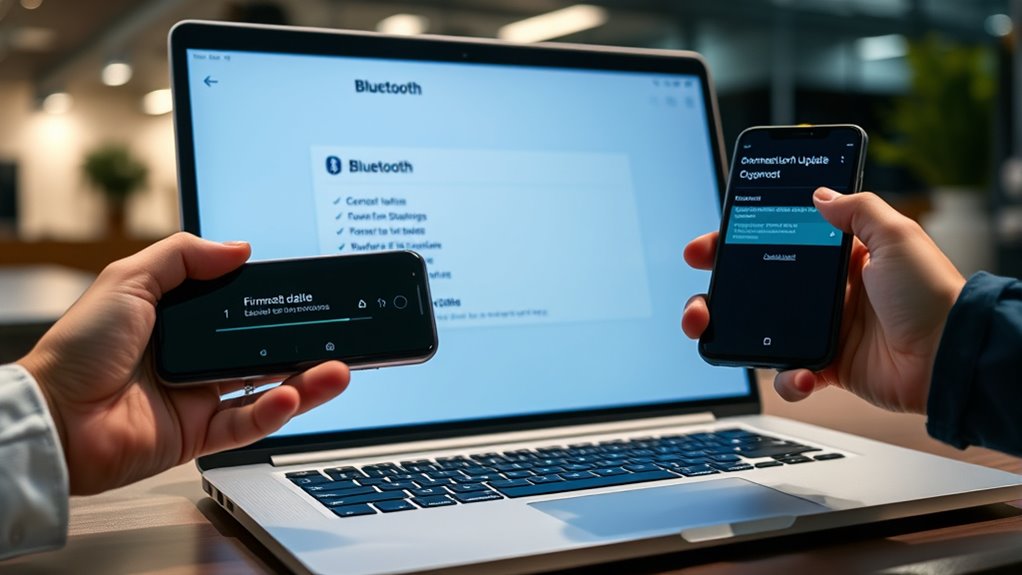
Keeping your device’s firmware and drivers up to date is essential for maintaining ideal Bluetooth compatibility. Manufacturers frequently release updates that fix bugs, improve performance, and add new features. To update, visit your device manufacturer’s website or use automatic update tools built into your operating system. For Windows, check Device Manager or Windows Update; on macOS, use Software Update. Mobile devices typically prompt you when updates are available. Updating guarantees your device can communicate effectively with the latest Bluetooth standards and other hardware. Outdated firmware or drivers can cause connection drops, pairing issues, or reduced range. Regularly check for updates, especially if you experience persistent Bluetooth problems, to keep your devices running smoothly and compatible with each other. Additionally, Vetted updates are tested to ensure they do not introduce new issues and are safe to install.
Frequently Asked Questions
How Do I Prioritize Which Bluetooth Device Connects First?
To prioritize which Bluetooth device connects first, you need to set your preferred device as the “trusted” device in your Bluetooth settings. On your device, go to Bluetooth settings, find the device you want to prioritize, and select “Trust” or “Favorite” if available. Keep that device turned on nearby, and your device will try connecting to it first whenever Bluetooth is active, ensuring it connects before others.
Can I Connect Multiple Bluetooth Devices Simultaneously Without Issues?
They say, “A chain is only as strong as its weakest link,” and the same applies to Bluetooth devices. Yes, you can connect multiple Bluetooth devices simultaneously, but it depends on your device’s capabilities. Modern smartphones and computers often support multiple connections, yet performance can vary. To avoid issues, guarantee your device supports multipoint Bluetooth, keep devices within range, and minimize interference for seamless multitasking.
What Should I Do if My Device Keeps Disconnecting Randomly?
You should start by turning Bluetooth off and then back on to reset the connection. Make sure your device’s software is up to date, as updates often fix bugs. Keep your devices within close proximity and remove any physical obstructions. If problems persist, forget the device from your Bluetooth list and reconnect it. You can also restart your device or try resetting your Bluetooth settings to resolve the disconnections.
Is There a Way to Improve Bluetooth Connection Speed?
They say “speed thrills but kills,” but when it comes to Bluetooth, faster isn’t always better. To improve your connection speed, keep your device and Bluetooth accessories close, minimize interference from other gadgets, and make certain your device’s software is up to date. You can also reset your Bluetooth settings or restart your device. These simple steps help create a smoother, quicker connection, making your experience more enjoyable and hassle-free.
How Do I Troubleshoot Bluetooth Issues on Non-Smartphone Devices?
You should start by checking if your device’s Bluetooth is turned on and discoverable. Make sure both devices are within close range and free from obstructions. Restart both devices to reset their Bluetooth modules. Update your device’s firmware or drivers if available. Remove and re-pair the devices, and ensure they’re compatible. If issues persist, try connecting with a different device or consult the manufacturer’s troubleshooting resources.
Conclusion
By following these steps, you can turn your Bluetooth woes into seamless connections, like guiding two dancers in perfect harmony. Remember, patience is key—sometimes all it takes is a simple reset or update to restore that spark. Keep troubleshooting with confidence, and soon your devices will be syncing effortlessly, creating a symphony of seamless technology. Don’t let connection issues dim your experience — embrace the rhythm and reconnect with ease.