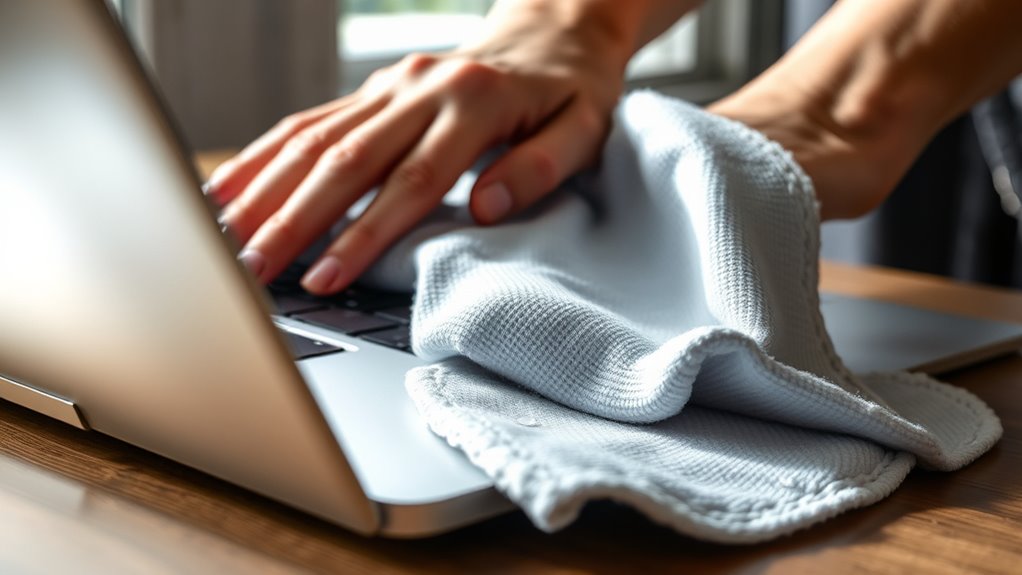

To clean your laptop safely, turn it off and disconnect power. Use a soft, lint-free microfiber cloth slightly dampened with distilled water or a screen-safe cleaner, avoiding sprays directly on the device. Gently wipe the screen in circular motions and use compressed air to remove debris from the keyboard. Don’t forget to handle cleaning tools carefully and avoid excessive moisture. Keep these tips in mind to maintain your laptop’s performance, and explore more tips to keep it in top shape.

Get the little things that make your day delivered free with Prime
- Fast, free delivery on millions of items
- Prime Video, Amazon Music and more included
- Member-only deals all year
Key Takeaways
- Turn off your laptop and disconnect it from power before cleaning.
- Use a soft, lint-free microfiber cloth slightly dampened with distilled water or screen-safe cleaner.
- Never spray liquids directly onto the screen or keyboard; apply cleaner to the cloth first.
- Use gentle, circular motions to clean the screen and keys, avoiding excessive pressure.
- For stubborn dirt, use compressed air and cotton swabs carefully to reach tight spots.
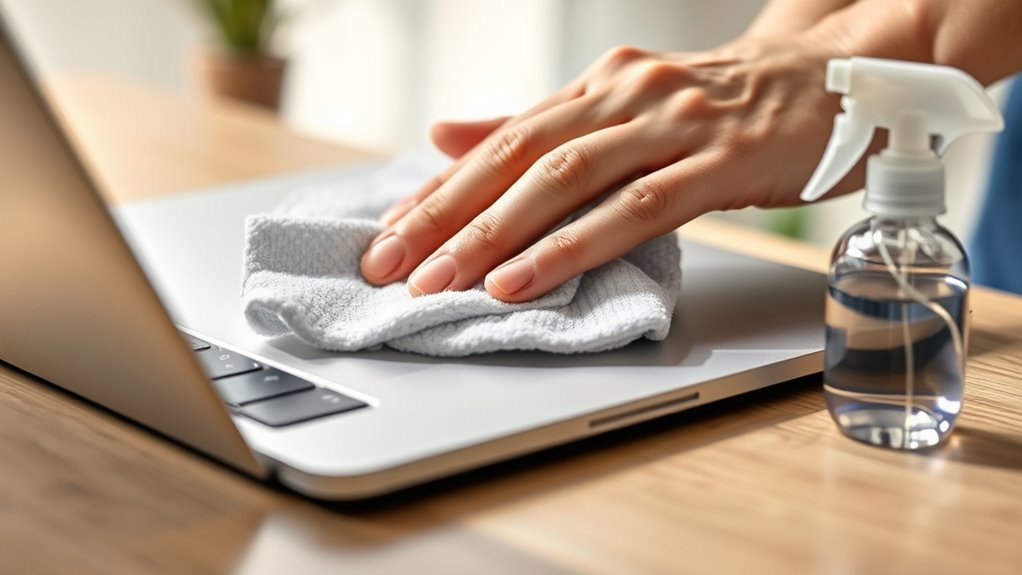
Keeping your laptop clean is vital for maintaining its performance and extending its lifespan. Dust, fingerprints, and grime can accumulate quickly, affecting both its appearance and functionality. To keep it in top shape, proper screen cleaning and keyboard maintenance are essential. When tackling screen cleaning, use a soft, lint-free microfiber cloth slightly dampened with distilled water or a screen-safe cleaner. Never spray liquids directly onto the screen, as this risks seepage that can damage internal components. Gentle, circular motions help lift smudges and fingerprints without scratching the surface. Avoid using harsh chemicals like ammonia or alcohol-based cleaners, which can strip away protective coatings and cause discoloration or damage. Regularly wiping your screen keeps the display clear and vibrant, making it easier to work and reducing eye strain. Additionally, understanding Free Floating concepts can help you optimize your cleaning routine to prevent damage and ensure longevity.
Keyboard maintenance is equally important because it’s a hotspot for dirt, dust, and debris, which can interfere with key responsiveness and cause long-term damage. To clean your keyboard effectively, start by turning off your laptop and disconnecting it from power. Use compressed air to blow out loose particles from between the keys. Hold the can upright and spray in short bursts, making sure to cover all areas. Next, dampen a soft cloth with a mixture of mild soap and water or use a disinfectant wipe designed for electronics—just ensure the cloth isn’t overly wet. Gently wipe over each key and the surrounding surface, paying attention to stubborn spots like the spacebar or enter key. For deeper cleaning, you can use a cotton swab dipped lightly in the cleaning solution to reach underneath the keys. Avoid excessive moisture, as liquid entering the keyboard can cause shorts or malfunctions.
microfiber screen cleaning cloth
As an affiliate, we earn on qualifying purchases.
As an affiliate, we earn on qualifying purchases.
Frequently Asked Questions
Can I Use Vinegar to Clean My Laptop Screen?
You should avoid using vinegar to clean your laptop screen. DIY cleaning with vinegar can damage the delicate display and isn’t recommended. Instead, opt for eco-friendly solutions like a mixture of distilled water and a small amount of gentle dish soap or use a screen-specific cleaner. Gently dampen a microfiber cloth and wipe the screen carefully. This approach keeps your laptop clean without risking damage.
Is It Safe to Spray Cleaning Solution Directly on My Laptop?
Did you know that 30% of laptop repairs involve liquid damage? It’s not safe to spray cleaning solution directly on your laptop because it risks liquid damage. Instead, you should apply the cleaner to a soft cloth first, then gently wipe your device. This digital cleaning method minimizes the risk of damage while keeping your laptop spotless, ensuring you avoid costly repairs and prolong its lifespan.
How Often Should I Clean My Laptop to Prevent Dust Buildup?
You should clean your laptop at least once a month to prevent dust buildup. Regular keyboard maintenance helps keep dust and debris from accumulating inside. Use compressed air and a soft cloth for dust prevention strategies, avoiding harsh chemicals that could damage your device. By staying consistent with cleaning, you’ll maintain essential performance and extend your laptop’s lifespan. Don’t neglect your keyboard; it’s vital for overall cleanliness and smooth operation.
Can I Use a Hairdryer to Dry My Laptop After Cleaning?
Sure, you can use a hairdryer to dry your laptop, but only if you prioritize hairdryer safety. Keep the dryer on the lowest heat and airflow settings, and hold it at a safe distance to avoid damage. Alternatively, opt for gentle air drying or use a soft, lint-free cloth to absorb moisture. Remember, patience prevails—rushing with a hairdryer risks harming your laptop’s delicate components.
What Are the Best Cleaning Tools for Hard-To-Reach Areas?
To clean hard-to-reach areas, use keyboard brushes and compressed air cans. Keyboard brushes are perfect for gently dislodging dirt and dust from tight spaces, while compressed air cans blast debris out without touching delicate components. Hold the can upright and use short bursts to avoid moisture. These tools help you effectively clean tricky spots without risking damage, keeping your laptop in top condition.
compressed air for keyboard cleaning
As an affiliate, we earn on qualifying purchases.
As an affiliate, we earn on qualifying purchases.
Conclusion
Cleaning your laptop carefully is like tending a delicate garden—you must be gentle yet thorough. I once rushed to wipe my keyboard, only to damage the keys; since then, I’ve learned patience makes all the difference. Remember, a clean laptop runs smoother and lasts longer. Just like a well-kept garden blooms beautifully, your device will perform at its best when you take the time to clean it properly. Handle it with care, and it’ll serve you well.
As an affiliate, we earn on qualifying purchases.
As an affiliate, we earn on qualifying purchases.
NFL season / tailgating Picks
team gear
As an affiliate, we earn on qualifying purchases.