
Your laptop may overheat due to outdated software, dust buildup, or insufficient ventilation. Running too many programs or heavy tasks can also raise temperatures quickly. To cool it down, update your software, clean dust from vents, and use a cooling pad or elevate your device. Checking internal temperatures with diagnostic tools helps prevent damage. If you keep encountering overheating issues, there are additional ways to improve airflow and hardware to explore.
Key Takeaways
- Regularly update your laptop’s software to improve performance and fix bugs that may cause overheating.
- Clean air vents and dust inside the device to enhance cooling efficiency and prevent heat buildup.
- Use your laptop on flat, hard surfaces and consider elevating it to improve airflow and heat dissipation.
- Monitor CPU and GPU temperatures with diagnostic tools, and close unnecessary programs during intensive tasks.
- Consider hardware upgrades like additional RAM or cooling pads to better manage heat and reduce overheating risks.
When your laptop starts overheating, it can considerably slow down performance and even cause permanent damage. The first step to addressing this is making sure your system is running the latest software updates. Software updates often include performance improvements and bug fixes that help your laptop run more efficiently. Developers continually optimize how the operating system manages hardware resources, reducing the strain on your processor and graphics card, which can help lower heat output. Neglecting these updates can leave your device vulnerable to overheating because outdated software may not manage hardware effectively or may run unnecessary background processes that generate excess heat. Additionally, cooling solutions such as external fans or cooling pads can significantly aid in reducing temperature buildup by enhancing airflow around your device.
In addition to software updates, hardware upgrades can be a game changer when your laptop is prone to overheating. Upgrading components like RAM or switching to a solid-state drive (SSD) can improve overall system efficiency, reducing the workload on your processor and decreasing heat generation. For older laptops, replacing thermal paste on the CPU and GPU can greatly improve heat dissipation. If your device has a dedicated graphics card or a cooling fan that’s no longer effective, replacing or upgrading these parts can help maintain ideal temperatures. While hardware upgrades might seem more involved, they often provide a long-term solution, especially if your laptop has been around for several years.
Beyond software updates and hardware upgrades, it’s essential to monitor your device’s temperature regularly using diagnostic tools or specific software designed for this purpose. Keeping an eye on temperature levels can alert you before overheating causes system crashes or hardware damage. When you notice the temperature rising quickly during intensive tasks, it’s a sign to take action—whether that’s closing unnecessary programs or allowing your laptop to cool down.
Another effective tip is to optimize your environment and usage habits. Using your laptop on hard, flat surfaces rather than soft beds or cushions ensures better airflow. Elevating the laptop slightly with a stand improves ventilation and helps heat escape more efficiently. Additionally, avoid blocking air vents, and clean out dust that might clog internal fans and vents, since dust buildup greatly hampers your cooling system’s effectiveness. If overheating persists despite these measures, consider investing in a cooling pad, which provides additional airflow and helps keep temperatures in check.
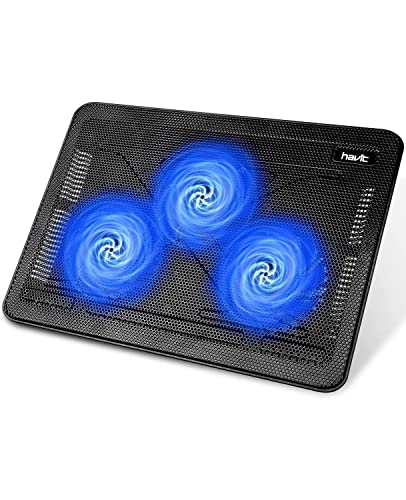
havit HV-F2056 15.6"-17" Laptop Cooler Cooling Pad – Slim Portable USB Powered (3 Fans), Black/Blue
Ultra-Portable: Slim, portable, and light weight allowing you to protect your investment wherever you go
As an affiliate, we earn on qualifying purchases.
As an affiliate, we earn on qualifying purchases.
Frequently Asked Questions
Can Malware Cause My Laptop to Overheat?
Yes, malware can cause your laptop to overheat. When malware infects your system, it often runs background processes that tax your CPU and GPU, leading to increased heat. Antivirus issues might also hinder proper malware removal, allowing these harmful programs to persist. To prevent overheating, run a thorough malware scan, update your security software, and make certain your system is free from malicious threats that impact your device’s performance and temperature.
How Does Ambient Temperature Affect Laptop Cooling?
Did you know that a 10°C increase in ambient temperature can raise your laptop’s internal temperature by 5°C? Ambient temperature directly affects cooling because high heat reduces airflow efficiency, leading to overheating. Humidity also matters—excess moisture can cause internal corrosion. To keep your laptop cool, make certain of good airflow by avoiding airflow obstruction and working in a cooler, dry environment. This helps maintain ideal performance and prevents overheating issues.
Are Certain Laptop Brands More Prone to Overheating?
Yes, some laptop brands are more prone to overheating due to hardware design and manufacturing quality. You might notice that budget or less reputable brands often cut corners on cooling systems, leading to higher temperatures. Conversely, premium brands tend to invest in better thermal management and durable hardware. To avoid overheating issues, always choose laptops with solid hardware design and quality manufacturing, and keep them clean and well-ventilated.
Can Overclocking Lead to Increased Overheating Risks?
Yes, overclocking can lead to increased overheating risks. When you overclock your hardware upgrades, you’re pushing your CPU or GPU beyond normal limits, generating more heat. Adjusting power settings to prioritize performance can also raise temperatures. To prevent overheating, monitor your system’s temperature, avoid excessive overclocking, and guarantee proper cooling. Keeping these factors in check helps maintain your laptop’s performance without risking thermal damage.
Is It Safe to Use a Laptop Cooling Pad?
Using a laptop cooling pad is safe and highly effective. It enhances your device’s cooling techniques by providing better airflow and reducing internal temperatures. External cooling solutions like these create a gust of fresh air, preventing overheating during intense tasks. Imagine your laptop running smoothly, free from heat buildup—cooling pads make that possible. Just make certain it’s compatible with your model, and you’re all set to keep your device cool and performing at its best.

Keyboard Cleaning Kit Laptop Cleaner, All-in-1 Computer Screen Cleaning Brush Tool, Multi-Function PC Accessories Electronic Cleaner Kit Spray for iPhone iPad Macbook Earbud Camera Monitor with Patent
【UPGRADED LAPTOP CLEANING KIT 】 The macbook cleaning kit computer screen cleaner comes with a number of accessories…
As an affiliate, we earn on qualifying purchases.
As an affiliate, we earn on qualifying purchases.
Conclusion
Think of your laptop like a busy engine—it needs proper care to run smoothly. When it overheats, it’s like a car overheating on a hot day; if you ignore it, it could break down. By keeping vents clear, using cooling pads, and avoiding heavy tasks when hot, you give your device a chance to breathe and perform better. Proper care acts like a gentle hand guiding it through the heat, ensuring it stays cool and efficient.

Flylin 3.5in IPS USB Mini Screen, CPU Hardware Temperature Monitor Type-C Sub Screen, AIDA64 PC Temperature Display Screen for Computer Case
【Multi -monitoring】This screen will display data from CPU, GPU, RAM, HDD, time and date. There are many templates…
As an affiliate, we earn on qualifying purchases.
As an affiliate, we earn on qualifying purchases.

Tonmom Laptop Stand for Desk, Adjustable Laptop Riser ABS+Silicone Foldable Portable Notebook Holder, Ventilated Cooling Notebook Mount Computer Stand for 10-15.6” Laptops,Tablets-Black
【Adjustable & Ergonomic】:The laptop holder elevates your notebook from 2.78” to 6.5” height (7 level height) for a…
As an affiliate, we earn on qualifying purchases.
As an affiliate, we earn on qualifying purchases.