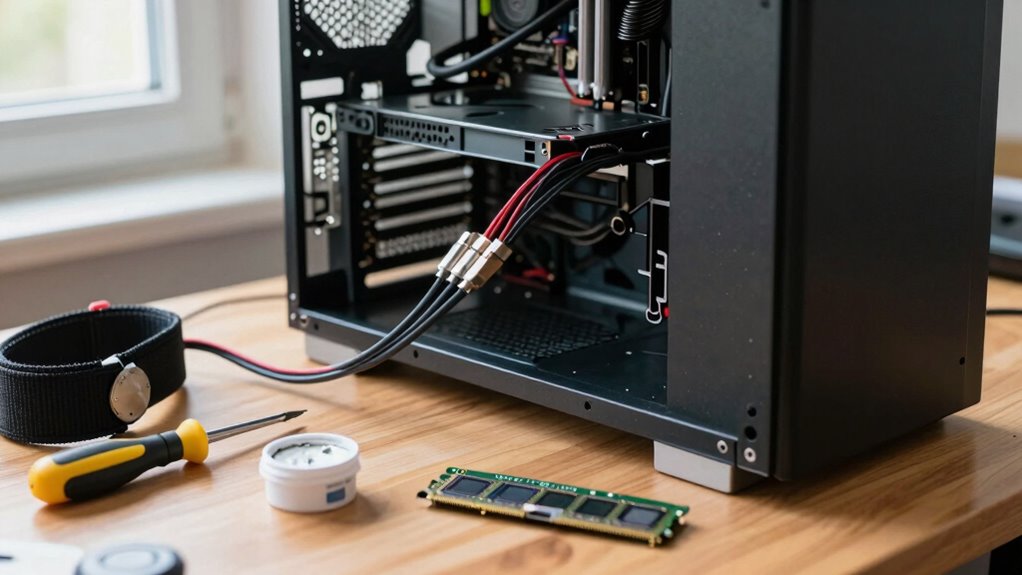

Before replacing your old desktop, make sure to back up all important files to an external drive or cloud to prevent data loss. Organize your software by checking compatibility and gathering license keys for reinstallation. Clean up your old system by removing unnecessary files and software. Plan your setup for an efficient workspace, including installing necessary drivers and customization. If you continue exploring, you’ll find detailed steps to facilitate a smooth shift and optimized new setup.

Get the little things that make your day delivered free with Prime
- Fast, free delivery on millions of items
- Prime Video, Amazon Music and more included
- Member-only deals all year
Key Takeaways
- Backup all essential data securely to external storage or cloud services, then verify backup integrity.
- Transfer or reinstall necessary software, and gather license keys and installation files.
- Uninstall unnecessary programs and clean up temporary files to optimize the old system.
- Prepare the new setup by installing drivers, customizing settings, and planning ergonomic placement.
- Confirm all backups and software are ready before beginning hardware replacement and setup.
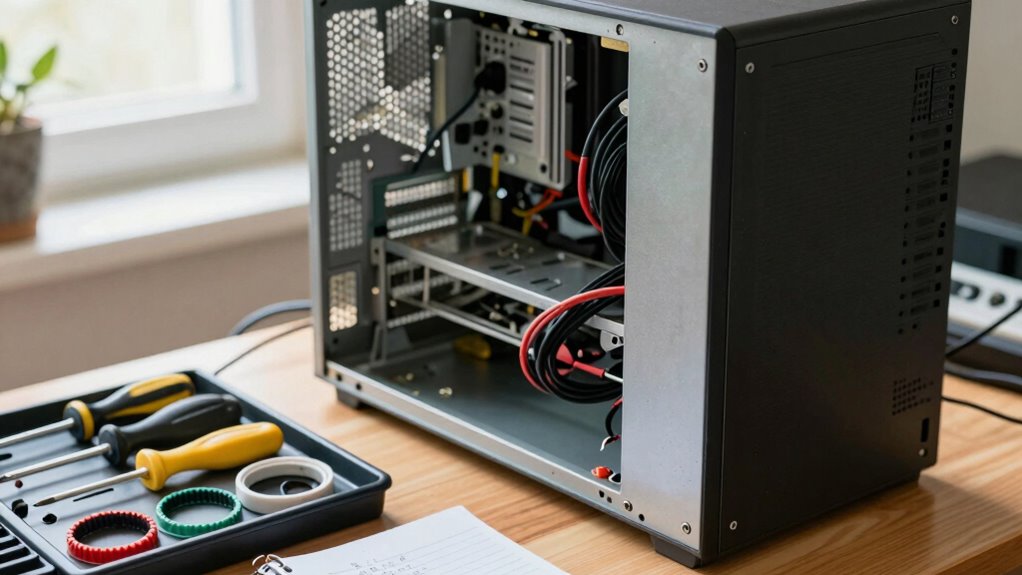
Replacing an older desktop computer can be an exciting upgrade, but before you make the switch, it’s important to take a few key steps to guarantee a smooth changeover. The first step is to prioritize data backup. You don’t want to risk losing important files, photos, or documents during the shift. Use an external hard drive, cloud storage, or a network-attached storage device to copy all essential data. Double-check that everything you need is safely stored elsewhere, and verify the backups by opening a few files to ensure they’re accessible and intact. This precaution saves you from potential frustration and prevents the loss of irreplaceable information.
Once your data is secure, the next critical step is software transfer. Moving your applications and settings from the old computer to the new one can seem intimidating, but a systematic approach simplifies the process. Many software programs have built-in transfer tools or setups that facilitate migration, so explore those options first. If you’re switching to a new operating system, check compatibility for your essential programs and consider reinstalling them fresh instead of copying over outdated or incompatible versions. Keep track of license keys and login credentials, as you’ll need these during the reinstallation process. To streamline this, make a list of your most-used apps, and download any necessary installers ahead of time.
Streamline your software transfer with built-in tools, keep track of licenses, and prepare installers in advance for a smooth setup.
Before setting up your new computer, consider uninstalling unnecessary or outdated software from your old machine. This decluttering step helps prevent clutter from transferring over and keeps your new system running smoothly. Additionally, you might want to perform a system cleanup, removing temporary files and unnecessary data. When you’re ready to transfer software, take advantage of transfer utilities provided by system manufacturers or third-party tools designed specifically for migration. These tools can copy programs, settings, and user profiles efficiently, saving you time and effort. However, for some applications, especially complex or specialized software, manual reinstallation might be preferable to guarantee peak performance.
Furthermore, understanding the importance of contrast ratio in display quality can help you choose the right setup for your new device, ensuring the visuals are vibrant and detailed, especially in dark scenes. Finally, plan your setup carefully. Once data backup and software transfer are complete, you can focus on physically setting up your new desktop, installing drivers, and customizing your environment. Being aware of emerging trends in digital publishing can also help you optimize your digital workspace and workflows during this transition. Taking these initial steps ensures your transition is seamless, your data stays safe, and your new computer is ready to serve you efficiently without missing a beat.
Products Worth Considering

iRobot Roomba 105 Vac Robot Vacuum

Dyson V8 Cordless Vacuum

Shark Navigator Robot Vacuum with 30-Day Self-Emptying Base, White (AV2110S)
As an affiliate, we earn on qualifying purchases.
Frequently Asked Questions
How Do I Securely Wipe Data From My Old Computer?
To securely wipe data from your old computer, start by encrypting your drives to protect sensitive information. Then, use specialized software to perform a thorough data wipe, ensuring data recovery becomes impossible. Remember, simply deleting files isn’t enough, as recovery tools can retrieve them. Finalize by formatting the drives after wiping, and double-check that no recoverable data remains to keep your information truly secure.
Can I Upgrade My Current Desktop Instead of Replacing It?
Sure, you can upgrade your current desktop instead of replacing it—if your hardware is compatible and you’re okay with the challenge. Check if your motherboard supports new components, and make sure your power supply can handle upgrades. Don’t forget software updates, as they might be needed for new hardware to work smoothly. So, go ahead—breathe life into that old machine, or risk it becoming a paperweight!
What Should I Do With My Old Computer After Replacing It?
After replacing your old computer, you should securely delete your data to protect your privacy. Then, consider recycling programs or electronic waste disposal options to responsibly dispose of the device. Many communities offer e-waste recycling, or you can donate it to charities or schools if it’s still functional. Avoid throwing it in the trash to prevent environmental harm, and always guarantee data disposal is thorough before handing it over.
How Do I Transfer Files to a New Computer Efficiently?
Imagine your files gently floating like leaves on a breeze—transferring them becomes effortless. Use transfer software to move your data smoothly, then back up everything to the cloud for extra security. Connect your new computer, run the software, and watch your files glide into place. Cloud backup keeps your data safe, and transfer software speeds up the process, making your switch seamless and stress-free.
Are There Warranty Options for Older Desktop Models?
Yes, there are warranty options for older desktop models. You can look into extended warranties offered by the manufacturer or third-party providers, which can cover repairs and replacement parts beyond the standard warranty period. Additionally, many stores or repair shops offer repair options for older desktops, even if the original warranty has expired. These options can give you peace of mind and help prolong your computer’s lifespan.
Conclusion
As you prepare to say goodbye to your old desktop, imagine the possibilities that lie ahead—faster speeds, smoother workflows, and a fresh start. But before you plunge in, make sure you’ve secured your data and explored your options. Could there be hidden treasures in your old files or overlooked features in your new setup? The journey’s just beginning, and the future awaits—ready to be opened with one last step.