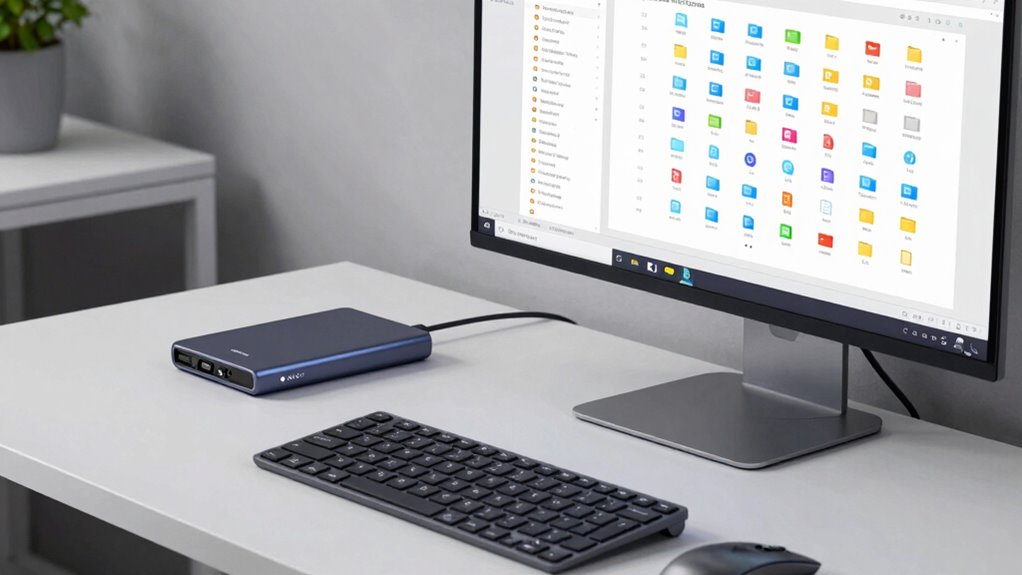

To organize digital files so you find anything fast, start by using cloud storage like Google Drive or Dropbox for easy access and backup. Create clear folder hierarchies with main categories and subfolders, and save files directly into the right spots. Use consistent, descriptive names with dates and versions. Tag files for quick filtering, and regularly review and delete duplicates to keep clutter minimal. Keep these habits, and you’ll discover more tips on staying organized below.

Get the little things that make your day delivered free — and shop member deals
- Fast, free delivery on millions of items
- Access to Prime Big Deal Days deals on October 6–7
- Prime Video, Amazon Music and more included
Key Takeaways
- Use cloud storage with organized folder hierarchies for easy access and backup.
- Develop clear, consistent file naming conventions with relevant details.
- Implement tags or metadata for additional categorization and quick filtering.
- Regularly review, delete duplicates, and update folder structures to maintain clarity.
- Utilize search features to locate files quickly by content, tags, or metadata.
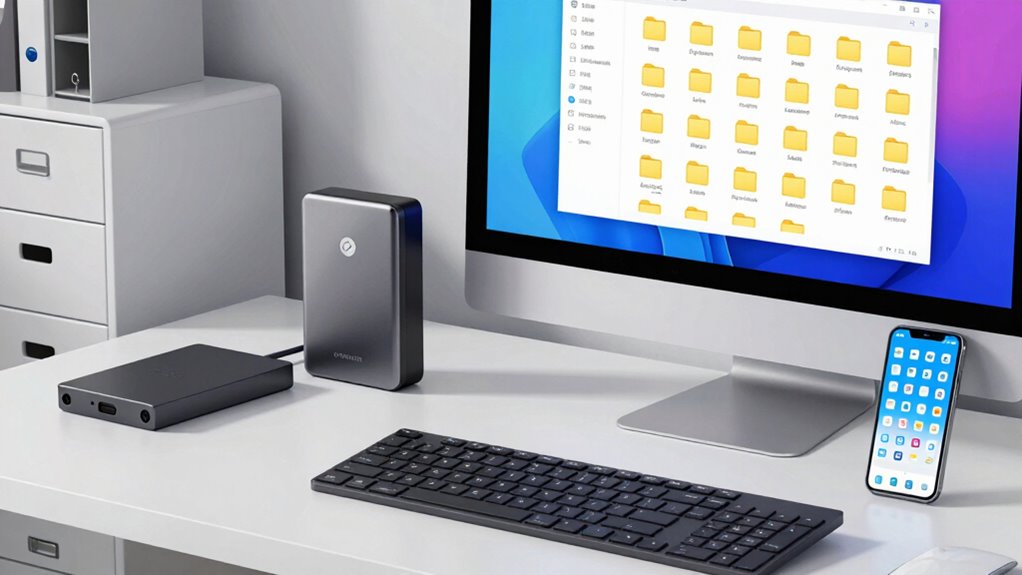
Organizing your digital files might seem overwhelming at first, but taking a structured approach can make the process manageable and even satisfying. Start by deciding where you’ll store your files. Cloud storage services like Google Drive, Dropbox, or OneDrive are great options because they let you access your files from any device and keep everything backed up. This ensures your files are protected and easily accessible, similar to how a high contrast ratio enhances the clarity of a projector image. Once you’ve chosen a cloud storage platform, create a logical folder hierarchy. For example, you might set up main folders for work, personal, and hobbies, then subfolders within each to further categorize by project or date.
Organize files with cloud storage and a clear folder structure for easy access and backup.
Next, focus on file naming. Clear, consistent file names are essential for quick retrieval. Instead of vague titles like “Document1” or “Photo,” develop a naming convention that includes relevant details, such as date, project name, and version. For example, “2023-10-01_ProjectProposal_v2” instantly tells you what the file is, when it was created, and its version. This practice reduces the time spent searching for specific files and helps prevent duplicates. Always stick to your naming convention so that files are uniformly easy to identify.
As you add new files, make it a habit to save them in the appropriate folder immediately, rather than dumping everything into a general downloads or desktop folder. This discipline keeps your storage organized from the start. Periodically, review your files and delete duplicates or outdated versions. Keeping only the most current files saves space and minimizes clutter. When naming files, avoid ambiguous abbreviations or overly complex titles—be straightforward and consistent.
Another tip is to utilize tags or metadata if your cloud storage supports it. Adding tags like “urgent,” “client,” or “invoice” can add an extra layer of organization, allowing you to filter files quickly. Additionally, understanding the contrast ratio in your digital environment can help you optimize your viewing conditions, similar to how proper file organization enhances your workflow. Also, take advantage of search features within your cloud service—most are powerful enough to find files based on content, tags, or metadata, further speeding up your search process. Embracing digital organization can significantly improve your efficiency and reduce frustration.
Finally, dedicate time every month to maintaining your system. Regularly reorganize files, update naming conventions if needed, and ensure your folder structure still fits your workflow. With a little effort, you’ll develop a system that makes finding any file fast and effortless, freeing you from the frustration of digging through cluttered folders or endless search results. By combining cloud storage, thoughtful file naming, and consistent habits, you make digital organization a seamless part of your routine.
cloud storage organizer for Google Drive
As an affiliate, we earn on qualifying purchases.
As an affiliate, we earn on qualifying purchases.
Frequently Asked Questions
How Often Should I Reorganize My Digital Files?
You should reorganize your digital files every few months, especially if your collection grows or becomes cluttered. During this time, review your folder hierarchy strategies and update your file naming conventions for clarity. Regular reorganization helps you stay efficient, reduces search time, and keeps your system aligned with your current needs. Aim for consistency and simplicity to guarantee you can find anything quickly whenever you need it.
What Tools Can Help With Digital File Organization?
Think of your digital files as a well-tended garden. Tools like cloud storage services, such as Google Drive or Dropbox, act as your garden sheds, keeping everything accessible. Use consistent file naming conventions as labels on your plants, making it easy to identify at a glance. These tools help you organize, store, and retrieve files effortlessly, ensuring your digital garden stays tidy and flourishing.
How Do I Handle Duplicate Files Efficiently?
To handle duplicate files efficiently, start by using a tool that scans your system for duplicates. Once identified, compare files based on file naming and content, then delete or merge duplicates. Maintain a clear folder hierarchy to prevent future duplicates. Rename files consistently for easy identification, and regularly review your folders. This approach guarantees your digital files stay organized, making it easier to find what you need quickly.
What’s the Best Way to Secure Sensitive Digital Files?
To secure sensitive digital files, you should use strong encryption methods like AES or RSA to protect your data. Additionally, employ reliable password management tools to generate and store complex passwords, ensuring only you can access your files. Regularly update your passwords and encryption keys, and enable two-factor authentication whenever possible. These steps help keep your sensitive information safe from unauthorized access, providing peace of mind in your digital security.
How Can I Back up My Organized Digital Files?
Don’t put all your eggs in one basket—back up your files regularly. Use cloud storage for automatic, off-site backups and guarantee your files are organized with clear, consistent file naming. This way, you can easily locate and restore important documents if something happens to your device. Set up scheduled backups to keep your organized digital files safe, so you’re always prepared for unexpected data loss.
As an affiliate, we earn on qualifying purchases.
Conclusion
By mastering these digital organization tips, you’ll transform your cluttered files into a perfectly curated library—faster than you can blink. With a clear system, you’ll locate any document in seconds, saving you hours of frustration and endless scrolling. Remember, your digital files are your digital assets; treat them like priceless treasures. When organized properly, you’ll experience a level of efficiency that feels almost otherworldly, turning chaos into clarity with just a few simple steps.
As an affiliate, we earn on qualifying purchases.
As an affiliate, we earn on qualifying purchases.
Halloween Picks
halloween
As an affiliate, we earn on qualifying purchases.