To scan documents with your phone without a scanner, find a well-lit area and keep your phone steady using a tripod or flat surface. Use a scanning app like Adobe Scan or CamScanner, which offers features to crop, enhance clarity, and correct perspective automatically. Capture each page carefully and organize your files with clear labels or folders. Want to master these steps and produce professional-looking scans? Keep going to discover all the tips you need.
Key Takeaways
- Use a dedicated scanning app with auto-cropping, perspective correction, and enhancement features for clear results.
- Find a well-lit, shadow-free environment and keep your phone steady during capture.
- Align documents properly with grid overlays or guides within the app for professional-looking scans.
- Take multiple scans quickly with batch mode, then crop and adjust images for clarity.
- Save and organize files with consistent naming conventions and use OCR for searchable, editable text.
Scanning documents with your phone is a quick and easy way to digitize paper files without needing a scanner. With the right approach, you can turn cluttered stacks of paper into neatly organized digital files in just minutes. The key is to use your phone’s camera effectively and leverage mobile apps designed for scanning. These apps often include features that improve image quality, help with document organization, and streamline the entire process.
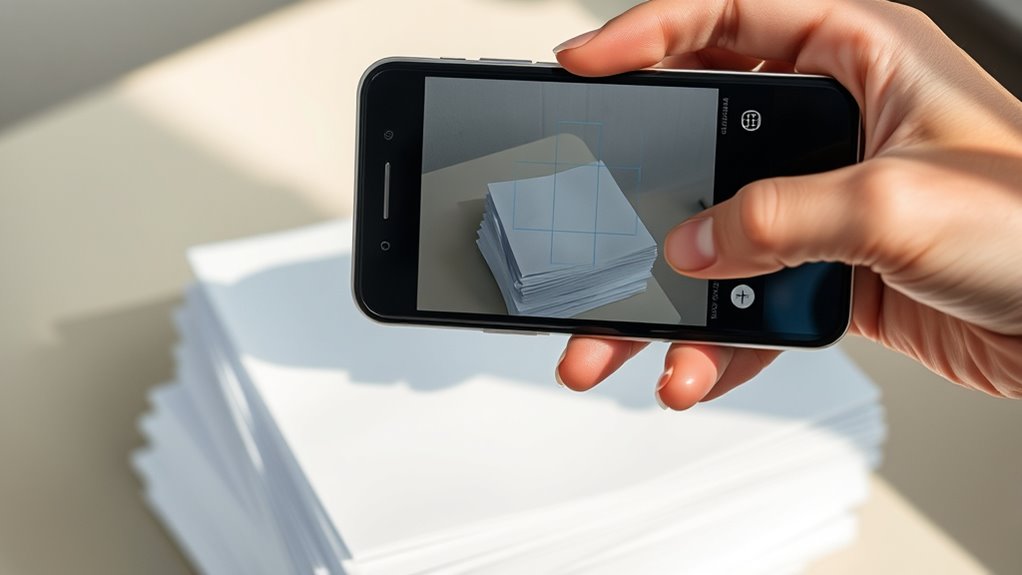
When you start scanning, pay attention to your environment. Find a well-lit space to reduce shadows and glare that can compromise the clarity of your scan. Keep your phone steady while capturing images, or use a tripod or stable surface if available. Most scanning apps have grid overlays or alignment guides to help you position your document correctly. Once you’ve captured the image, the app will typically auto-correct perspective distortions and enhance the text’s readability. This ensures your digital copies look professional and are easy to read later.
Document organization is essential when digitizing multiple files. Before you begin, set up a system for naming and categorizing your scans. Many mobile apps let you add tags, labels, or folders directly within the app, making it easier to locate specific files later. As you scan, group related documents together and save them in a logical order. For example, you might create folders for receipts, contracts, or personal documents. Consistent naming conventions also help; include dates or keywords that make sense to you. These simple steps save time searching through files later and keep your digital storage neat.
Using mobile app tips can elevate your scanning process. Explore your app’s features—many offer options to crop, rotate, or adjust contrast to improve scan quality. Use batch scanning if available; it allows you to capture multiple pages quickly without stopping. Some apps also have automatic text recognition (OCR), which converts images into editable, searchable text. This feature is especially useful for lengthy documents or notes. Additionally, enable cloud integration if your app supports it, so your scans are automatically backed up and accessible from any device. Regularly updating your app ensures you get the latest features and security improvements. Incorporating digital organization strategies can further enhance your workflow and keep your files easily accessible.
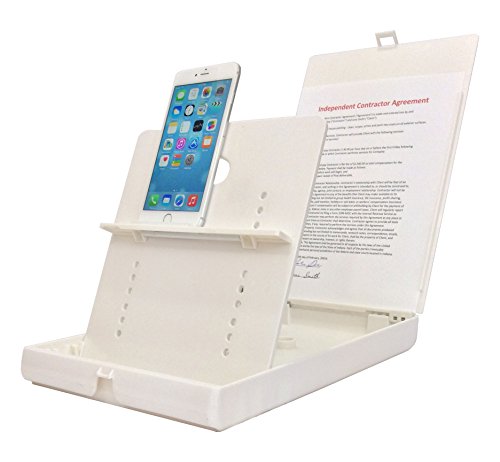
ScanJig – Document and Photo Scanning Stand – Phones & Tablets. Adjustable, Precise Image Alignment. iPhone Scanner Stand. Accurate Text Recognition (OCR)
WORK FROM ANYWHERE ACCESSORY – Scan and then email, copy, fax or upload to the cloud. This rugged…
As an affiliate, we earn on qualifying purchases.
As an affiliate, we earn on qualifying purchases.
Frequently Asked Questions
Can I Scan Multiple Pages Into One PDF?
Yes, you can scan multiple pages into one PDF. Use your phone’s scanning app to perform multi-page scanning, capturing each page in sequence. After scanning, look for an option to merge pages into a single PDF, often called PDF merging or multi-page scan mode. This way, you create a seamless, organized document without needing separate files, making sharing and storage much easier.
What Is the Best App for Scanning Documents?
If you want the best app for scanning documents, consider Adobe Scan or Microsoft Office Lens. These apps excel at document organization, automatically cropping, and enhancing scans, making them perfect for keeping your files neat. They’re also compatible across various devices, so you can easily access and manage your PDFs anywhere. Choose one based on your preferred ecosystem, and you’ll streamline your scanning process effortlessly.
How Do I Improve Scan Quality in Low Light?
To improve scan quality in low light, adjust your phone’s lighting by increasing exposure or using a flashlight if available. Keep your phone steady by stabilizing your camera, either by using a tripod or resting your hands on a stable surface. Ensuring proper lighting and camera stabilization helps reduce blurriness and enhances clarity, giving you a clearer, more professional-looking scan even in dim conditions.
Are There Privacy Concerns When Scanning With My Phone?
While scanning with your phone, there are subtle privacy risks you should consider. Your device captures sensitive information, making data security essential. Be mindful of where you store or share scanned documents, especially on untrusted networks or apps. Using secure, reputable apps and enabling encryption helps safeguard your data. By staying vigilant, you can enjoy the convenience of scanning without compromising your privacy or exposing yourself to unnecessary data security concerns.
Can I Edit or Annotate Scanned Documents on My Phone?
Yes, you can edit or annotate scanned documents on your phone using various apps. Many programs let you add digital signatures, highlight text, or insert notes directly into the file. Once you finish, you can securely save the edited document in your preferred document storage solution, ensuring your files stay organized and accessible. This makes managing your scanned documents easier and more efficient, right from your mobile device.

Vimose Phone Tripod & Selfie Stick with Remote, Portable, Lightweight for Video Recording Vlog, Extendable Travel Tripod Stand Compatible with iPhone Android, Black, 62"
Portable All-in-One Selfie Stick Tripod: Vimose newly designed all-in-one tripod combines a phone tripod and selfie stick. It…
As an affiliate, we earn on qualifying purchases.
As an affiliate, we earn on qualifying purchases.
Conclusion
Now that you know how to turn your phone into a trusty scanner, you hold the key to endless possibilities. Every document you capture becomes a scroll of opportunity, a bridge connecting you to your goals. Just like a lighthouse guides ships safely home, your phone guides your ideas to reality. Embrace this simple tool, and watch how easily your world transforms—one scan at a time—lighting your path forward.

Plustek Mobile Scanner S410 Plus – Portable Sheet-Fed Document Scanner – for Windows 7 / 8 / 10 / 11, Featuring Button-Free Scanning with Included OCR Software
Digitize on the Go – Connect to your computer via BUS powered, eliminating the need for batteries or…
As an affiliate, we earn on qualifying purchases.
As an affiliate, we earn on qualifying purchases.

ScanSnap iX2500 Wireless or USB High-Speed Cloud Enabled Document, Photo & Receipt Scanner with Large 5" Touchscreen and 100 Page Auto Document Feeder for Mac or PC, Black
OUR MOST ADVANCED SCANSNAP. Large touchscreen, fast 45ppm double-sided scanning, 100-sheet document feeder, Wi-Fi and USB connectivity, automatic…
As an affiliate, we earn on qualifying purchases.
As an affiliate, we earn on qualifying purchases.