To rip DVDs to your computer, start by choosing reliable ripping software that supports formats like MP4 or MKV. Insert the DVD into your drive, launch the program, and select the content you want to copy—such as the main movie or specific chapters. Adjust the quality settings if needed, choose a save location, and begin the ripping process. If you’re curious about detailed steps and tips, continue exploring the process to master your digital collection.
Key Takeaways
- Insert the DVD into your computer’s disc drive and launch compatible DVD ripping software.
- Select the desired output format (e.g., MP4, MKV) and quality settings within the software.
- Choose to rip the entire disc or specific titles and chapters as needed.
- Set a destination folder with adequate storage space for the digital files.
- Initiate the ripping process and wait for confirmation that the digital copy has been successfully saved.
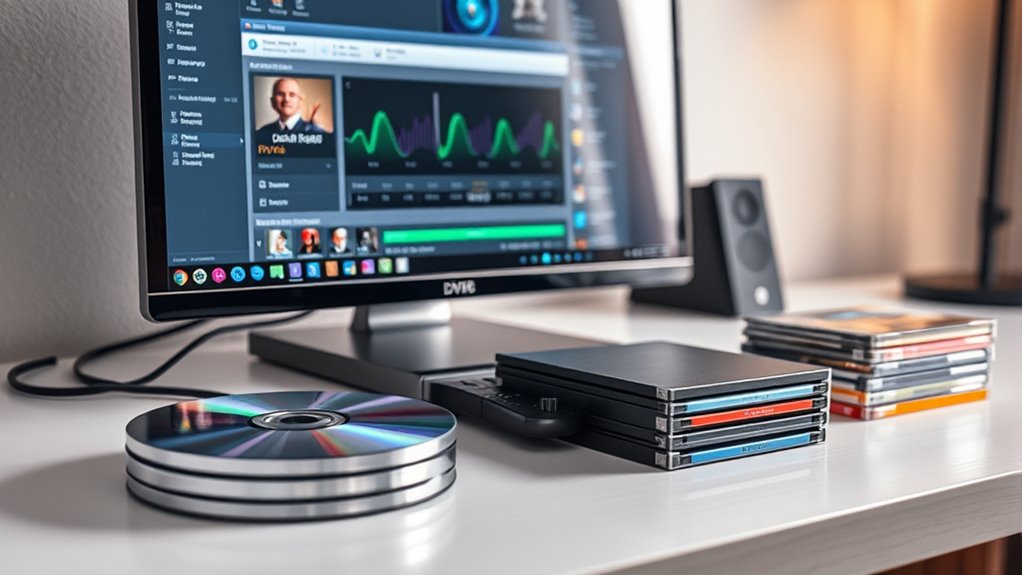
Ripping DVDs allows you to create digital copies of your favorite movies for easier storage and access. Whether you’re looking to free up physical space or want the convenience of watching your movies on multiple devices, using the right DVD ripping software makes all the difference. The process is straightforward when you choose software that’s reliable and easy to navigate. Many programs support a variety of digital storage options, giving you flexibility in how you save and organize your media library.
Ripping DVDs simplifies storage and access with reliable, user-friendly software supporting various digital formats and storage options.
First, you’ll need to select DVD ripping software suited to your needs. There are plenty of options available, ranging from free tools to premium programs with advanced features. Look for software that supports the formats you prefer, such as MP4, MKV, or AVI, and *guarantees* good quality output. Once you’ve installed your chosen program, insert your DVD into your computer’s disc drive. Launch the software, and it will typically detect the disc automatically. From there, you can choose your desired output format and quality settings.
Most DVD ripping software offers options to select specific chapters or titles, so you can rip just the movie or include extras, menus, and trailers if you want. Before starting, decide on your preferred digital storage options. You might want to save the files directly to your hard drive, an external drive, or a cloud storage service for easy access across different devices. Make sure the destination folder has enough space to accommodate the movie file, especially if you’re ripping in high quality or full-length formats.
Additionally, understanding video compression can help you optimize the balance between file size and quality during the ripping process. Once you’ve set your preferences, initiate the ripping process. Depending on your computer’s speed and the size of the DVD, this can take anywhere from a few minutes to longer. Keep an eye on the progress bar and wait until the software confirms the file has been successfully saved. Once done, you can delete the original DVD if you’d like, knowing you still have a digital copy.
Having digital copies of your DVDs allows for easier access and sharing. You can organize your movies into folders, categorize by genre, or create playlists for your entertainment setup. Using digital storage options also protects your collection from scratches or damage to physical discs. With the right DVD ripping software and a bit of setup, you can seamlessly convert your legacy DVDs into high-quality digital files, making your movie library more portable and manageable.
Top picks for "dvds computer legacy"
Open Amazon search results for this keyword.
As an affiliate, we earn on qualifying purchases.
Frequently Asked Questions
Is Ripping DVDS Legal in My Country?
You might be permitted to rip DVDs depending on your country’s copyright laws and regional restrictions. In some places, making copies for personal use is allowed, but in others, it’s illegal regardless of intent. Check your local laws before ripping DVDs, as unauthorized copying could lead to penalties. Always stay informed about regional restrictions to ensure you’re acting within legal boundaries and avoid potential legal issues.
What Are the Best Software Options for Ripping DVDS?
Imagine cracking open a treasure chest—your best software options for ripping DVDs include MakeMKV, HandBrake, and DVDFab. These tools efficiently navigate DVD encryption, transforming your discs into digital files. They offer impressive ripping speed, so you won’t be waiting forever. MakeMKV excels at handling encrypted discs, while HandBrake provides user-friendly customization. DVDFab combines speed with advanced features, making your digital library a swift, secure escape from physical limitations.
How Do I Improve the Quality of Ripped DVD Files?
To improve the quality of your ripped DVD files, focus on adjusting video compression settings to minimize quality loss, and choose a high bitrate for clearer images. Additionally, enhance audio quality by applying audio enhancement features like noise reduction and equalization. Using software that allows these adjustments helps maintain original clarity. Always select the best possible output format and settings to ensure your digital copies look and sound great.
Can I Rip Copy-Protected DVDS?
You can rip copy-protected DVDs by using software that bypasses encryption and respects digital rights. These tools often include decryption features that allow you to circumvent encryption, making it possible to extract your content. Keep in mind, though, that bypassing encryption may be illegal in some regions, so verify you’re aware of local laws before attempting to rip protected DVDs. Always use reputable software to avoid malware or legal issues.
What Storage Space Do I Need for My Digital Library?
You’ll need enough digital storage to hold your entire library, considering file sizes and future additions. Use digital storage solutions like external hard drives or cloud storage for flexibility. To save space, apply file compression techniques without sacrificing quality. This way, you optimize your digital library, making it easier to access and manage. Regularly review your storage to guarantee you have enough room for new rips and updates.
Conclusion
Now that you’ve learned how to rip DVDs, it’s funny how a simple trick can turn your old discs into digital treasures. Just like discovering that forgotten movie tucked away on a dusty shelf, converting DVDs to digital makes your collection more accessible. With these tools, you’ll find yourself watching your favorite films anytime, anywhere—proof that sometimes, a small change can unexpectedly make a big difference. Happy ripping, and enjoy your newfound digital library!