
To effectively remove malware from your PC, first identify signs like system slowdowns, unexpected pop-ups, or file issues. Disconnect from the internet, back up important data, and boot into Safe Mode. Use Windows Security tools or trusted third-party antivirus software to scan and eliminate threats. Keep your system and security programs updated and follow best practices like avoiding suspicious links. Continuing will guide you through detailed steps to restore your PC’s security and performance.
Key Takeaways
- Disconnect your PC from the internet and back up important files before starting removal.
- Boot into Safe Mode to prevent malware from interfering with removal tools.
- Use Windows Security or reputable third-party antivirus software for comprehensive malware scans.
- Keep your system and security software updated to detect and block the latest threats.
- Implement preventative measures like strong passwords and cautious browsing to reduce future infections.

McAfee Total Protection 5-Device | AntiVirus Software 2026 for Windows PC & Mac, AI Scam Detection, VPN, Password Manager, Identity Monitoring | 1-Year Subscription with Auto-Renewal | Download
DEVICE SECURITY – Award-winning McAfee antivirus, real-time threat protection, protects your data, phones, laptops, and tablets
As an affiliate, we earn on qualifying purchases.
As an affiliate, we earn on qualifying purchases.
Recognizing the Signs of Malware Infection
Malware infections often show themselves through noticeable changes in your computer’s behavior. You might notice your system running much slower than usual or programs opening and closing automatically. Unexpected pop-up ads could start appearing, even when you’re not browsing online. Files might become corrupted or disappear without explanation, and your browser settings could change without your input. You might also see strange error messages or experience frequent crashes. Sometimes, your antivirus software may flag suspicious activity or become disabled altogether. These signs point to potential malware presence, so staying alert helps you catch infections early. Recognizing these unusual behaviors allows you to act quickly and prevent further damage to your system.
Windows Defender offline tool
As an affiliate, we earn on qualifying purchases.
As an affiliate, we earn on qualifying purchases.
Preparing Your System for Malware Removal
Before removing malware from your system, it is vital to prepare your PC to guarantee a smooth and safe process. First, disconnect your device from the internet to prevent malware from spreading or downloading additional threats. Next, back up important files to an external drive or cloud storage, ensuring you don’t lose critical data if something goes wrong. Disable any active antivirus or security software temporarily, so they don’t interfere with the removal process, but remember to re-enable them afterward. Close all unnecessary applications and save your work. Also, consider booting into Safe Mode, which loads only essential system files, reducing the chances of malware interfering with removal tools. Proper preparation minimizes risks and increases the chances of a successful malware removal.
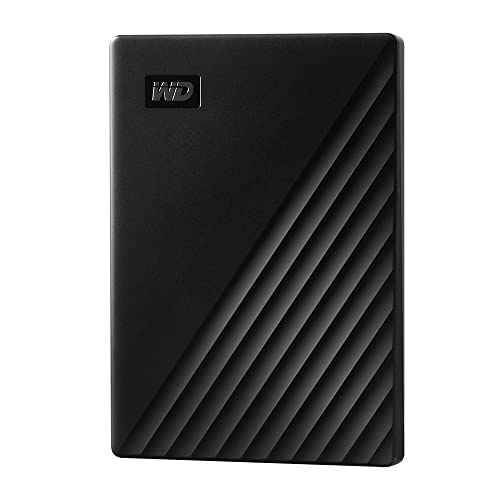
WD 2TB My Passport, Portable External Hard Drive, Black, backup software with defense against ransomware, and password protection, USB 3.1/USB 3.0 compatible – WDBYVG0020BBK-WESN
Slim durable design to help take your important files with you
As an affiliate, we earn on qualifying purchases.
As an affiliate, we earn on qualifying purchases.
Using Built-in Windows Tools to Detect and Remove Malware
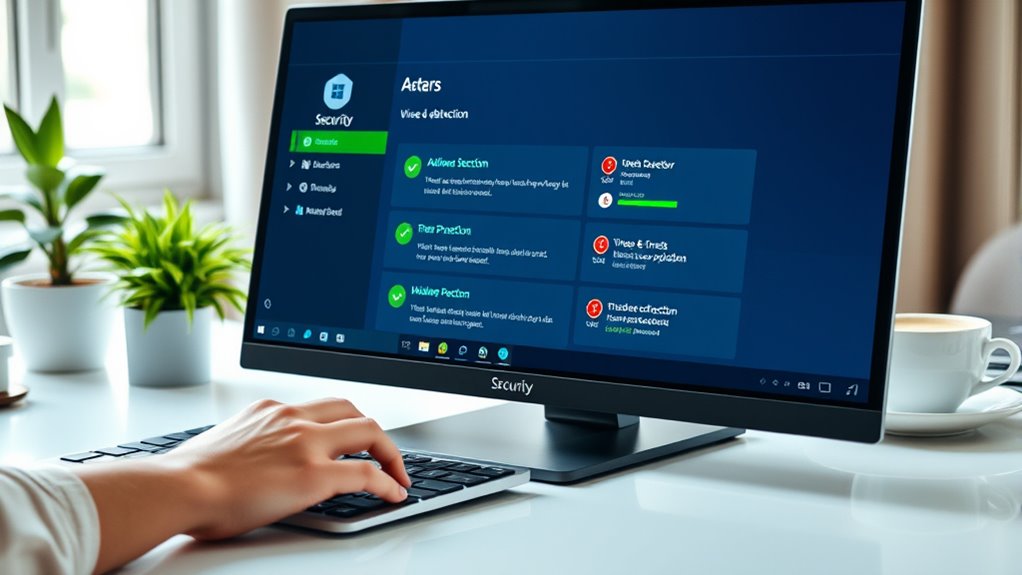
Windows includes built-in tools that can help you detect and remove malware without the need for third-party software. The Windows Security app, formerly Windows Defender, offers real-time protection, scans, and threat removal options. To start, open Windows Security from your Start menu, then select “Virus & threat protection.” Click “Quick scan” to check common infection points or choose “Full scan” for a thorough search. Windows Defender Offline is another powerful tool—you can run it to detect hard-to-find malware by restarting your PC into a specialized environment. Regularly updating Windows ensures these tools have the latest threat definitions. While these built-in tools are effective for many infections, they work best when combined with good security habits and, if needed, further measures described in upcoming sections.
trusted malware removal tools
As an affiliate, we earn on qualifying purchases.
As an affiliate, we earn on qualifying purchases.
Employing Third-Party Antivirus and Anti-Malware Software

When built-in tools aren’t enough to fully protect your PC, third-party antivirus and anti-malware programs can provide an extra layer of security. They often offer more extensive scanning, real-time protection, and faster updates to catch new threats. To select the right software, consider factors like detection rates, system impact, and user reviews. Once installed, run full system scans regularly to identify hidden malware. Many programs also include features like web filtering, email scanning, and ransomware protection. Keep your software updated to guarantee maximum effectiveness against emerging threats. Remember, relying solely on built-in tools might leave gaps in your defense. Using trusted third-party solutions helps you stay one step ahead of malware and keeps your PC safer.
- Choose reputable software with high detection scores
- Schedule regular full-system scans
- Enable real-time protection features
- Keep the software updated consistently
Implementing Preventative Measures to Protect Your PC

While third-party antivirus tools strengthen your defenses, adopting proactive habits can substantially reduce the risk of malware infection. Always keep your operating system and software updated to patch security vulnerabilities. Be cautious when opening email attachments or clicking on unfamiliar links, as these are common malware entry points. Use strong, unique passwords for different accounts, and enable two-factor authentication where possible. Avoid downloading files from untrusted sources and steer clear of suspicious websites. Regularly back up your important data to an external drive or cloud service. Limit your browsing to reputable sites and avoid clicking on pop-up ads. These habits, combined with your antivirus software, create a layered defense that keeps malware at bay and safeguards your PC.
Frequently Asked Questions
How Often Should I Scan My PC for Malware?
You should scan your PC for malware at least once a week to keep it secure. If you frequently download files or visit risky websites, consider scanning more often, like daily. Make sure your antivirus software is always updated to detect the latest threats. Regular scans help catch malware early, preventing data theft, slowdowns, or system crashes. Staying proactive guarantees your PC stays safe and runs smoothly.
Can Malware Infections Affect My Mobile Devices?
Yes, malware infections can definitely affect your mobile devices. Just like your PC, your smartphone or tablet runs apps and connects to the internet, making them vulnerable to malware. You might notice strange behavior, slow performance, or unexpected pop-ups. To protect your devices, keep software updated, avoid suspicious links, and install reputable security apps. Regular scans and cautious browsing help prevent malware from sneaking in and causing trouble.
Is It Safe to Remove Malware Manually?
Removing malware manually can be safe if you have the right knowledge and tools, but it’s risky if you’re inexperienced. You might accidentally delete important files or miss hidden malware, which could cause further issues. To stay safe, back up your data first, use reputable tools, and follow trusted guides carefully. When in doubt, it’s better to consult a professional to ensure complete removal without damaging your system.
What Are the Best Practices for Backing up Before Malware Removal?
You should back up your important files before removing malware to prevent data loss. Use an external hard drive or cloud storage to save documents, photos, and essential data. Confirm your backups are complete and verify their integrity. Avoid backing up infected files, as they could spread malware. Once secured, disconnect from the internet, update your security software, and proceed with malware removal. This way, your data stays safe throughout the process.
How Can I Recover Files Lost Due to Malware?
You can recover files lost due to malware by restoring from backups, utilizing file recovery software, and checking cloud storage. First, restore files from your recent backup if available. Next, run reliable file recovery tools to scan your system for deleted or corrupted files. Finally, check your cloud services or email attachments for any copies. Regular backups, updated recovery tools, and cloud storage help guarantee you recover your files efficiently.
Conclusion
By following these steps, you can effectively remove malware and protect your PC. For instance, imagine your computer suddenly slows down and displays strange pop-ups. Running a thorough scan with trusted software identified and eliminated a hidden malware threat. Staying vigilant and implementing preventative measures guarantees your system stays secure. Remember, quick action and regular maintenance are your best defenses against future infections, keeping your digital life safe and smooth.