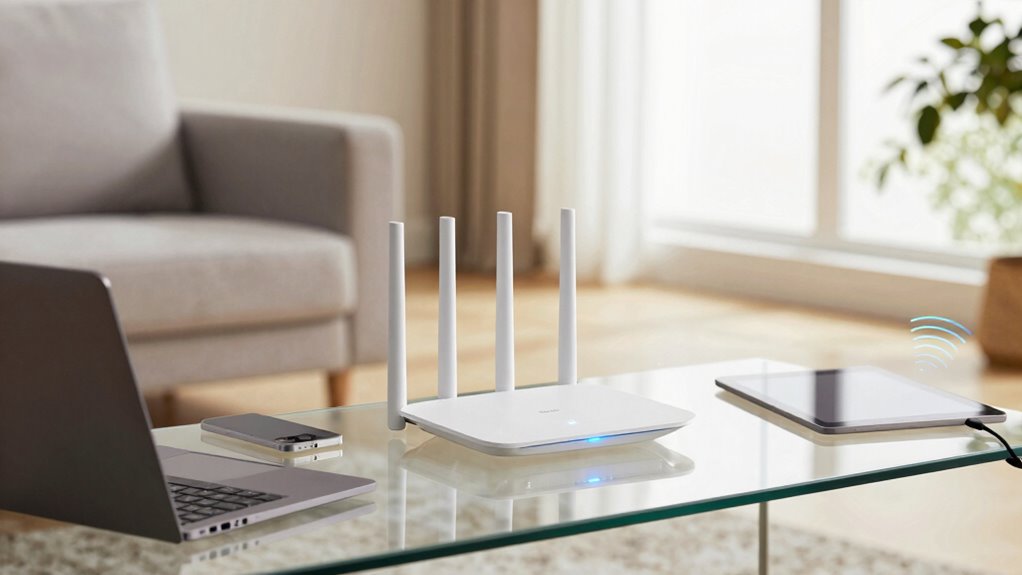
To make your home Wi-Fi feel faster, start by placing your router in a central, elevated spot away from thick walls, metal objects, and electronics like microwaves. Upgrade to a dual-band router supporting 5 GHz and select less crowded channels for better performance. Regularly update your firmware and reboot the router to keep it running smoothly. Using extenders or mesh networks can also improve coverage and eliminate dead zones. Keep exploring for more tips to boost your Wi-Fi speed even further.
Key Takeaways
- Optimize router placement in a central, elevated, and unobstructed location to improve signal coverage.
- Upgrade to a dual-band router supporting 5 GHz to reduce congestion and increase speed.
- Select less crowded Wi-Fi channels through router settings to minimize interference.
- Regularly update router firmware and reboot to ensure optimal performance.
- Use Wi-Fi extenders or mesh networks to eliminate dead zones and enhance coverage.
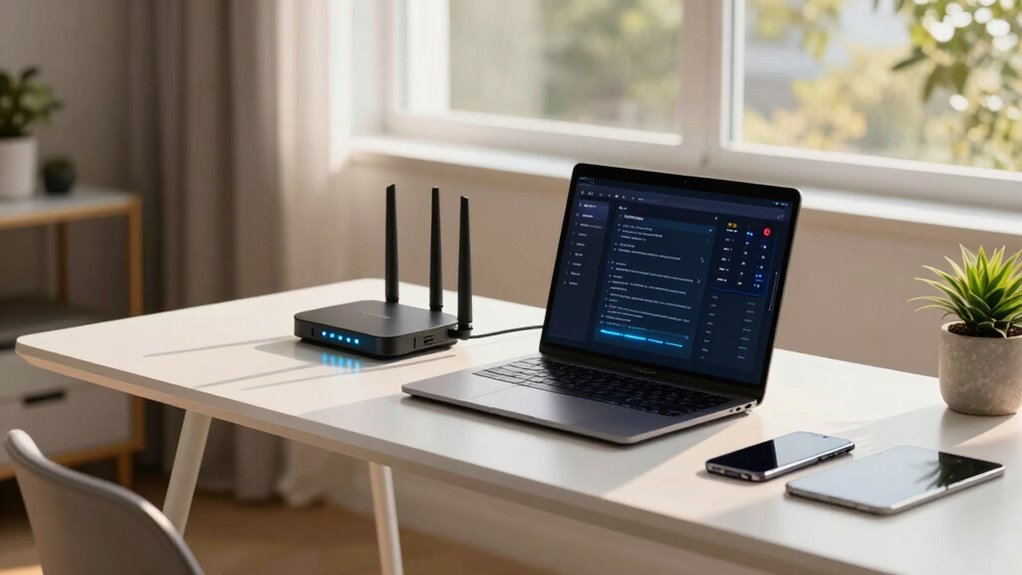
A slow home Wi-Fi connection can quickly frustrate your daily activities, but there are simple steps you can take to boost its speed and responsiveness. One of the main culprits behind sluggish Wi-Fi is wireless interference, which occurs when signals from other devices or networks disrupt your connection. To minimize this, start by choosing the right router placement. Position your router in a central location, elevated off the ground, and away from thick walls, metal objects, and electronic devices like microwaves and cordless phones. These can block or weaken the signal, leading to dead zones and slow speeds. Keeping your router out in the open helps guarantee that the wireless signal radiates evenly throughout your space.
Another key step is to optimize your router’s placement. Instead of hiding it behind furniture or placing it on the floor, set it on a shelf or a high surface. This improves the line of sight and allows the Wi-Fi signals to spread more effectively. Also, avoid placing your router near other electronics that emit electromagnetic interference, as this can cause signal disruptions. If possible, position the router away from large metal objects, mirrors, or thick brick walls which can reflect or absorb wireless signals.
Wireless interference doesn’t just come from physical objects; neighboring Wi-Fi networks can also cause congestion, especially if you live in a densely populated area. Many routers transmit on the 2.4 GHz band, which is crowded and prone to interference. Upgrading to a dual-band router that supports the 5 GHz band can substantially reduce interference because this frequency is less congested and offers faster speeds over shorter distances. For added benefit, select a less crowded channel within the 2.4 GHz or 5 GHz band through your router’s settings to further minimize interference from neighboring networks.
Regularly updating your router’s firmware can also help improve performance and security, making sure you have the latest optimizations and bug fixes. Consider rebooting your router periodically to clear out any temporary glitches that could slow down your connection. If you still experience persistent issues, adding Wi-Fi extenders or mesh networks can help spread the coverage more evenly and eliminate dead zones. Ultimately, paying attention to wireless interference and router placement can dramatically improve your Wi-Fi experience, making your connection feel faster and more reliable every day.
dual band Wi-Fi router supporting 5 GHz
As an affiliate, we earn on qualifying purchases.
As an affiliate, we earn on qualifying purchases.
Frequently Asked Questions
How Often Should I Upgrade My Wi-Fi Router?
You should consider upgrading your Wi-Fi router every 3 to 5 years to maintain ideal Wi-Fi speed. Routers have a limited lifespan, and technology advances quickly, making older models less efficient. If you notice slower speeds, frequent disconnects, or your device struggles to keep up, it’s a good sign your router’s time is up. Upgrading guarantees you benefit from the latest features and improved performance.
Can Using Multiple Devices Slow Down My Wi-Fi?
Yes, using multiple devices can slow down your Wi-Fi, especially if they’re all streaming, gaming, or downloading simultaneously. To keep things running smoothly, you can prioritize devices with device prioritization and manage bandwidth effectively. This way, your essential devices get the speed they need, while less critical ones don’t hog bandwidth. Managing these settings helps optimize your Wi-Fi and keeps your connection faster and more reliable.
Is It Necessary to Change My Wi-Fi Password Regularly?
Changing your Wi-Fi password regularly isn’t strictly necessary, but it enhances password security and hacking prevention. If you notice suspicious activity or have shared your password with many people, updating it keeps unauthorized users out. Regularly changing your password also encourages strong, unique passwords, making it harder for hackers to access your network. Maintaining good password security is a simple yet effective way to protect your home Wi-Fi from potential threats.
What Is the Best Placement for My Wi-Fi Router?
You should place your Wi-Fi router centrally in your home to maximize coverage, avoiding walls and metal objects that cause signal interference. Keep it elevated on a shelf or high on a wall, not on the floor. While sleek near a window might seem ideal, it can weaken your signal with outside interference. Good router placement balances accessibility and minimal interference, ensuring faster, more reliable Wi-Fi throughout your space.
How Do I Identify if My Wi-Fi Is Being Hacked?
To identify if your Wi-Fi is being hacked, look for signs of unauthorized access, like unfamiliar devices connected to your network. Check your router’s admin panel for unknown IP addresses or devices. Confirm your network uses strong encryption like WPA3 or WPA2. If you notice unusual activity or slow speeds, it could indicate hacking. Regularly changing your password and updating firmware helps protect against unauthorized access.
Wi-Fi extender for home coverage
As an affiliate, we earn on qualifying purchases.
As an affiliate, we earn on qualifying purchases.
Conclusion
With these tips, your Wi-Fi will feel faster than a rocket soaring through the stratosphere! Say goodbye to frustrating lag and buffering — your connection will be so lightning-fast, you’ll swear you’ve gained some secret internet superpower. Prepare to stream, game, and browse at a speed that makes other networks look like dial-up. Get ready to dominate your digital world with a Wi-Fi setup so quick, even the internet will be jealous!
mesh Wi-Fi system for large homes
As an affiliate, we earn on qualifying purchases.
As an affiliate, we earn on qualifying purchases.
Wi-Fi channel analyzer tool
As an affiliate, we earn on qualifying purchases.
As an affiliate, we earn on qualifying purchases.