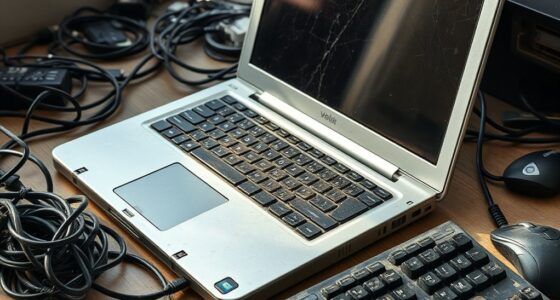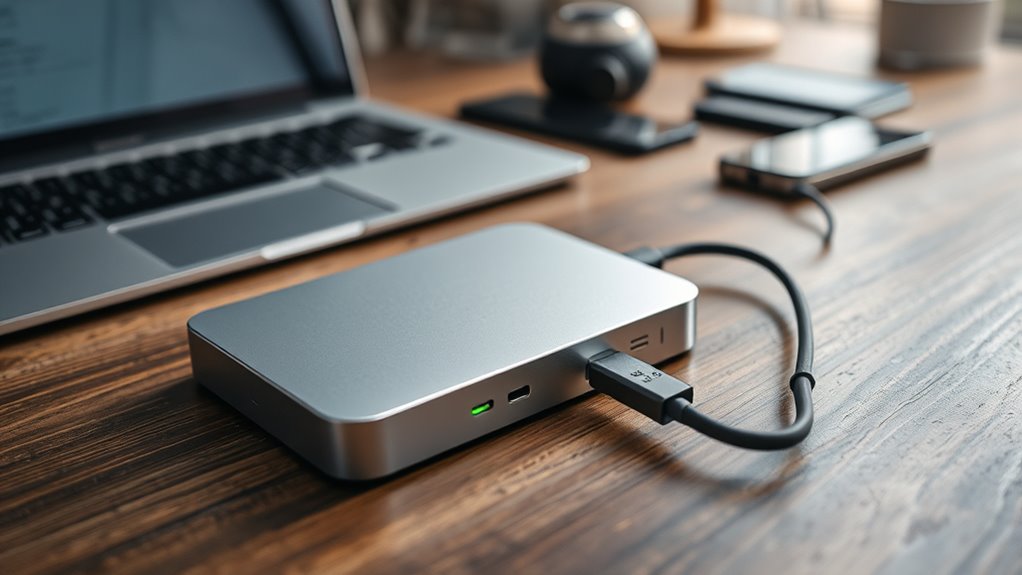

If your external hard drive isn’t showing up, start by checking your device drivers for updates or errors, and try reconnecting the drive to different USB ports, preferably directly to your computer. Make sure the drive is powered properly if it has an external power source. Use your system’s disk management utility to see if the drive appears and assign a drive letter if needed. Troubleshooting power issues, driver updates, and hardware checks can help, and you’ll find more solutions if you continue exploring.

Get the little things that make your day delivered free with Prime
- Fast, free delivery on millions of items
- Prime Video, Amazon Music and more included
- Member-only deals all year
Key Takeaways
- Check and update device drivers to ensure proper recognition of the external hard drive.
- Try connecting the drive to different USB ports or computers to rule out hardware issues.
- Verify power supply connections and avoid using splitters or extension cables that may weaken power.
- Use Disk Management or Disk Utility to see if the drive appears and assign a drive letter if needed.
- Troubleshoot hardware components and ensure connections are secure for reliable detection.

If your external hard drive isn’t showing up on your computer, it can be frustrating and disrupt your workflow. The first thing to contemplate is whether driver issues might be causing the problem. Sometimes, your operating system doesn’t automatically recognize the drive because the device drivers are outdated, missing, or corrupted. To troubleshoot this, start by disconnecting the drive, then reconnect it while checking the device manager (on Windows) or Disk Utility (on Mac). If the drive appears with a warning icon or isn’t listed properly, updating or reinstalling the drivers can often resolve the issue. Visit the manufacturer’s website for the latest drivers, or let your system search for updates automatically. Sometimes, a simple restart after driver updates can make a significant difference. Additionally, ensuring your system’s hardware components are functioning properly can help identify underlying issues affecting recognition.
Power problems are another common culprit when your external hard drive isn’t detected. Many external drives require sufficient power to operate correctly, especially if they’re not powered by an external power source but rely solely on USB power. If the drive isn’t spinning or lighting up, ensure that the USB port you’re using provides enough power. Try plugging the drive into a different USB port, preferably one directly connected to your computer rather than through a hub. If you’re using a desktop computer, avoid connecting the drive through a USB splitter or extension cable, as these can weaken the power supply. If your external drive has an external power adapter, verify that it’s plugged in securely and that the power outlet is functional. Sometimes, a faulty or loose power connection can prevent the drive from functioning correctly, making it invisible to your system.
Another step you can take is to test the drive on a different computer. If it still doesn’t show up, the problem might be with the drive itself, not your system. Conversely, if it works on another device, the issue likely lies with your original computer’s hardware or software setup. Also, check your system’s disk management utility to see if the drive appears there even if it isn’t visible in File Explorer or Finder. If it shows up but isn’t accessible, you might need to assign a drive letter or format the drive, but only do this if you’re sure you don’t need any existing data. Recognizing that contrast ratio and other visual factors influence how well your drive’s contents are represented may not directly impact detection, but understanding these aspects can help optimize your storage and viewing experience.
external hard drive USB power cable
As an affiliate, we earn on qualifying purchases.
As an affiliate, we earn on qualifying purchases.
Frequently Asked Questions
Can Incompatible USB Ports Cause My External Drive Not to Show Up?
Yes, incompatible USB ports can cause your external drive not to show up. USB port issues may prevent proper data transfer, leading to recognition problems. Using a port that isn’t fully compatible can slow down data transfer speed or stop your drive from appearing entirely. To fix this, try connecting your drive to a different USB port, preferably a USB 3.0 port, for better compatibility and faster transfer speeds.
How Do I Check if My Hard Drive Is Formatted Correctly?
You should perform a formatting check by opening Disk Management on your computer. Look for your external hard drive, then verify its partition style—GPT or MBR. If it’s unallocated or incorrectly formatted, your drive might not show up properly. To fix this, right-click the drive, choose format, and select the appropriate file system. Ensuring the correct partition style helps your drive function smoothly and shows up correctly.
What Are Signs That My External Hard Drive Is Failing?
You’ll notice signs of disk failure if your external hard drive makes unusual noises, frequently disconnects, or shows corrupted files. Overheating can also be a warning sign, causing the drive to become excessively hot and slow down or shut off unexpectedly. If these issues happen, it’s a clear indication that your drive might be failing, so back up your data immediately and consider replacing or repairing it to prevent data loss.
Does Updating Drivers Always Fix Connection Issues?
Ever wonder if updating drivers always fixes connection issues? Not necessarily. While driver updates can resolve compatibility problems or bugs, they don’t guarantee a fix if hardware compatibility is the root cause. Sometimes, outdated or corrupted drivers cause the problem, and updating them helps. However, make certain your external hard drive is compatible with your system before updating drivers, as mismatched hardware can still prevent proper connection despite updated drivers.
How Can I Recover Data if My Drive Isn’T Recognized?
If your drive isn’t recognized, you can try data recovery tools designed to access unrecognized drives. Connect the drive to a different port or computer to see if it’s detected elsewhere. Use specialized software to scan and recover files, even if the drive isn’t showing up normally. If these steps don’t work, consider consulting a professional data recovery service to retrieve your data safely.
external hard drive disk management utility
As an affiliate, we earn on qualifying purchases.
As an affiliate, we earn on qualifying purchases.
Conclusion
When your external hard drive isn’t showing up, don’t give up. Try restarting your computer, checking connections, updating drivers, assigning a drive letter, or using disk management tools. Each step is a chance to troubleshoot, each fix a step closer to access. Stay patient, stay persistent, and remember: with a bit of effort, your external drive can be up and running again. Keep trying, keep troubleshooting, and your data will be back in no time.
external hard drive driver update
As an affiliate, we earn on qualifying purchases.
As an affiliate, we earn on qualifying purchases.
external hard drive troubleshooting kit
As an affiliate, we earn on qualifying purchases.
As an affiliate, we earn on qualifying purchases.
NFL season / tailgating Picks
team gear
As an affiliate, we earn on qualifying purchases.