
To boost your Wi-Fi signal without spending a dime, start by repositioning your router in a central, open, and elevated spot away from thick walls or metal objects. Clear any physical obstacles and limit interference from devices like microwaves or cordless phones. Keep your firmware updated and switch to less congested channels. Restart your router regularly and make certain your network security prevents bandwidth drain. For more tips, discover additional ways to optimize your Wi-Fi setup.
Key Takeaways
- Position your router in a central, open, and elevated location to improve coverage and reduce physical obstructions.
- Minimize interference by keeping the router away from electronic devices like microwaves and cordless phones.
- Regularly restart your router to clear glitches and maintain optimal performance.
- Adjust your Wi-Fi channel via the admin panel to less congested frequencies, such as channels 1, 6, or 11.
- Keep firmware updated and secure your network with strong passwords and encryption to ensure stable, efficient connections.
Reposition Your Router for Better Coverage

Repositioning your router can substantially improve your Wi-Fi coverage. Place it in a central location in your home to guarantee even signal distribution. Avoid hiding it in cabinets, closets, or behind large objects, as these block signals. Keep it elevated on a shelf or mounted on a wall to minimize interference from furniture and household items. Stay away from walls made of thick concrete or brick, which weaken signals. Position the router away from electronic devices like cordless phones, microwave ovens, and Bluetooth gadgets that can cause interference. By optimizing its placement, you’ll reduce dead zones and boost overall coverage. A simple move can make a noticeable difference in Wi-Fi speed and reliability throughout your space.
Clear Obstacles and Reduce Interference
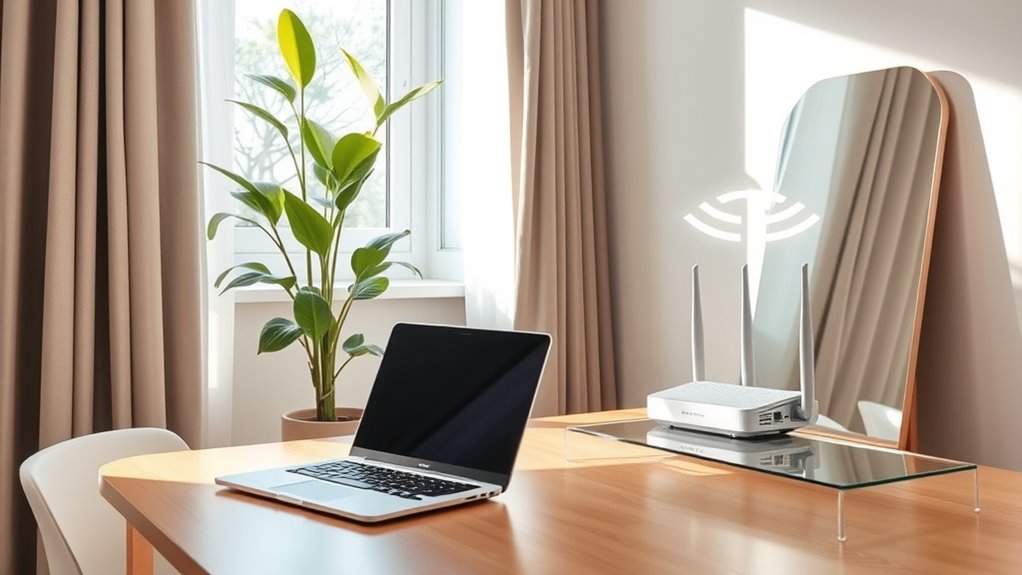
Obstacles like walls, furniture, and large appliances can substantially block or weaken your Wi-Fi signal. To improve your connection, minimize interference sources and clear the path for your router’s signal.
- Keep your router away from microwaves, cordless phones, and Bluetooth devices, which can cause interference.
- Position your router in an open, central spot, avoiding cramped spaces or hidden corners.
- Avoid placing your router near metal objects, mirrors, or thick walls that can reflect or absorb signals.
- Reduce electronic clutter around the router to prevent signal disruption.
Update Your Router’s Firmware
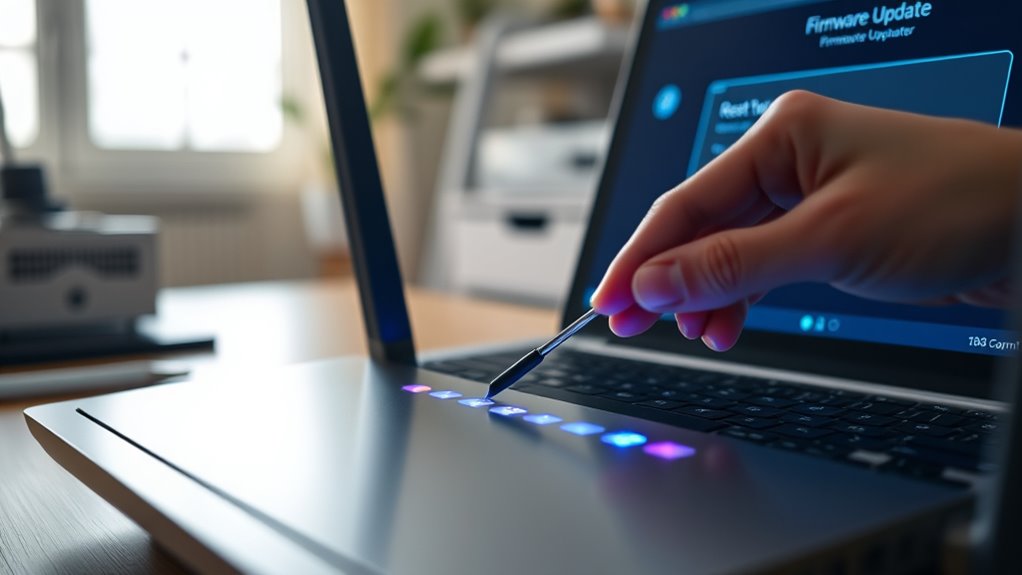
Keeping your Wi-Fi signal strong also involves ensuring your router runs smoothly with the latest updates. Firmware updates fix bugs, improve security, and often enhance performance. To update, log into your router’s admin panel—usually by typing its IP address into your browser. Check for available updates in the firmware section. If updates are available, follow the prompts to download and install them. Don’t turn off your router during this process, as interruptions can cause issues. Regularly updating your firmware keeps your network secure and guarantees superior performance. It can also resolve connectivity problems that might be limiting your signal strength. Make this a routine to maintain a fast, reliable Wi-Fi connection without spending a dime.
Change Your Wi-Fi Channel Settings
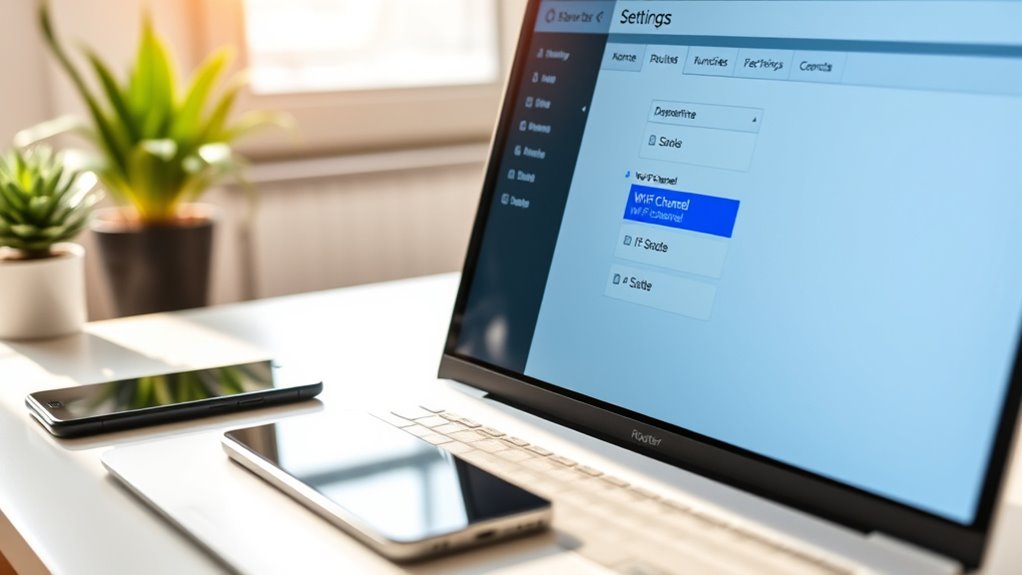
Changing your Wi-Fi channel settings can substantially reduce interference from nearby networks, leading to a stronger and more stable signal. Your router broadcasts on specific channels, and if many neighbors use the same one, congestion occurs. Switching to a less crowded channel can improve your connection quality. To do this, access your router’s admin panel and select a different channel within the 2.4 GHz or 5 GHz band.
Adjust your Wi-Fi channel to reduce interference, ensuring a stronger, more stable connection.
Consider these tips:
- Use tools like Wi-Fi analyzer apps to identify the least congested channels.
- Stick to channels 1, 6, or 11 in the 2.4 GHz band for ideal performance.
- For 5 GHz, experiment with different channels, as interference is less common.
- Regularly check for new interference if your environment changes.
Use a Wi-Fi Repeater or Extender (If Available)

Using a Wi-Fi repeater or extender can greatly enhance your signal, but placement is key. Make sure it’s positioned halfway between your router and the dead zone for the best results, and check compatibility before buying. Once set up, configuring it correctly ensures you get the most out of your extended coverage.
Optimal Placement Tips
To maximize your Wi-Fi coverage, placing a repeater or extender in the right location is essential. Position it halfway between your router and the area with weak signal, avoiding obstructions like thick walls or metal objects. Keep it elevated, such as on a shelf or table, to improve signal distribution. Make sure it’s not near devices that cause interference, like microwaves or cordless phones. Test different spots to find the best performance.
- Place it at a central point for even coverage
- Avoid hiding it behind furniture or inside cabinets
- Keep it away from large metal objects or mirrors
- Elevate it for better signal propagation
Compatibility Considerations
Before investing in a Wi-Fi repeater or extender, make certain it’s compatible with your existing router’s standards. Check your router’s specifications to identify its Wi-Fi band and protocol, such as 2.4 GHz or 5 GHz, and ensure the extender supports these same bands. Some extenders are dual-band, matching your router’s capabilities, while others may only work on one. Compatibility also includes security protocols; your extender should support WPA2 or WPA3 to maintain network security. Using incompatible devices can result in poor performance or connection issues. Confirming these details before purchasing or setting up helps guarantee smooth integration and ideal signal boosting. This step prevents frustration and ensures your extender effectively enhances your Wi-Fi coverage.
Setup and Configuration
Once you’ve confirmed your extender or repeater is compatible with your router, setting it up correctly is key to boosting your Wi-Fi signal. First, place the device within your router’s Wi-Fi range, ideally halfway between the router and the dead zone. Connect to the extender’s network and access its setup page via a web browser. Follow the on-screen instructions to connect it to your existing Wi-Fi network. Use the setup wizard to assign a name and password that match or complement your main network. Finally, test the signal strength in the new area. To optimize performance, consider these tips:
- Place the extender away from thick walls and electronics
- Keep firmware updated for better stability
- Use the same network name (SSID) for seamless switching
- Reposition if signal improvement stalls
Secure Your Network to Prevent Bandwidth Drain
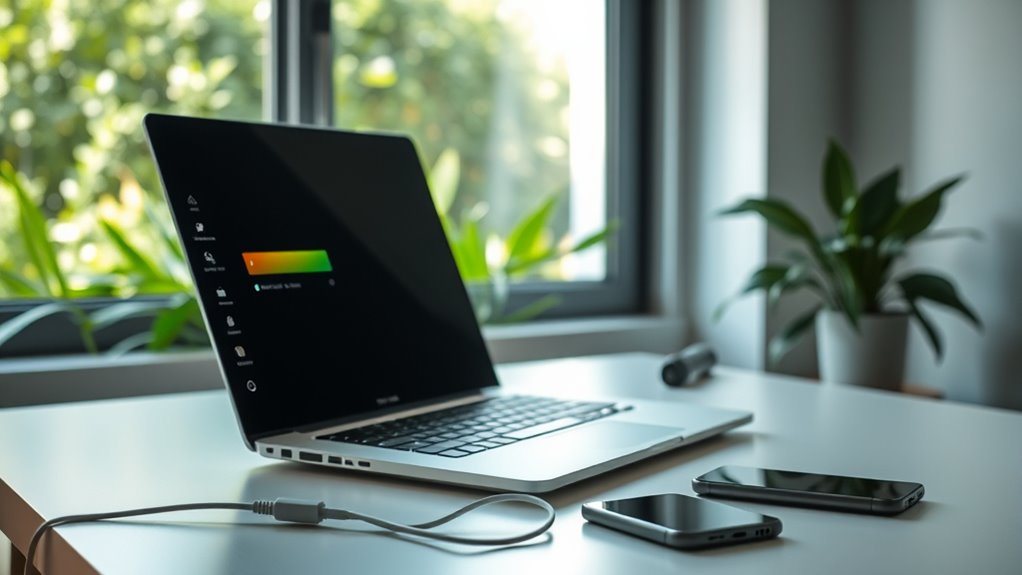
To keep your Wi-Fi running smoothly, you need to secure your network against unauthorized access. Changing default passwords, enabling proper encryption, and limiting device access help prevent bandwidth theft. Taking these steps guarantees your bandwidth stays focused on your devices, not freeloaders.
Change Default Passwords
Changing your default Wi-Fi password is a crucial step in securing your network and preventing unauthorized users from draining your bandwidth. Default passwords are easy for hackers to guess or find online, leaving your connection vulnerable. By creating a strong, unique password, you make it harder for intruders to access your network.
To improve security, consider:
- Using a mix of uppercase, lowercase, numbers, and symbols
- Avoiding common words or phrases
- Making it at least 12 characters long
- Updating your password regularly
These simple steps protect your bandwidth and keep your network safe. Remember, a strong password is your first line of defense against unauthorized access and bandwidth theft.
Enable Network Encryption
Have you enabled encryption on your Wi-Fi network? If not, you’re leaving your connection vulnerable to unauthorized users who can drain your bandwidth and slow your internet speed. To protect yourself, access your router’s settings and turn on WPA2 or WPA3 encryption—these are the most secure options. This process usually involves logging into your router’s admin panel through a web browser, then exploring the wireless security section. Once there, select the encryption method and create a strong password. Not only does this prevent neighbors or intruders from piggybacking on your network, but it also guarantees your data stays safe. Activating encryption is a simple step that considerably boosts your Wi-Fi’s performance and security.
Limit Device Access
After securing your Wi-Fi with strong encryption, it’s important to control which devices can connect. Limiting device access prevents unauthorized users from draining your bandwidth and slowing your connection. You can do this by accessing your router’s admin panel and setting up a device whitelist or blacklist. Regularly review connected devices to remove unfamiliar ones. Also, change your Wi-Fi password periodically to keep unwanted users out. Consider disabling WPS, which can be vulnerable, and setting up MAC address filtering for added security. This ensures only trusted devices connect, helping you maintain excellent speed.
- Enable MAC address filtering to restrict device access
- Regularly update your Wi-Fi password
- Remove unknown devices from your network
- Disable WPS for added security
Limit Background Devices and Applications

To improve your Wi-Fi signal, you should limit the number of background devices and applications that are actively using your network. Devices like smart home gadgets, printers, or streaming devices can consume bandwidth even when you’re not using them. Similarly, applications running in the background—such as automatic updates, cloud backups, or social media apps—can drain your bandwidth without your awareness. To optimize your connection, close unnecessary apps and pause background processes on your devices. Check your connected devices list regularly and disconnect or turn off those you don’t need. By reducing the number of active background devices and applications, you free up bandwidth, resulting in a stronger, more stable Wi-Fi signal for your primary activities.
Restart Your Router Regularly
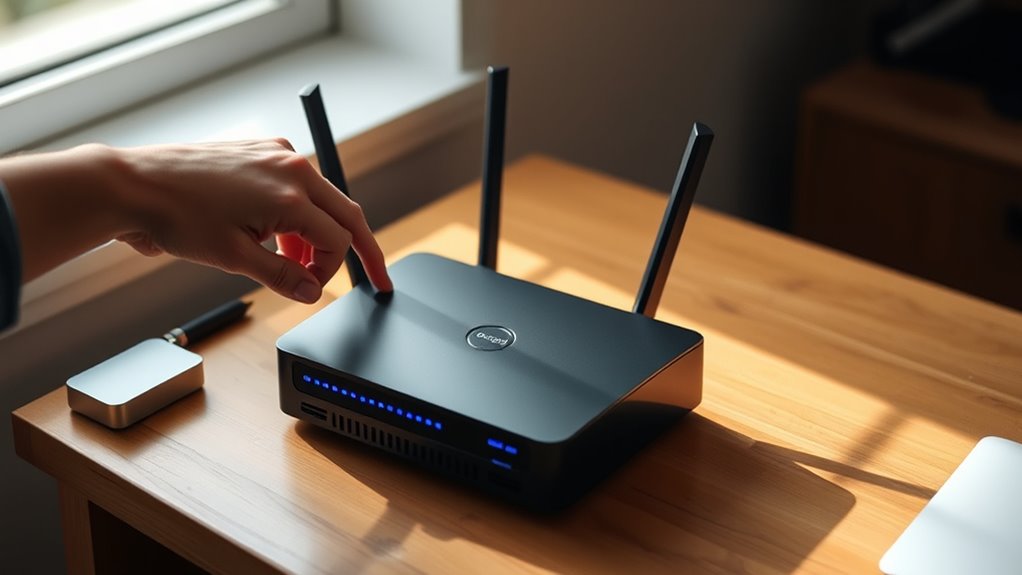
Regularly restarting your router can substantially enhance your Wi-Fi performance. It clears out temporary glitches, refreshes your connection, and can improve speed and stability. To get the most benefit, consider restarting your router at least once a week. This simple step helps prevent outdated firmware issues and reduces interference from other devices. When you restart, your router resets its connection to your internet service provider, often resolving minor issues that slow down your network. Plus, a fresh restart can help your router better manage connected devices. Keep in mind that consistent resets are a quick, free way to maintain ideal Wi-Fi performance without additional costs or equipment.
Restarting your router weekly boosts Wi-Fi speed and stability, clears glitches, and prevents firmware issues.
- Unplug your router, wait 30 seconds
- Plug it back in and wait for it to fully restart
- Check for firmware updates afterward
- Position your router in a central, open spot
Frequently Asked Questions
How Can I Identify the Best Wi-Fi Channel for My Network?
You can identify the best Wi-Fi channel by using a free Wi-Fi analyzer app on your phone or computer. These tools scan your area for networks and show you which channels are least congested. Look for channels with the fewest overlapping networks to improve your signal. Once you find a clearer channel, log into your router’s settings and switch to that channel for better performance.
What Are Common Sources of Wi-Fi Interference at Home?
Did you know that household appliances like microwaves and cordless phones are responsible for over 30% of Wi-Fi interference? At home, common sources include microwave ovens, cordless phones, baby monitors, Bluetooth devices, and thick walls or metal objects. These obstacles disrupt your signal, slowing your internet speed. To reduce interference, move your router away from these devices, position it centrally, and avoid placing it near metal or thick barriers.
How Does Router Placement Affect Wi-Fi Signal Strength?
Placing your router in a central, open location boosts your Wi-Fi signal strength. Keep it elevated, like on a shelf or high table, to minimize obstructions. Avoid placing it near thick walls, metal objects, or appliances that cause interference. Positioning it away from cordless phones or microwaves helps prevent signal disruptions. By optimizing your router’s placement, you guarantee a stronger, more reliable Wi-Fi connection throughout your home.
Why Is My Wi-Fi Signal Weaker During Certain Times?
Did you know Wi-Fi signals can drop by up to 50% during peak usage times? You might experience weaker signals because more devices connect to your network, causing congestion. Also, interference from other electronics or neighboring networks can disrupt your connection. To fix this, try disconnecting unused devices, reducing activity during busy hours, or changing your Wi-Fi channel to find a clearer one. These simple steps can improve your signal during those slow times.
Can Changing My Wi-Fi Password Improve Performance?
Changing your Wi-Fi password won’t directly improve your signal strength or performance. However, updating your password can help prevent unauthorized users from connecting, which can slow down your network. To boost your Wi-Fi, try relocating your router to a central spot, reducing interference from other devices, and restarting your router regularly. These steps can help optimize your connection without spending money.
Conclusion
By making these simple tweaks, you’ll turn your Wi-Fi into a well-oiled machine, like a finely tuned engine. Remember, small changes can have a big impact, so take the time to reposition, clear obstacles, and update settings. With a little effort, you’ll enjoy faster, more reliable internet without spending a dime. Think of your Wi-Fi as a garden—you just need to nurture it to blossom into its best version.