
To boost your smartphone’s battery life, you should lower your screen brightness and set a shorter timeout to save power. Turn off Wi-Fi, Bluetooth, and location services when you don’t need them. Activate battery saver mode to restrict background activity and dim the display. Manage app refreshes and notifications to reduce unnecessary activity. Keep your software up to date and switch to dark mode for OLED screens. Continue exploring these tips for more ways to extend your device’s endurance.

Get the little things that make your day delivered free with Prime
- Fast, free delivery on millions of items
- Prime Video, Amazon Music and more included
- Member-only deals all year
Key Takeaways
- Enable battery saver mode to limit background activity and extend usage time.
- Lower screen brightness and use dark themes to reduce power consumption.
- Disable Wi-Fi, Bluetooth, and location services when not in use.
- Manage app refresh and notifications to prevent unnecessary wake-ups.
- Keep your device updated for optimized power management and bug fixes.
As an affiliate, we earn on qualifying purchases.
Adjust Screen Brightness and Timeout Settings
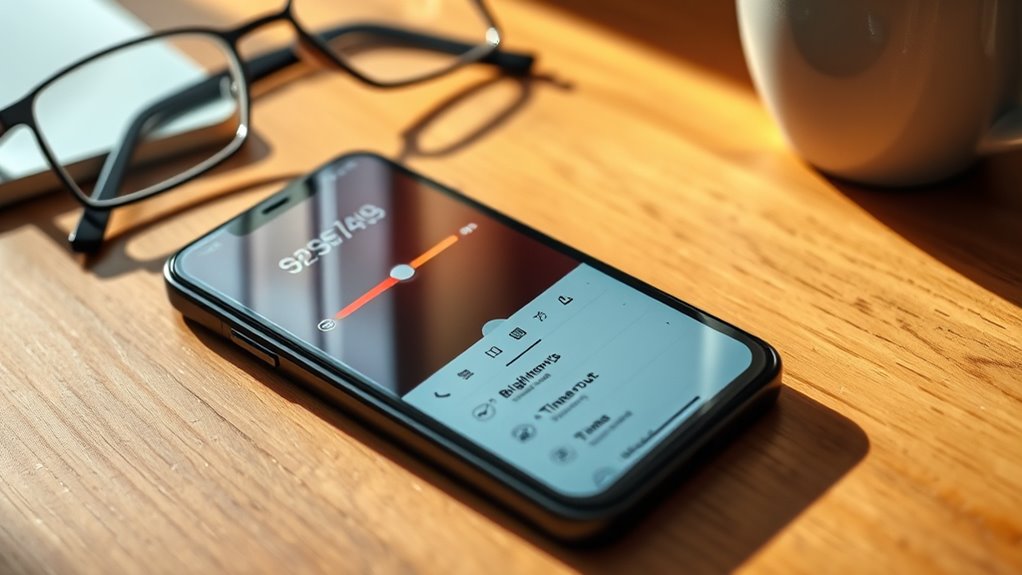
Adjusting your screen brightness and timeout settings is one of the easiest ways to extend your smartphone’s battery life. When your screen is set to maximum brightness, it drains power rapidly, especially in bright environments. Lowering the brightness to a comfortable level helps conserve energy without sacrificing visibility. Additionally, reducing the screen timeout duration means your display turns off sooner when you’re not actively using your phone. This prevents unnecessary power consumption during short periods of inactivity. You can usually find these options in your device’s display or settings menu. Making these adjustments is quick and simple, yet it can considerably extend your battery life throughout the day, ensuring your phone stays powered longer without compromising your user experience. Considering contrast ratio and display technology can further optimize power efficiency and viewing quality.
As an affiliate, we earn on qualifying purchases.
Turn Off Unnecessary Wireless Connections

Turning off unnecessary wireless connections can considerably boost your smartphone’s battery life. When you disable features like Wi-Fi, Bluetooth, and mobile data, your device doesn’t waste energy searching for signals. If you’re not using Wi-Fi, turn it off; same with Bluetooth when not in use. Mobile data also consumes power, especially when your signal is weak. Use airplane mode in areas with no coverage to prevent your phone from constantly trying to reconnect. Here’s a quick overview:
| Connection | When to Turn Off |
|---|---|
| Wi-Fi | Not connected or not in use |
| Bluetooth | Not pairing or listening for devices |
| Mobile Data | When on Wi-Fi or no internet needed |
| Location Services | When navigation isn’t necessary |
| NFC and Other Connections | When not sharing data or using features |
Disabling these connections conserves battery and keeps your phone running longer. Understanding wireless connections can help you make better decisions about when to enable or disable these features.
As an affiliate, we earn on qualifying purchases.
Enable Battery Saver Mode
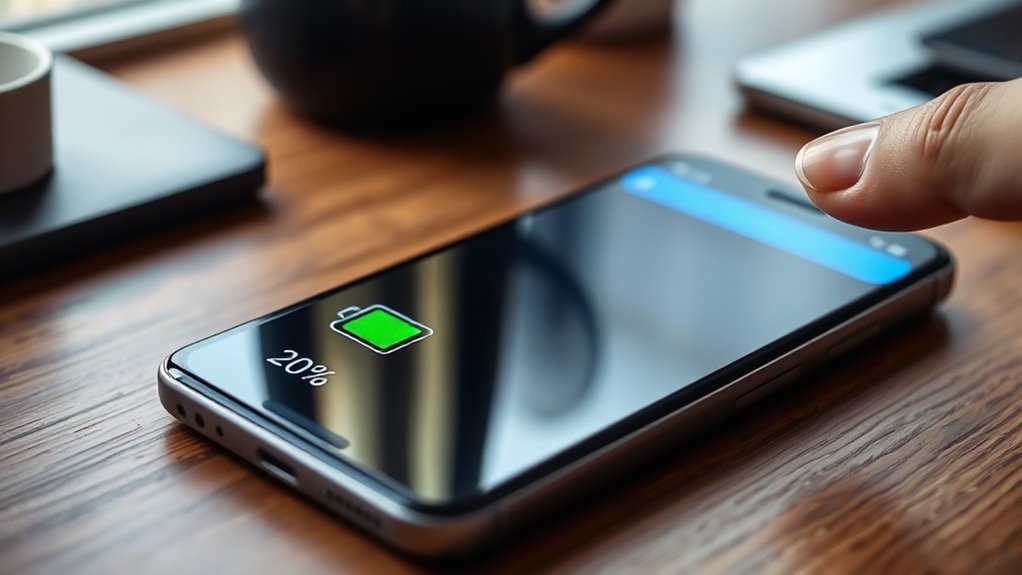
Enabling Battery Saver Mode is one of the quickest ways to extend your smartphone’s battery life, especially when you’re running low. When activated, it automatically reduces background activity, dims the screen, and limits performance to conserve power. You don’t need to manually close apps or disable features; the mode handles it for you. It’s perfect for moments when you need your phone to last longer, like during long outings or emergencies. Most smartphones have a quick toggle in the notification shade or settings menu, making activation simple. Keep in mind, while Battery Saver Mode helps extend battery life, it may temporarily slow down device performance and restrict some features. Use it strategically to maximize your phone’s battery life when it matters most. Additionally, European cloud innovation emphasizes energy-efficient solutions that can inspire manufacturers to optimize device power management further.
wireless charging pad for smartphones
As an affiliate, we earn on qualifying purchases.
As an affiliate, we earn on qualifying purchases.
Limit Background App Refresh and Notifications
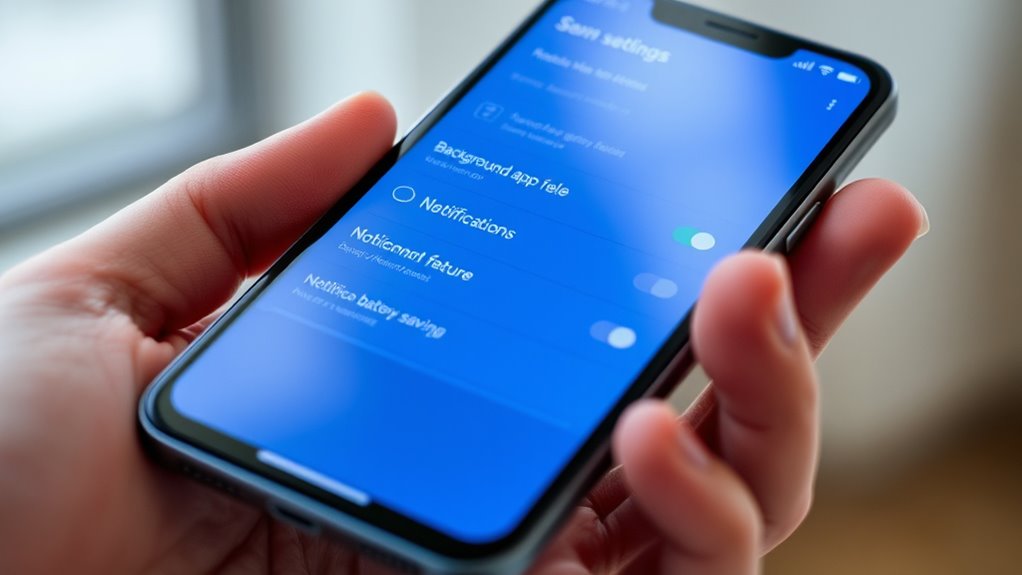
You can extend your battery life by managing app refresh settings so apps only update when necessary. Controlling notification permissions also assists in preventing unnecessary background activity. Taking these steps ensures your phone conserves power more effectively throughout the day. Additionally, minimizing the use of Free Floating features can help reduce background processes that drain battery life.
Manage App Refresh Settings
Since many apps run in the background and send notifications constantly, managing these settings can considerably extend your smartphone’s battery life. You can do this by disabling background app refresh for apps you don’t need updating automatically or turning off unnecessary notifications. This reduces the workload on your processor and prevents apps from waking up your screen unnecessarily. To help you decide, here’s a quick comparison:
| App Type | Refresh Setting |
|---|---|
| Social Media Apps | Disable background refresh |
| Productivity Apps | Enable only when needed |
| News & Weather | Turn off notifications if not urgent |
Adjust these settings in your device’s app management menu, and you’ll notice a longer-lasting battery with less drain from unnecessary background activity. Additionally, optimizing local automation features can further reduce background processes and save power.
Control Notification Permissions
Controlling notification permissions is a straightforward way to conserve your smartphone’s battery life. When you limit notifications, your device reduces the need to wake up and process alerts constantly. To optimize, consider these steps:
- Disable notifications for non-essential apps to prevent unnecessary wake-ups.
- Turn off background app refresh for apps that don’t need real-time updates.
- Use your device’s notification settings to prioritize alerts, minimizing the number of notifications that appear.
- Managing app permissions can also help prevent apps from accessing data unnecessarily, thereby extending battery life.
Keep Your Software Updated

Keeping your smartphone’s software up to date is one of the easiest ways to boost battery life. Manufacturers often release updates that optimize power consumption and fix bugs that drain your battery faster. When an update is available, it’s tempting to delay, but installing it promptly guarantees you benefit from these improvements. Updates can also enhance your device’s overall performance, making it run more efficiently and reducing unnecessary power use. To stay current, regularly check your settings or enable automatic updates, so your phone keeps up without extra effort. Remember, outdated software can cause apps and system processes to work harder, draining your battery quicker. Staying up to date is a simple, effective step toward extending your phone’s battery life. Vetted
Manage Location Services and GPS Usage
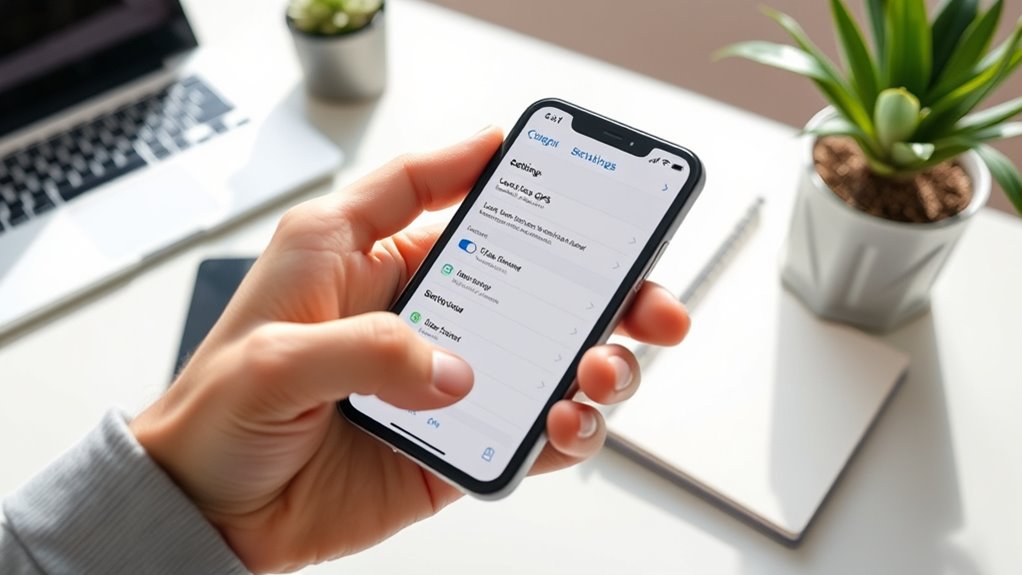
Managing your location services and GPS usage is one of the most effective ways to conserve battery life. Location services drain power because they constantly track your movements, especially when apps run in the background. To optimize, consider these steps:
- Turn off location services when not needed, or set apps to use location only while in use.
- Use device settings to disable GPS for specific apps that don’t require real-time location.
- Enable “Battery Saving” mode, which reduces GPS polling frequency and limits background activity.
- Being aware of modern kitchen technology can help you understand how device optimization contributes to overall efficiency.
Use Dark Mode and Optimize Display Settings
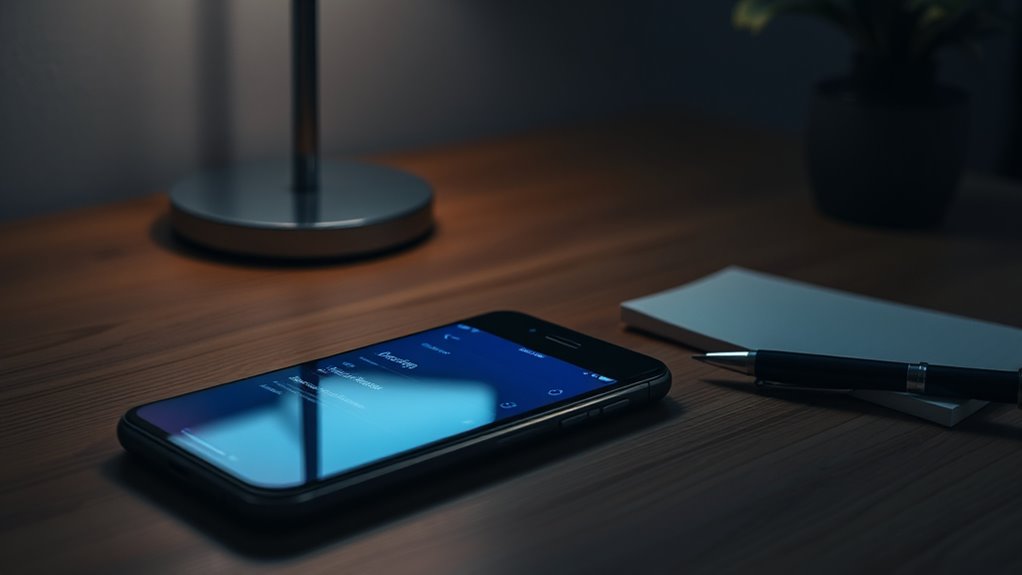
Using dark mode and optimizing your display settings can substantially extend your smartphone’s battery life. Dark mode reduces the amount of power your screen consumes, especially on OLED and AMOLED displays, where black pixels are fundamentally turned off. To activate it, simply toggle the setting in your phone’s display menu. Additionally, lower your screen brightness or enable auto-brightness so your device adjusts to lighting conditions automatically. Reduce screen timeout duration to prevent unnecessary screen-on time. Consider customizing font size and contrast for better readability without straining your display. All these adjustments decrease energy drain, helping your battery last longer throughout the day. Remember, small changes in display settings can make a significant difference in overall battery performance. Display technologies like OLED and AMOLED play a crucial role in how much power your screen consumes.
Frequently Asked Questions
How Does Closing Apps Directly Impact Battery Life?
Closing apps directly can help improve your smartphone’s battery life by reducing background activity. When you close apps, they stop running processes that consume power even when you’re not actively using them. This prevents unnecessary battery drain caused by apps updating or syncing in the background. However, some apps reopen quickly, so periodically closing unused apps can make a noticeable difference, especially on older devices or when your battery is low.
Can Deleting Unused Apps Improve Battery Performance?
Yes, deleting unused apps can improve your battery performance. When you remove apps you don’t use, your phone doesn’t have to allocate resources for background activity or updates related to them. This reduces unnecessary battery drain and frees up storage space. Plus, fewer apps mean less background data syncing, which helps your device run more efficiently. So, regularly cleaning out unused apps can give your battery a helpful boost.
Do Power Banks Really Extend Smartphone Battery Life?
Power banks are like secret weapons that can extend your smartphone’s life on the go. They store extra juice so you can keep scrolling, calling, or snapping photos without panic. While they don’t replace your phone’s built-in battery, they act as a portable rescue mission, giving you hours of extra power. Just remember to keep the power bank charged, so it’s ready whenever you’re in a pinch.
How Does Temperature Affect My Phone’s Battery Longevity?
High temperatures can damage your phone’s battery, causing it to degrade faster and lose capacity over time. Conversely, cold temperatures can temporarily reduce battery performance, making your device seem slower or draining faster. To prolong your battery’s lifespan, keep your phone within the recommended temperature range (around 20-25°C), avoid exposing it to extreme heat or cold, and don’t leave it in direct sunlight or freezing environments for extended periods.
Are Third-Party Battery Optimization Apps Effective or Safe?
Third-party battery optimization apps can be somewhat effective, but they often come with risks. Some apps claim to extend battery life, but many drain additional power or compromise your device’s security. You should be cautious and choose reputable apps from trusted sources. Typically, your phone’s built-in settings and features are safer and more dependable for managing battery health. Rely on those for ideal results and avoid unnecessary risks.
Conclusion
By following these simple tips, you’ll turn your smartphone into a reliable companion rather than a fleeting illusion. Think of your battery as a delicate flame—handle it with care, and it’ll keep shining bright longer. Don’t let your device’s power slip away unnoticed; take control now. After all, isn’t it time your phone worked as hard as you do? Keep these tricks in mind and watch your battery life thrive!
Halloween Picks
halloween
As an affiliate, we earn on qualifying purchases.