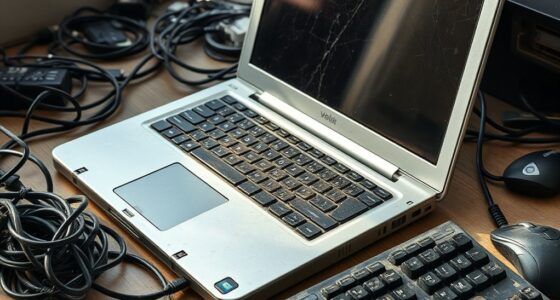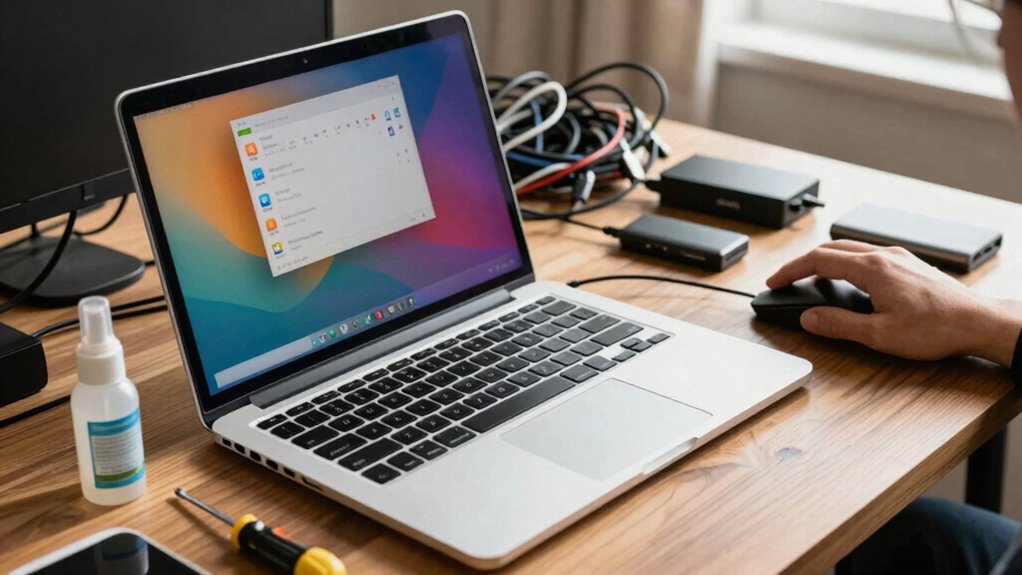

To speed up your slow laptop without buying a new one, start by freeing up storage space—delete unnecessary files, uninstall unused programs, and clear temporary files. Manage background programs and disable unneeded startup apps to improve performance, and run virus scans for security. Consider upgrading hardware like RAM or switching to an SSD for faster access. Regular maintenance such as updates, cleaning vents, and system resets can also boost speed—more tips await to keep your laptop running smoothly.
Key Takeaways
- Free up storage by deleting unnecessary files, unused programs, and clearing temporary data regularly.
- Manage background programs and disable unnecessary startup apps to improve boot speed.
- Upgrade hardware components like RAM or switch to an SSD for faster performance.
- Keep software, drivers, and the operating system updated for optimal efficiency.
- Perform system resets or reinstallation after backing up files to eliminate clutter and resolve issues.
If your laptop has become sluggish, there are straightforward steps you can take to boost its performance. First, consider freeing up space on your device. Over time, your hard drive can fill with unnecessary files, which slows down system operations. Deleting unused programs and clearing temporary files can make a noticeable difference. Additionally, utilizing cloud storage solutions allows you to offload large files and documents, freeing up valuable space on your local drive. This not only helps your laptop run more efficiently but also provides a backup in case of hardware failure.
Free up space by deleting unnecessary files and using cloud storage to boost your laptop’s performance.
Next, check the number of programs running in the background. Many applications automatically launch at startup and continue running without your awareness, consuming system resources. Use your task manager to identify and disable unnecessary startup programs. This can greatly improve boot times and overall speed. You should also consider performing a virus scan to eliminate malware or adware that might be hogging resources or causing sluggishness.
Another effective way to speed up your laptop is to think about hardware upgrades. If your device is several years old, upgrading components like RAM or swapping out a traditional HDD for a solid-state drive (SSD) can markedly enhance performance. More RAM allows your system to handle multiple tasks more smoothly, reducing lag when you open multiple tabs or run demanding applications. An SSD, on the other hand, offers faster data access speeds, resulting in quicker boot times and faster file transfers. These hardware upgrades are often more affordable than purchasing a new laptop and can extend the life of your current device. Upgrading hardware components can provide a significant performance boost. Regularly checking for software updates** is also beneficial, as they often include performance improvements and security patches that keep your system running smoothly. Staying informed about system optimization** strategies can also help you maintain peak performance over time.
Keeping your operating system and drivers up to date is also essential. Updates often include performance improvements and security patches that keep your system running smoothly. Make it a habit to check for updates regularly, especially after major OS releases. Additionally, cleaning your laptop physically—removing dust from vents and fans—can prevent overheating, which can cause your system to slow down or shut down unexpectedly. Proper ventilation and hardware health checks are crucial for maintaining optimal performance over the long term. Regular maintenance of your system’s health, including checking for hardware issues, can help detect potential problems before they affect performance.
Finally, consider resetting or reinstalling your operating system if all else fails. This can eliminate accumulated clutter and errors that might be causing performance issues. Just be sure to back up important files to cloud storage or an external drive before proceeding. By following these steps—freeing up space, managing startup programs, upgrading hardware, updating software, and maintaining the physical health of your laptop—you can greatly improve its speed without the need for a new device.

Crucial 32GB DDR5 RAM Kit (2x16GB), 5600MHz (or 5200MHz or 4800MHz) Laptop Memory 262-Pin SODIMM, Compatible with Intel Core and AMD Ryzen 7000, Black – CT2K16G56C46S5
Boosts System Performance: 32GB DDR5 RAM laptop memory kit (2x16GB) that operates at 5600MHz, 5200MHz, or 4800MHz to…
As an affiliate, we earn on qualifying purchases.
As an affiliate, we earn on qualifying purchases.
Frequently Asked Questions
Can Upgrading My RAM Improve Laptop Speed Significantly?
A RAM upgrade can considerably improve your laptop’s performance, especially if you often run multiple applications or work with large files. Increasing your RAM allows your system to handle more tasks simultaneously, leading to a smoother experience. You’ll notice faster load times and reduced lag. So, if your laptop feels sluggish, consider upgrading your RAM for a performance boost that makes everyday use much more efficient.
How Often Should I Perform Maintenance on My Laptop?
You should perform maintenance on your laptop every 4 to 6 weeks to keep it running smoothly. Regularly check your battery health, as declining battery performance can slow your device. Also, clean out dust to prevent overheating issues, which can cause your laptop to lag. Run virus scans, update software, and clear unnecessary files to optimize performance. Consistent care helps prevent issues before they become serious.
Does Deleting Files Increase My Laptop’s Performance?
Yes, deleting unnecessary files can boost your laptop’s performance by freeing up storage space. Performing a file cleanup removes clutter that slows down your system, while disk defragmentation reorganizes data for quicker access. Together, these steps help your laptop run smoother and faster. Regularly doing file cleanup and disk defragmentation keeps your system optimized, preventing lag and improving overall performance without the need for new hardware.
Will Resetting My Laptop Erase All My Data?
Resetting your laptop will erase all your data unless you back it up first. Think of it like cleaning out a cluttered closet—everything gets removed temporarily. Before resetting, check your battery health and make sure software updates are current, as these can impact performance. Once reset, you’ll need to restore your files, so always back up important data, just like you’d organize essentials before cleaning.
Are There Any Free Tools to Optimize My Laptop’s Speed?
Yes, there are free tools to optimize your laptop’s speed. You can use Task Manager to identify and disable unnecessary background processes that slow down your system. Additionally, tools like CCleaner help you clear cache and temporary files, freeing up space and boosting performance. Regularly managing background processes and clearing cache with these free tools can considerably improve your laptop’s speed without spending money.

Samsung 870 EVO SATA III SSD 1TB 2.5” Internal Solid State Drive, Upgrade PC or Laptop Memory and Storage for IT Pros, Creators, Everyday Users, MZ-77E1T0B/AM
THE SSD ALL-STAR: The latest 870 EVO has indisputable performance, reliability and compatibility built upon Samsung's pioneering technology….
As an affiliate, we earn on qualifying purchases.
As an affiliate, we earn on qualifying purchases.
Conclusion
By following these simple tips, you can breathe new life into your sluggish laptop without spending a dime. Imagine how much time you’ll save when your device runs smoothly—research shows that a slow laptop can waste up to 20% of your workday. So, take action now: clean up your files, uninstall unused programs, and optimize your settings. Your faster, more efficient laptop is just a few easy steps away, waiting to boost your productivity.

Ordilend All-in-1 Keyboard Cleaner and Laptop Cleaning Kit – Professional Computer Screen-Safe Tools for MacBook and Electronics – Portable Brush Set for Gamers and Remote Professionals, Black
Complete All-in-1 Professional Computer Cleaning Kit: This all-in-one electronic cleaning kit replaces 10 separate tools with precision-engineered accessories…
As an affiliate, we earn on qualifying purchases.
As an affiliate, we earn on qualifying purchases.
ES Task Manager
Task Manager
As an affiliate, we earn on qualifying purchases.
As an affiliate, we earn on qualifying purchases.