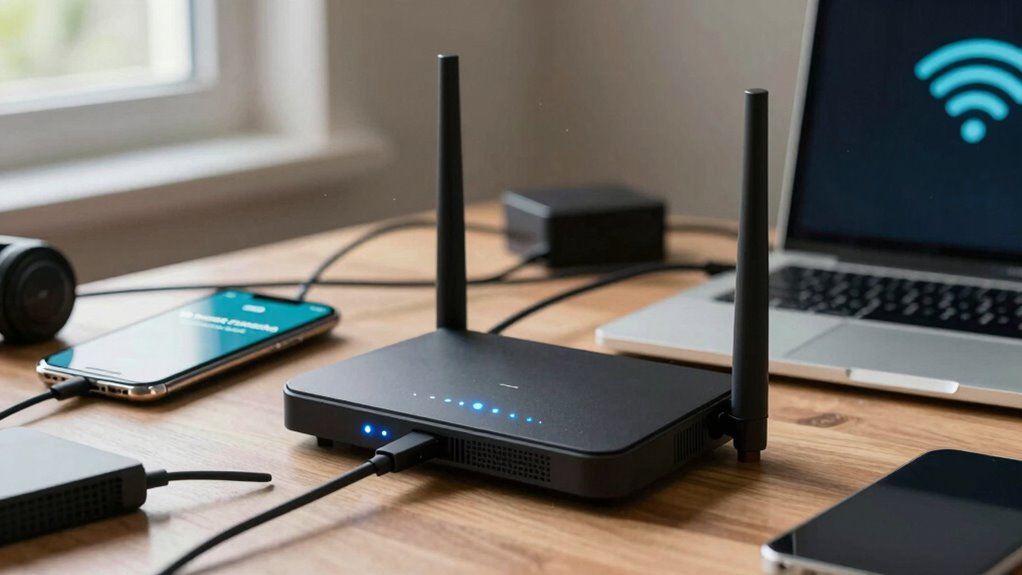

Devices often disconnect from Wi-Fi due to interference from other electronic devices like microwaves, cordless phones, or Bluetooth gadgets, especially on the 2.4 GHz band. Poor placement of your router, such as near thick walls or metal objects, can weaken the signal. Outdated firmware or crowded channels also cause instability. Keeping these factors in check helps improve your connection, and if you want to identify more issues, there’s plenty you can do to troubleshoot further.

Get the little things that make your day delivered free with Prime
- Fast, free delivery on millions of items
- Prime Video, Amazon Music and more included
- Member-only deals all year
Key Takeaways
- Signal interference from devices like microwaves and Bluetooth can weaken Wi-Fi connections.
- Congested or improperly set wireless channels cause instability and disconnections.
- Outdated firmware or software on routers can lead to connection drops.
- Poor router placement near thick walls or metal objects obstructs signal strength.
- Environmental factors, such as dense walls and obstructions, hinder Wi-Fi signal propagation.
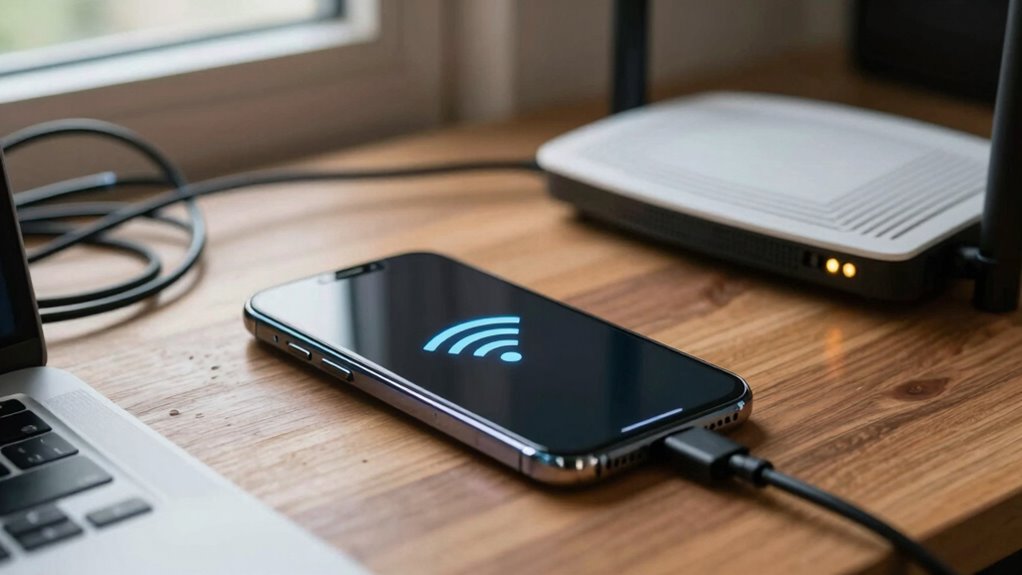
If your devices keep disconnecting from Wi-Fi, it can disrupt your daily routine and cause frustration. One common reason for this problem is signal interference. Wireless signals don’t operate in a vacuum; they often compete with other electronic devices that emit similar frequencies. Microwaves, cordless phones, baby monitors, and Bluetooth devices can all interfere with your Wi-Fi signal, especially if they’re operating on the same 2.4 GHz band. When these devices are active nearby, your Wi-Fi connection can weaken or drop entirely, making it seem like your devices are disconnecting at random. To minimize interference, try to keep your Wi-Fi router away from such gadgets. Also, switching your router to a less congested channel can help improve stability. Many modern routers automatically select the best channel, but you can manually change it through the router’s settings if needed. Additionally, selecting the appropriate wireless channel can reduce interference and improve connection reliability. Ensuring your firmware is up to date can also help improve overall stability and security of your Wi-Fi network. Another major factor impacting your Wi-Fi connection is router placement. If your router is tucked away in a corner, placed on a metal shelf, or surrounded by thick walls, your signal might not reach all your devices effectively. The placement of your router determines how well the Wi-Fi signal propagates throughout your home or office. Ideally, you should position it in a central location, elevated above ground level, and away from dense materials that absorb or block signals. Avoid placing it near large metal objects, mirrors, or appliances that generate heat, as these can hinder signal strength. Proper placement ensures that the signal isn’t obstructed, reducing the chance of devices disconnecting unexpectedly. Even minor adjustments, like raising the router or moving it to a more open space, can significantly improve your connection stability. Understanding wireless signal interference can help you better troubleshoot and optimize your network setup, especially when combined with good router placement practices.
Wi-Fi router interference blocker
As an affiliate, we earn on qualifying purchases.
As an affiliate, we earn on qualifying purchases.
Frequently Asked Questions
How Can I Prevent Devices From Disconnecting Unexpectedly?
To prevent devices from disconnecting unexpectedly, regularly update your device firmware to fix bugs and improve stability. Make sure your Wi-Fi signal strength is strong by placing your router in a central, open location and minimizing interference from other electronics. Restart your router periodically to refresh connections, and consider using a Wi-Fi extender if signal strength remains weak in certain areas. These steps help maintain a consistent, reliable connection.
Do Device Age and Hardware Affect Wi-Fi Stability?
Yes, device age and hardware can impact Wi-Fi stability. As devices age, their hardware longevity may decline, leading to weaker signals or connection issues. Older hardware might not be fully compatible with newer Wi-Fi standards, causing frequent disconnects. Ensuring your device’s hardware compatibility and considering upgrades when necessary can improve your Wi-Fi experience. Regular updates also help maintain connection stability by addressing hardware-related bugs.
Can Interference From Other Electronics Cause Disconnections?
Yes, interference from other electronics can cause disconnections. Electromagnetic interference from devices like microwaves, cordless phones, or Bluetooth gadgets disrupts your Wi-Fi signal. Signal obstruction from thick walls, metal objects, or furniture also weakens the connection. These factors create a noisy environment for your Wi-Fi, leading to frequent disconnects. To improve stability, keep electronics away from your router and minimize physical obstructions.
How Does Network Congestion Impact Device Connectivity?
Network congestion impacts your device connectivity by causing slow speeds, increased latency, and frequent disconnections. When multiple devices compete for bandwidth, frequency interference and signal overlap become common, leading to disrupted connections. You might experience buffering or dropped signals, making it harder to stay connected. To improve your connection, reduce the number of active devices, switch to less crowded channels, or upgrade your router to handle more traffic efficiently.
Are There Specific Settings to Improve Wi-Fi Connection Stability?
To improve Wi-Fi connection stability, check your router’s placement—position it centrally and elevate it away from obstructions. Adjust your Wi-Fi encryption settings, like using WPA3 if available, for a more secure and reliable connection. Avoid interference from other devices, and update your router’s firmware regularly. These steps help strengthen your signal, reduce drops, and guarantee a consistent, stable Wi-Fi experience.
As an affiliate, we earn on qualifying purchases.
Conclusion
Think of your Wi-Fi as a bustling city square, where devices are lively citizens. When connections drop, it’s like a sudden gust scattering the crowd. To keep your digital city thriving, troubleshoot like a vigilant city planner—checking for obstacles, strengthening signals, and updating infrastructure. With a little care, you’ll guarantee your devices stay connected, remaining harmonious citizens in the vibrant network metropolis, never lost in the chaos of disconnection again.
Wi-Fi extender for better signal
As an affiliate, we earn on qualifying purchases.
As an affiliate, we earn on qualifying purchases.
As an affiliate, we earn on qualifying purchases.
NFL season / tailgating Picks
team gear
As an affiliate, we earn on qualifying purchases.