
Your data is mainly drained by apps streaming videos, updating content automatically, or running in the background without you noticing. To cut down, adjust app settings to restrict background data, connect to Wi-Fi whenever possible, and limit auto-play on social media. Favor Wi-Fi for large downloads and updates, and lower video quality during streaming. Stay aware of your usage and regularly reset your data counter—if you keep this up, you’ll find other quick tips for control inside.
Key Takeaways
- Monitor your data usage regularly in device settings to identify high-consuming apps and activities.
- Restrict background data for non-essential apps using system settings like Data Saver or app permissions.
- Connect to Wi-Fi whenever possible, especially for streaming, downloads, and updates, to save mobile data.
- Disable auto-play for videos and set streaming quality to lower resolutions on social media apps.
- Set reminders to check your data regularly and reset usage counters at the start of each billing cycle.

Internet Monitor : Wifi & Mobile Data Monitor
Displays your internet speed in status bar
As an affiliate, we earn on qualifying purchases.
As an affiliate, we earn on qualifying purchases.
Identify the Main Data Drainers on Your Phone
Have you ever wondered which apps or activities are draining your phone’s data the most? To find out, check your phone’s data usage settings. On Android, go to Settings > Network & Internet > Data Usage. On iPhone, navigate to Settings > Cellular. This will show you a breakdown of how much data each app has used over a certain period. Look for apps that use a lot of data regularly—these are your main culprits. Streaming videos, social media apps, and cloud backups often top the list. Recognizing these data-drainers helps you make smarter choices about when and how you use them. Once identified, you can take steps to manage their usage and prevent unexpected data overages.

TP-Link Roam 6 AX1500 Portable Wi-Fi 6 Travel Router | Easy Public WiFi Sharing | Hotel/RV/Travel Approved | Phone WiFi Tether | USB C Powered | Multi-Mode | Tether App | Durable Design | TL-WR1502X
𝐑𝐨𝐚𝐦 𝟔 𝐀𝐗𝟏𝟓𝟎𝟎 𝐃𝐮𝐚𝐥-𝐁𝐚𝐧𝐝 𝐓𝐫𝐚𝐯𝐞𝐥 𝐑𝐨𝐮𝐭𝐞𝐫 – Delivers fast Wi-Fi 6 speeds (1201 Mbps on 5 GHz, 300…
As an affiliate, we earn on qualifying purchases.
As an affiliate, we earn on qualifying purchases.
Adjust App Settings to Limit Background Data
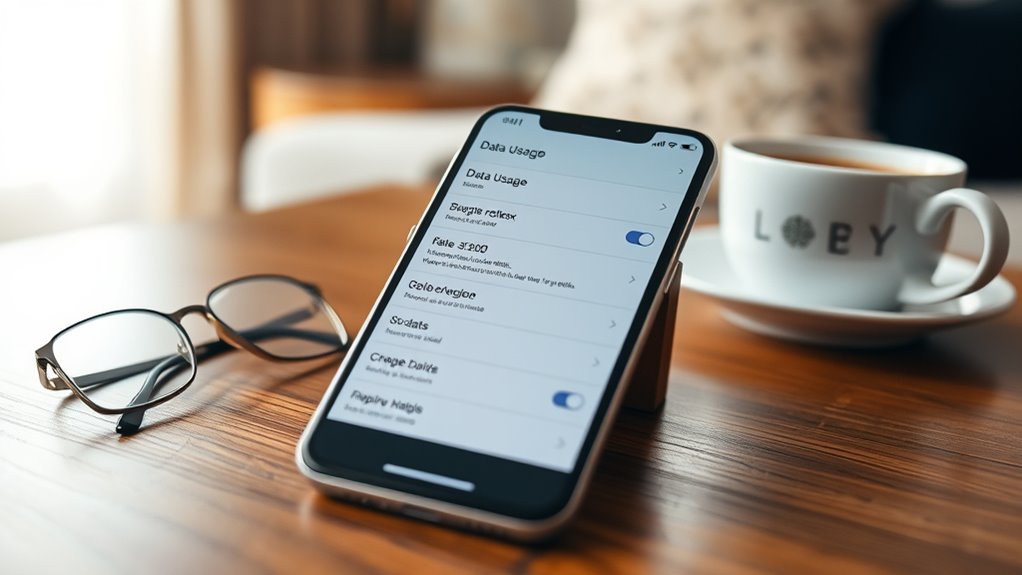
To prevent apps from draining your data in the background, you need to adjust their settings to restrict background activity. On your phone, go into each app’s settings or data usage section. Disable background data for apps that don’t need constant updates, such as social media or news apps. This stops them from running in the background and using data when you’re not actively using them. You can also limit background activity through system settings—look for options like “Restrict background data” or “Data saver.” Keep in mind, some apps require background data to function properly, so balance your restrictions accordingly. Regularly reviewing and adjusting these settings helps you control unnecessary data usage and keeps your data plan from running out quickly.
4K Webcam for PC – 4K Ultra HD Computer Camera with PDAF Autofocus, AI Noise-Canceling Mic, USB Plug & Play, 80° FOV & Auto Lighting Correction for Laptop & Desktop (Social Streaming Video Call)
4K Webcam for pc with 12MP CMOS Sensor Equipped with a genuine 12MP imaging lens and CMOS sensor,…
As an affiliate, we earn on qualifying purchases.
As an affiliate, we earn on qualifying purchases.
Use Wi-Fi Whenever Possible
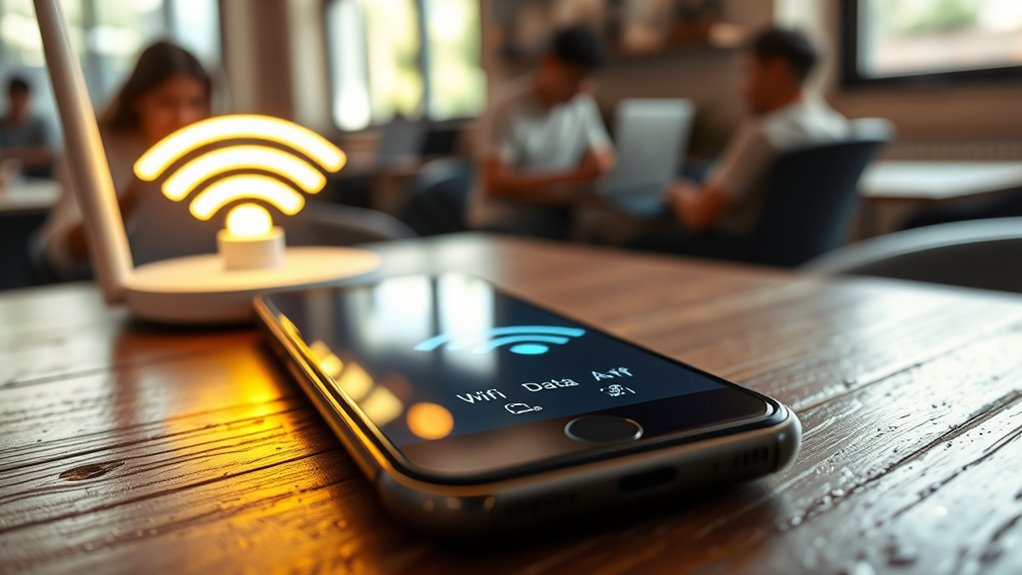
Using Wi-Fi whenever possible is one of the most effective ways to save your mobile data. When you’re at home, work, or in public places with reliable internet, connect to Wi-Fi. This prevents your phone from using cellular data for browsing, downloads, and updates. To maximize savings, set your device to ask before switching networks or automatically connect to trusted Wi-Fi networks.
| Situation | Action |
|---|---|
| At home or in cafes | Connect to available Wi-Fi networks |
| In public places | Use free Wi-Fi hotspots |
| When traveling | Download content over Wi-Fi |
| During software updates | Enable Wi-Fi for large downloads |

MFi Certified USB 3.0 Flash Drive 128GB for iPhone, 3in1 External Memory Photo Keeper Storage Stick for Picture/Video/Data Saver/Backup, High Speed Thumb/Jump/Hard Drives for iPhone/iPad/Android/PC
【MFi Certified Multi-function Flash Drive】This flash drive is MFi certified, high quality and excellent performance, allowing you to…
As an affiliate, we earn on qualifying purchases.
As an affiliate, we earn on qualifying purchases.
Optimize Video and Music Streaming Habits

To save data while streaming videos and music, you should prioritize using Wi-Fi whenever it’s available. You can also limit auto-play settings to prevent unexpected data use, and download content beforehand for offline access. These simple steps help you enjoy your favorite media without draining your data plan.
Choose Wi-Fi When Possible
Whenever possible, connecting to Wi-Fi can markedly reduce your data usage when streaming videos and music. Public Wi-Fi networks or your home Wi-Fi help you enjoy your favorite content without eating into your mobile plan. Before streaming, check if Wi-Fi is available and switch your device’s setting to prioritize it. This is especially helpful for high-quality videos and music, which tend to consume a lot of data. Keep in mind that streaming over Wi-Fi can also improve your experience by reducing buffering and interruptions. If you’re out and about, consider downloading content in advance when connected to Wi-Fi, so you can enjoy it offline later. Making Wi-Fi your default option helps you stay within your data limits while still enjoying seamless entertainment.
Limit Auto-Play Settings
Auto-play features can quickly drain your data without you realizing it, especially when videos or music start playing automatically after one finishes. To prevent this, check your streaming app settings and disable auto-play options. Turning off auto-play not only saves data but also gives you control over what plays next. For example, on platforms like YouTube or Spotify, you can toggle auto-play off in the settings menu. This small change can considerably reduce unexpected data use. Additionally, when browsing social media, avoid videos that start automatically, or select the option to disable auto-play altogether. Regularly reviewing and adjusting these settings ensures you don’t waste data on content you don’t want to watch or listen to unexpectedly.
Download for Offline Use
Downloading videos and music for offline use is an effective way to save your data, especially when streaming repeatedly. Instead of streaming each time you want entertainment, download content when connected to Wi-Fi. This reduces data consumption and prevents unexpected overages. Many streaming apps let you select quality settings to balance clarity and data use. Higher quality consumes more data, so choose wisely. Organize your downloads based on your preferences and storage capacity.
| Content Type | Suitable Download Settings |
|---|---|
| Videos | Download in 480p or lower for save |
| Music | Use standard quality for offline |
| Podcasts | Opt for compressed audio files |
| Movies | Download in SD rather than HD |
| Playlists | Save only your favorites |
Manage Your Social Media Data Usage
You can cut down on social media data by lowering video quality and turning off auto-play features. These simple changes prevent unnecessary data consumption and keep your usage in check. Take a moment to adjust your settings so you stay connected without overspending your data plan.
Limit Video Streaming Quality
Have you noticed how much data streaming high-quality videos can consume on social media? If you’re trying to cut down on data use, lowering the video quality can make a big difference. Most platforms let you adjust the streaming resolution in their settings, so you can choose a lower quality that still looks decent on your device. This simple change can markedly reduce your data consumption without sacrificing your social media experience.
Here are some tips to get started:
- Access video settings within each app to change the streaming quality
- Select a lower resolution like 480p or 720p for videos
- Keep quality settings consistent across your apps for maximum savings
Disable Auto-Play Features
Auto-play features on social media apps can quickly drain your data, especially when videos start playing automatically as you scroll. Turning them off saves bandwidth and extends your data plan. To disable auto-play:
| Platform | How to Disable Auto-Play | Effect on Data Usage |
|---|---|---|
| Settings > Videos > Auto-Play | Reduces video data use | |
| Settings > Account > Cellular Data | Limits auto videos | |
| Settings > Data Usage > Video autoplay | Saves data on videos | |
| TikTok | Settings > Data Saver > Auto-play | Lowers video streaming |
| YouTube | Settings > Autoplay > Off | Stops videos from playing automatically |
Enable Data-Saving Features on Your Phone

Wondering how to make your data last longer? Enabling data-saving features on your phone is a smart move. Most smartphones have built-in options that reduce data consumption without sacrificing too much functionality. Turn on these features to automatically limit background activity, compress images, and restrict app data access.
Here are three ways to activate data-saving features:
- Enable “Data Saver” mode in your phone’s settings
- Use browser data compression options like Chrome’s Lite Mode
- Restrict background app refresh for apps that don’t need constant updates
Regularly Monitor and Reset Your Data Usage

To keep your data usage in check, it’s essential to regularly monitor how much data you’re consuming. This helps you spot unexpected spikes and avoid overages. Most phones have built-in data tracking tools—set a reminder to check weekly. Reset your data counter at the start of each billing cycle to get an accurate picture. Tracking your usage can prevent surprises and empower you to adjust habits. Consider this emotional impact:
| Data Usage | Feelings |
|---|---|
| Unexpected overage | Anxiety and frustration |
| Running out early | Stress and inconvenience |
| Staying within limit | Confidence and peace of mind |
Regular resets and monitoring keep your data habits honest, helping you stay in control and avoid costly surprises.
Frequently Asked Questions
How Can I Tell Which Apps Are Using the Most Data?
You can check which apps use the most data by going to your phone’s settings. On most devices, tap on “Network & Internet” or “Connections,” then select “Data Usage” or “Mobile Data.” You’ll see a list of apps ranked by data consumption. This allows you to identify data-heavy apps and manage their usage, either by restricting background data or uninstalling them if needed.
Are There Specific Settings to Reduce Data Consumption During Browsing?
Imagine your phone as a thirsty traveler at a watering hole. You can set limits by enabling data saver mode in your settings, which acts like a protective shield, blocking background data and reducing image quality in browsers. Disable auto-play videos and restrict background app refresh. These small tweaks act like a sip from a tiny cup, helping you conserve data while browsing without sacrificing your experience.
Can I Limit Data Usage for Individual Apps?
Yes, you can limit data usage for individual apps. Go to your phone’s settings, find the “Data Usage” or “Network & Internet” section, then select “App Data Usage” or similar. From there, you can set a data limit or restrict background data for specific apps. This way, you control how much data each app consumes, helping you avoid unexpected overages and manage your overall data plan effectively.
Do Data-Saving Features Affect App Performance?
Do data-saving features affect app performance? Sometimes, yes. These features limit background data and reduce image quality, which can slow down apps that rely heavily on data, like streaming or social media. But are you willing to sacrifice some speed for lower data usage? Usually, the trade-off is minimal, and you still get a good experience. You just need to find the right balance that works for you.
How Often Should I Check My Data Usage to Prevent Overages?
You should check your data usage weekly to prevent overages. Regular monitoring helps you spot apps that use excessive data and adjust your habits accordingly. Many smartphones have built-in tools or apps that track usage, so take advantage of those. If you notice a spike, you can limit background activity or disable auto-play features. Staying proactive guarantees you stay within your plan and avoid unexpected charges.
Conclusion
By staying aware of what’s eating your data and taking proactive steps, you can keep your usage in check. Adjust app settings, use Wi-Fi whenever you can, and be mindful of streaming habits. Enabling data-saving features and monitoring your usage regularly will help you avoid surprises on your bill. Remember, a little effort now can save you from the headache later—don’t let your data run wild; take control before it’s too late.