The one setting that can instantly make your phone faster is limiting background processes through Developer Options. By reducing the number of apps running in the background, your device handles fewer tasks, which boosts speed and responsiveness. You can also tweak animation scales for quicker shifts and disable unneeded animations. These simple adjustments can majorly improve your phone’s performance, and there’s more effective tips available if you continue exploring this guide.
Key Takeaways
- Reduce or disable animations in Developer Options to speed up screen transitions and app launches.
- Limit background processes to decrease CPU and RAM usage, enhancing overall device responsiveness.
- Close unused apps and manage background activity for non-essential apps to prevent resource drain.
- Enable Developer Options and adjust “Animation Scale” settings to 0.5x or off for faster UI interactions.
- Regularly clear cached data and close background apps to maintain optimal speed and prevent lag.
Accessing Developer Options on Your Phone
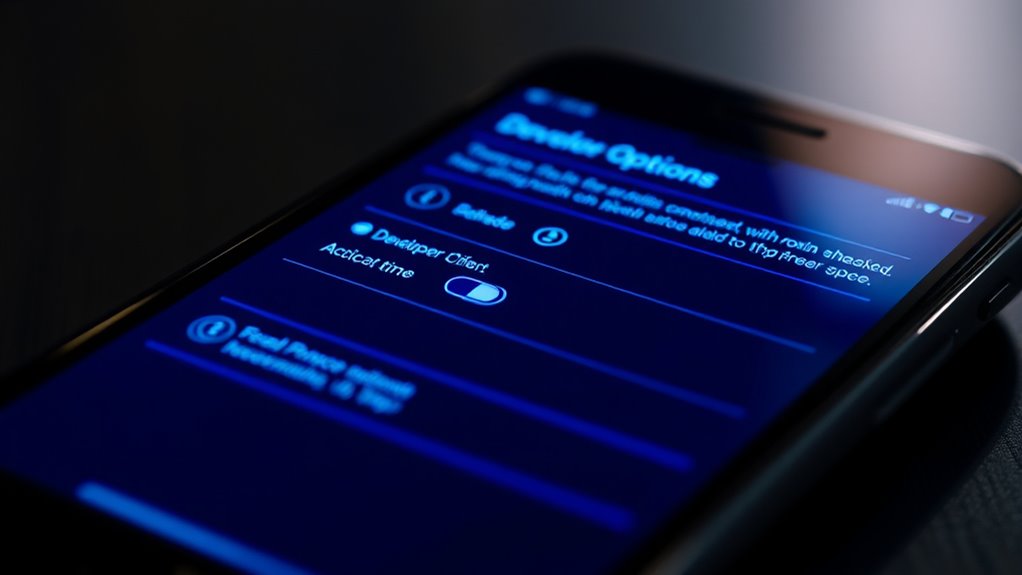
Many smartphones hide their advanced features behind Developer Options, but revealing this menu is straightforward. To access it, go to your phone’s Settings and scroll down to About Phone or About Device. Tap on this section repeatedly—usually seven times—until you see a message confirming Developer Options are enabled. On some devices, you might need to enter your PIN or passcode during this process. Once activated, return to Settings, and you’ll find Developer Options listed, often under System or Additional Settings. Tap on it to open the menu, where you’ll discover various tools and tweaks that can help improve your phone’s performance. Be cautious, though—making changes without understanding their effects can cause issues.
Enabling Background Process Limitations

Once you’ve accessed Developer Options, you can further optimize your phone’s performance by limiting background processes. This reduces the workload on your device’s CPU and RAM, leading to smoother operation. To do this:
Limiting background processes enhances phone performance and ensures smoother operation.
- Tap on “Limit background processes.”
- Choose a limit, such as “At most 4 processes” or “At most 1 process.”
- Confirm your selection and exit Developer Options.
Adjusting Animation Scale Settings for Speed
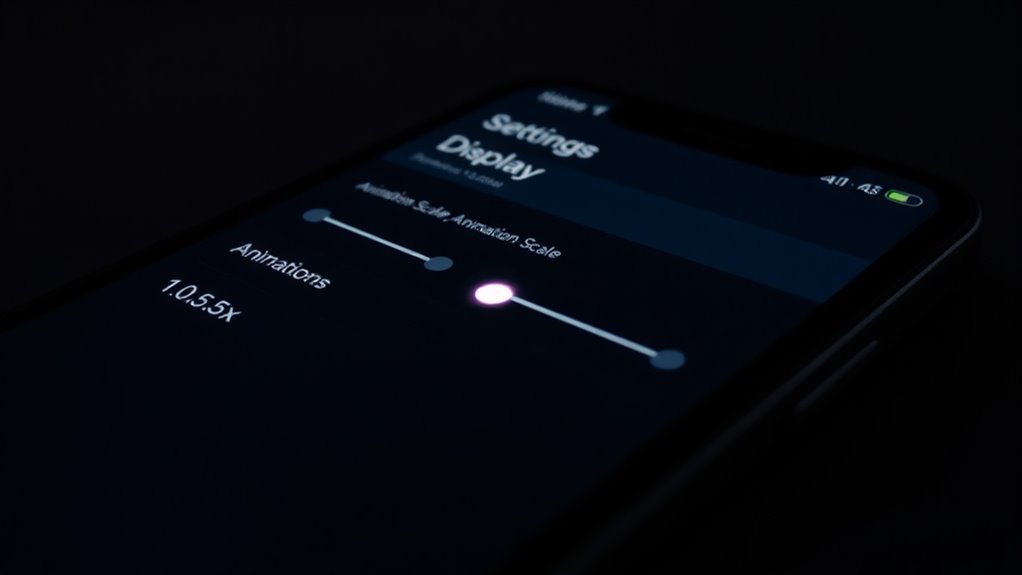
Adjusting the animation scale settings can substantially improve your phone’s responsiveness. When animations are set to run at their default speed, they can create delays that make your device feel sluggish. To speed things up, go to your device’s developer options and find the “Animation Scale” settings—these typically include Window, Transition, and Animator durations. Reduce each setting to 0.5x or turn them off completely for maximum speed. This minimizes the time your phone spends displaying animations, making transitions and opening apps feel faster. Keep in mind, disabling animations entirely might make your device seem a bit abrupt, but it significantly boosts perceived speed. Adjusting these settings is a quick way to enhance your phone’s performance without sacrificing functionality.
Disabling Unnecessary System Animations

Disabling unnecessary system animations can make your phone feel faster and more responsive. You’ll notice quicker screen shifts and smoother app launches as a result. Turning off these animations helps your device focus on what you need without the extra visual delays.
Subheading 1: Faster Screen Transitions
Have you noticed your phone feeling sluggish when switching between apps or screens? You can speed things up by disabling unnecessary system animations. This reduces the time your device spends rendering changes, making everything feel snappier. To do this, follow these steps:
- Enable Developer Options on your device.
- Navigate to the “Animation Scale” settings.
- Turn off or reduce the animation scales for window, transition, and animator duration.
Subheading 2: Smoother App Launches
To make your app launches quicker, you should turn off unnecessary system animations that slow down the process. These animations can create delays, making your phone feel sluggish. Disabling them streamlines transitions, leading to faster app opening times. Here’s a quick guide:
| Setting | How to Access | Effect |
|---|---|---|
| Developer Options | Tap Build Number 7 times | Unlocks animation controls |
| Window Animation Scale | Settings > Developer Options | Set to 0.5x or off |
| Transition Animation Scale | Settings > Developer Options | Set to 0.5x or off |
| Animator Duration Scale | Settings > Developer Options | Reduce or disable |
| Restart Device | After changes | Apply improvements |
Turning off or reducing these animations minimizes delays, boosting app launch speed markedly.
Managing App Background Activity

Managing app background activity is essential for keeping your phone running smoothly. When apps run in the background, they consume resources like battery and RAM, slowing down your device. To optimize performance, consider these steps:
- Close unused apps: Regularly exit apps you’re not using to free up memory.
- Restrict background activity: Go to settings and limit background data for apps that don’t need constant updates.
- Disable auto-start for apps: Prevent apps from launching automatically on startup, reducing initial load and background processes.
Clearing Cached Data to Improve Performance
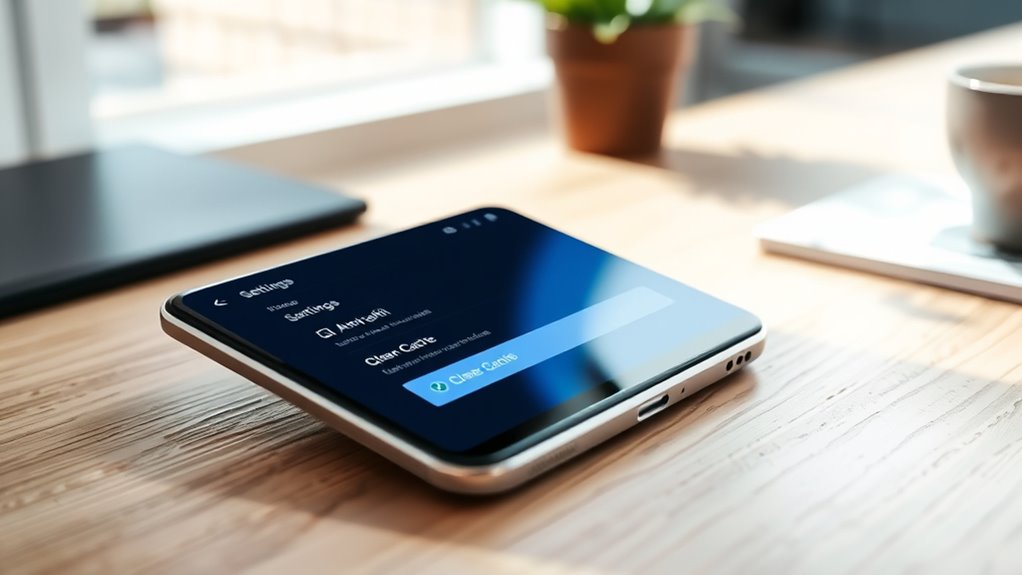
Clearing cached data helps remove unnecessary files that can slow down your phone. This process also refreshes app data, ensuring everything runs smoothly. Doing this regularly can give your device a noticeable speed boost.
Remove Unnecessary Files
Removing unnecessary files, especially cached data, can considerably boost your phone’s speed. Over time, these files pile up, slowing down your device and wasting storage space. Clearing them frees up resources and improves performance instantly. To do this effectively, consider these steps:
- Clear app caches in your settings to remove temporary files stored by apps.
- Delete old downloads and files you no longer need from your storage.
- Remove duplicate photos and videos that take up unnecessary space.
Refresh App Data
After clearing out unnecessary files, your next step is to rejuvenate app data by clearing cached information. Cached data helps apps load faster by storing temporary files, but over time, it can become cluttered and slow things down. To rejuvenate, go to your device’s settings, find the app you want to optimize, and select “Clear Cache.” This removes the stored temporary files without deleting important data like login info or saved settings. Doing this regularly keeps your apps running smoothly and prevents lag. Keep in mind, some apps may take a moment to reload data after clearing cache, but your phone will overall perform better. Rejuvenating app data is a quick, effective way to boost your device’s speed without sacrificing functionality.
Updating Your Device’s Software for Optimization
Keeping your device’s software up to date is one of the simplest ways to boost its speed and performance. Updates often include bug fixes, security patches, and system optimizations that can make your phone run smoother. To guarantee you’re getting the most out of your device, regularly check for updates.
Here are three key benefits of updating your software:
- Improved performance – Updates optimize system processes, reducing lag.
- Enhanced security – Fixes protect against vulnerabilities and threats.
- New features – Access the latest tools and improvements for better usability.
Don’t delay updates; they’re crucial for keeping your phone fast and secure. Regular updates help maintain peak performance without extra effort.
Additional Tips for Maintaining a Faster Phone

To maintain a faster phone, regularly clear out unnecessary apps, files, and cache data that can clutter your device and slow it down. Delete apps you no longer use, as they take up space and background resources. Remove old photos, videos, and downloads that aren’t needed. Clear cache data in your apps to free up memory and improve performance. Restart your device periodically to refresh system processes. Keep your home screen organized by reducing widgets and shortcuts, which can consume resources. Turn off Bluetooth, Wi-Fi, or location services when not in use. Avoid running multiple apps simultaneously, especially heavy ones. Regular maintenance like these helps your phone run smoothly, responds faster, and prolongs its lifespan.
Frequently Asked Questions
Will Disabling Animations Affect My Phone’s Visual Appeal?
Disabling animations might make your phone look less lively, but it won’t harm its visual appeal. You’ll notice quicker shifts and snappier responses, which can enhance your overall experience. If you prefer a more minimalist, efficient feel, turning off animations is a good choice. However, if you enjoy smooth, eye-catching effects, you might want to keep them enabled. It’s all about balancing performance and aesthetics to suit your preference.
How Often Should I Clear Cached Data for Optimal Speed?
You should clear cached data every few weeks or when you notice your phone slowing down. Regularly doing this helps free up storage and improves performance. Keep an eye on app behavior; if an app starts to lag or crash, clearing its cache can often fix the issue. Don’t overdo it, though—clearing cache too often might remove useful data, so find a balance that keeps your phone running smoothly.
Can Limiting Background Processes Cause Apps to Malfunction?
Limiting background processes is like trimming a bonsai tree; it keeps things neat but too much can cause branches to die. When you restrict these processes, apps may not function properly, especially if they rely on background activity to update or sync data. To avoid malfunctions, set limits carefully and monitor app performance, ensuring your device stays balanced—fast, yet fully functional, just like a well-maintained garden.
Is It Safe to Disable System Animations Completely?
Yes, disabling system animations is generally safe and can make your phone feel faster. It removes visual effects that can slow down your device, giving you a snappier experience. However, some apps or system functions might look less smooth or feel less polished. If you don’t mind fewer animations, go ahead and disable them; just be aware that it might slightly affect the overall aesthetic and feel of your device.
Do Software Updates Always Improve Phone Performance?
Not always. Software updates can improve your phone’s security, fix bugs, and add new features, but they don’t guarantee better performance. Sometimes, updates may slow your device if they’re not optimized for your model or if they introduce bugs. It’s a good idea to read update notes and wait a bit after updates to see if any issues arise. Regularly backing up your data helps if you need to troubleshoot.
Conclusion
Remember, a stitch in time saves nine. By tweaking your phone’s developer options, limiting background processes, and clearing cache, you can instantly boost its speed. Keep your device updated and disable unnecessary animations to maintain that quick performance. Just like regular maintenance keeps a car running smoothly, these small adjustments will keep your phone fast and responsive. Take control now—your device will thank you for it!