
To free up space on your Android without deleting anything important, use built-in tools to clear cache and temporary files, transfer photos, videos, and documents to cloud services like Google Drive or Dropbox, and uninstall unused apps. You can also expand storage with an SD card or move files there. Adjust app settings to limit offline content and streaming quality. For more tips on maintaining your device’s storage efficiently, keep exploring these options.
Key Takeaways
- Use built-in storage management tools to identify large files and utilize “Free Up Space” suggestions.
- Transfer photos, videos, and documents to cloud services, then delete local copies after backup.
- Clear app caches and temporary files regularly without deleting personal data.
- Expand storage with SD cards and move apps or files to external or cloud storage solutions.
- Manage offline content by limiting downloads, clearing cached offline data, and adjusting streaming quality settings.
Top picks for "free space android"
Open Amazon search results for this keyword.
As an affiliate, we earn on qualifying purchases.
Use Built-in Storage Management Tools

Many Android devices come with built-in storage management tools that make it easy to free up space without installing extra apps. You can access these tools through your device’s Settings menu, usually under “Storage” or “Device Care.” Once there, you’ll see a breakdown of how your storage is used, along with options to free up space. Tap on “Free Up Space” or similar features, and the system will suggest files, app caches, or large media files you can delete safely. These tools often include options to clear app caches or delete temporary files, which can free significant space without affecting your personal data. Regularly using these built-in features helps keep your device running smoothly and prevents storage from filling up unnecessarily.
Transfer Files to Cloud Storage Services
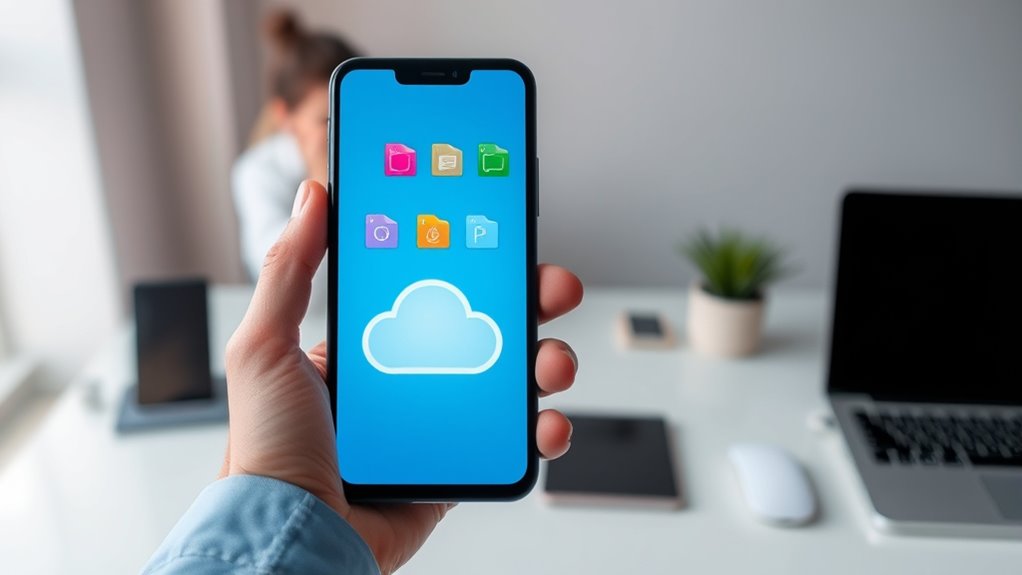
To free up space on your Android device, transferring files to cloud storage services is an effective strategy. By uploading photos, videos, and documents to platforms like Google Drive, Dropbox, or OneDrive, you can declutter your device without losing access. Start by selecting the files you no longer need immediate access to on your phone. Open your preferred cloud app, upload the files, and verify they’re successfully stored. Once uploaded, delete the local copies from your device to free up space. Cloud services often offer automatic backup options, ensuring your files are safe and accessible from any device with internet. This method keeps your device lean while maintaining easy access to your important files anytime you need them.
Optimize and Clear Cache Files
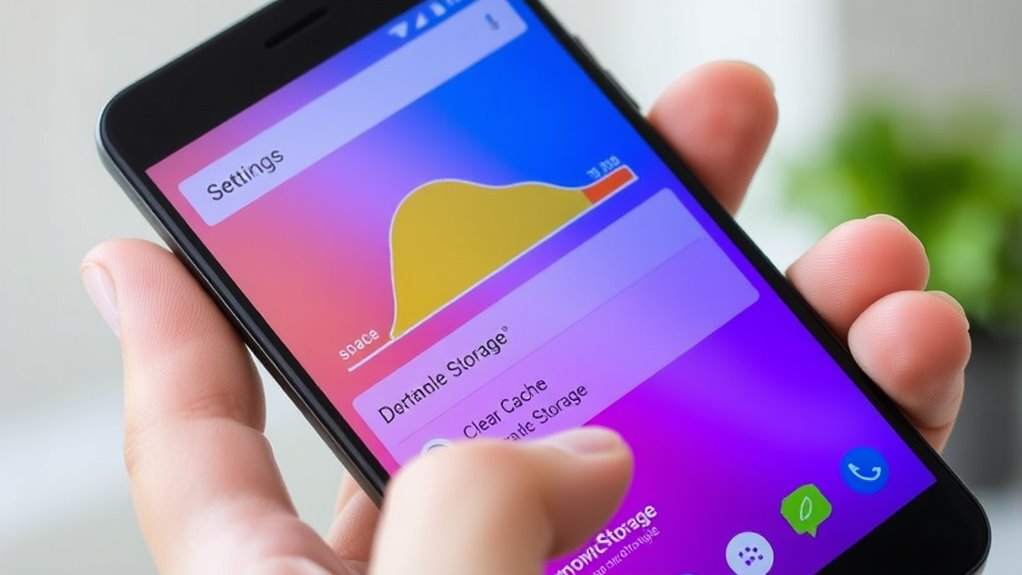
Over time, cache files can accumulate and take up significant space on your Android device. These files store temporary data from apps and websites to speed up performance, but they can build up unnecessarily. To free space, go to your device’s Settings, then Storage, and select Cached Data. You can clear all cache at once or choose specific apps to clear their cache individually. Clearing cache doesn’t delete your personal data or app settings, just temporary files. Regularly doing this helps improve device speed and frees up space without losing important information. Keep in mind, some apps may load a bit slower initially after clearing their cache, but overall, your device stays optimized and clutter-free. It’s a simple step that makes a noticeable difference.
Manage and Uninstall Unused Apps
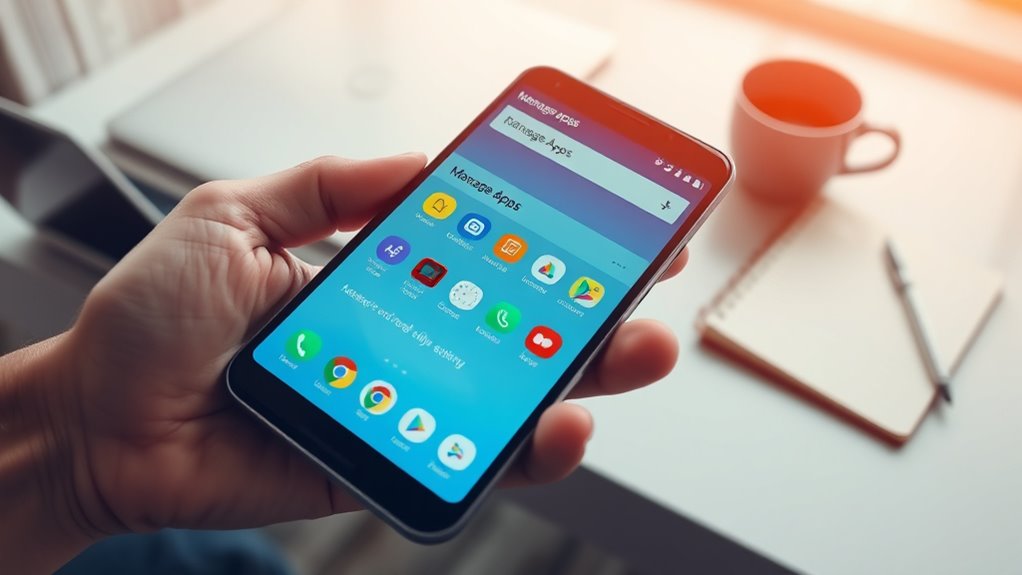
Start by reviewing your apps and spotting those you rarely use. Uninstall any bloatware or unnecessary programs to free up space quickly. Removing unused apps helps your device run more smoothly and creates storage for what matters most.
Identify Unused Apps
Many people forget which apps they rarely use, but identifying these can considerably free up storage space. Start by checking your app drawer or settings to see your installed apps. Look for apps you haven’t opened in weeks or months. Use your device’s storage settings to see which apps consume the most space. Sometimes, large games or social media apps take up significant storage but are seldom used. Consider whether you truly need these apps or if they can be removed. Be honest about your usage habits; deleting unused apps can free up gigabytes of space without affecting your daily routine. Once you’ve identified the culprits, you can proceed to uninstall or manage them to optimize your device’s storage.
Uninstall Bloatware Efficiently
Uninstalling bloatware can considerably free up storage space, but it’s important to do so efficiently. Start by reviewing pre-installed apps to identify which ones you rarely or never use. Then, proceed with uninstalling or disabling these apps to prevent them from running in the background. To streamline the process, consider using your device’s settings or a trusted third-party app management tool.
Here are some tips to make the process more effective:
- Disable unnecessary system apps if you can’t uninstall them.
- Use the app info page to uninstall updates before disabling.
- Regularly review app usage to keep only essential apps installed.
Utilize External Storage Options
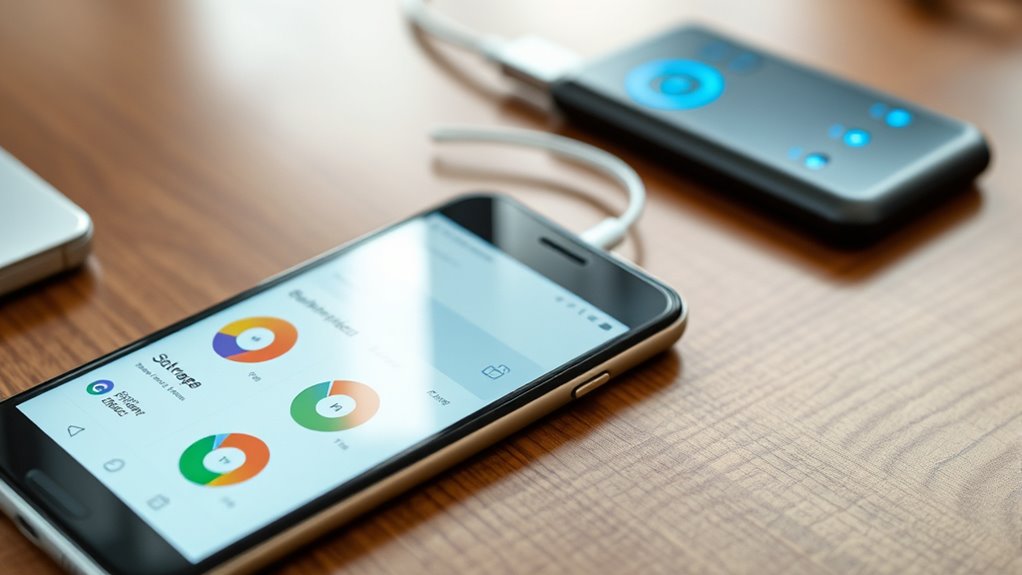
You can free up space by expanding your device’s storage with an SD card, giving you more room for photos, videos, and apps. Additionally, using cloud storage services allows you to offload files and access them from anywhere. These external options help keep your Android device running smoothly without sacrificing important data.
Expand With SD Card
Adding an SD card to your Android device is a simple way to expand your storage capacity. Once installed, you can move apps, photos, and videos directly to the card, freeing up internal space. To maximize its use, consider these steps:
- Format the SD card as portable storage to easily transfer files between devices.
- Set your camera to save photos and videos directly to the SD card, preventing internal storage from filling up.
- Use file manager apps to organize and move large files onto the SD card, keeping your device running smoothly.
Use Cloud Storage
Are your Android device’s internal storage and SD card filling up too quickly? Using cloud storage can free up space without deleting files. Upload photos, videos, and documents to services like Google Drive, Dropbox, or OneDrive. This keeps your files accessible while saving local storage. To optimize, set your camera app to save new photos directly to the cloud instead of your device.
| Cloud Service | Storage Limit |
|---|---|
| Google Drive | 15 GB free |
| Dropbox | 2 GB free |
| OneDrive | 5 GB free |
| Box | 10 GB free |
| Mega | 50 GB free |
Remove Duplicate and Large Files

Removing duplicate and large files can notably free up storage space on your Android device. Duplicates often pile up unnoticed, wasting valuable space. Large files, like videos or high-resolution images, can quickly fill your storage. To clear them efficiently, start by identifying duplicates using apps like Files by Google or Duplicate Files Fixer. Next, sort your files by size to find and delete or move large files you no longer need. Lastly, review downloads and old media that may have accumulated over time.
- Use duplicate finder apps to locate and remove redundant files.
- Sort files by size to target the biggest space hogs.
- Regularly delete old downloads and unused media.
Stream Music and Videos Instead of Downloading

Instead of downloading files, try streaming music and videos through popular apps. This way, you save storage space on your device. Just be sure to optimize your data usage to avoid excessive charges.
Use Streaming Apps
Using streaming apps to listen to music or watch videos can substantially save storage space on your Android device. Instead of downloading files, you access content directly from the internet, preventing your device from filling up. This method keeps your storage free for essential apps and files. To maximize space savings, consider these tips:
- Use apps like Spotify, Apple Music, or YouTube for streaming content instead of downloading.
- Enable offline mode only when necessary, like during travel, to avoid unnecessary downloads.
- Regularly clear app caches to prevent temporary data from consuming extra space.
Optimize Data Usage
By streaming music and videos instead of downloading them, you can substantially reduce the amount of data your device stores. When you stream content, it plays directly from the internet, so you don’t save large files on your device’s storage. Use apps like Spotify, YouTube, or Netflix for streaming instead of downloading files. To maximize space savings, enable offline mode only for essential content, and clear cached data regularly. Adjust streaming quality settings to lower bitrates; this reduces data usage and file size without sacrificing too much quality. Consider using Wi-Fi whenever possible to avoid using your mobile data plan. Streaming helps keep your device lean, freeing up space for apps, photos, and updates without sacrificing access to your favorite media.
Disable or Limit Offline Content in Apps

Ever notice how some apps automatically save offline content, taking up valuable storage? You can prevent this by disabling or limiting offline data. First, check app settings—many apps let you turn off offline downloads or reduce their quality. Second, clear cached offline content regularly to free space without deleting your data. Third, restrict background data for apps that store offline content, so they don’t automatically sync or download updates. This approach guarantees you keep essential files while preventing unnecessary storage buildup. Adjusting these settings helps you maintain control over your storage, keeping your device running smoothly without losing important information. Regularly managing offline content is a simple way to free up space without deleting anything vital.
Delete Old Photos and Videos Safely

Removing old photos and videos from your device is a quick way to free up significant storage space, especially if you haven’t cleaned your gallery in a while. Start by reviewing your gallery and identifying files you no longer need, such as blurry shots or duplicates. To avoid deleting important memories accidentally, back up these files to a cloud service like Google Photos or an external drive first. Once backed up, select the photos and videos you want to delete, then confirm their removal. Empty your device’s trash or recently deleted folder to free up the space immediately. Regularly deleting unnecessary media keeps your storage optimized and ensures your device runs smoothly. Remember, backing up first prevents any accidental loss of precious memories.
Automate Storage Cleanup With Apps and Settings

To keep your storage consistently optimized, using apps and built-in settings to automate cleanup tasks is a smart move. This way, your device manages clutter without your constant oversight. First, enable Google’s Files app’s Smart Cleanup feature, which automatically deletes junk files and unused app data. Second, activate your device’s storage management settings to get regular suggestions for clearing cache and unnecessary files. Third, consider third-party apps like CCleaner or SD Maid that schedule automatic scans and cleanups. These tools help you maintain free space effortlessly, ensuring your Android runs smoothly. Automating these tasks saves time and reduces the risk of deleting important data accidentally, keeping your device optimized without manual effort.
Frequently Asked Questions
How Can I Identify Which Files Are Taking up the Most Space?
You can identify which files take up the most space by using your device’s built-in storage settings. Go to Settings, then Storage, and tap on it. You’ll see a breakdown of categories like apps, media, and documents. Some Android devices also offer a “Large Files” or “Cleanup” feature that highlights big files, so you can quickly review and decide what to keep or delete.
Are There Any Risks in Deleting Cached Data Frequently?
Deleting cached data frequently is generally safe and can help free up space, but it does have some minor risks. You might experience slower app performance initially, as apps rebuild their caches. Some apps may need to re-download certain data, which could use mobile data if you’re not connected to Wi-Fi. Overall, regular cache clearing is a good maintenance habit, just don’t clear all caches at once if you rely heavily on specific app data.
Can I Recover Deleted Files if I Accidentally Remove Important Data?
Imagine you accidentally delete a vital document, but you’re worried about recovery. In most cases, yes, you can recover deleted files using tools like Android data recovery apps or checking your Google Drive or trash bin. Act quickly, as new data overwriting the storage decreases recovery chances. Remember, regular backups help protect important data, ensuring you can restore files even if deletion happens accidentally.
What’s the Best Way to Back up Large Media Files Securely?
The best way to back up large media files securely is by using a trusted cloud service like Google Drive, Dropbox, or OneDrive. Upload your files directly from your device, ensuring you’re connected to a stable Wi-Fi network. Enable two-factor authentication for added security, and consider encrypting sensitive files before uploading. Regularly verify your backups to make sure your media stays safe and accessible.
How Do I Prevent My Storage From Filling up Again Quickly?
Think of your storage like a garden—if you don’t tend it, weeds will quickly take over. To prevent your space from filling up again, regularly clear cache files and uninstall unused apps. Use cloud storage for photos and videos, and set up automatic backups. Keep an eye on your storage settings, and avoid installing large apps unless necessary. Consistent maintenance keeps your digital garden lush and thriving.
Conclusion
Think of your Android storage like a busy closet. Just like you’d tidy up by sorting through clothes and freeing space for new items, cleaning your device helps it run smoothly. I once lost hours searching for a photo because my storage was full, but a quick cleanup saved the day. By using these tips, you’ll keep your device organized and efficient—no need to delete anything important, just like decluttering your closet for a fresh start.