
To connect all your smart devices without hassle, start by checking their compatibility and updating firmware. Choose a central hub or platform that works with your gadgets, like Alexa or Google Assistant. Set up a strong Wi-Fi network, optimize placement, and keep your apps current. Organize devices logically and create routines for automation. Troubleshoot issues promptly and stay updated—these steps will help you conquer your smart home with confidence. Explore the tips below to master the process.
Key Takeaways
- Assess device compatibility and update firmware to ensure smooth integration with your chosen hub or platform.
- Optimize your Wi-Fi network by placing your router centrally and using the latest standards like Wi-Fi 6.
- Select a compatible central hub or platform (e.g., Alexa, Google Home) and follow proper setup procedures.
- Organize devices with clear naming and grouping to simplify control and automate routines effectively.
- Regularly update firmware and apps, troubleshoot connectivity issues, and maintain your network for reliable performance.
Assess Your Devices and Compatibility
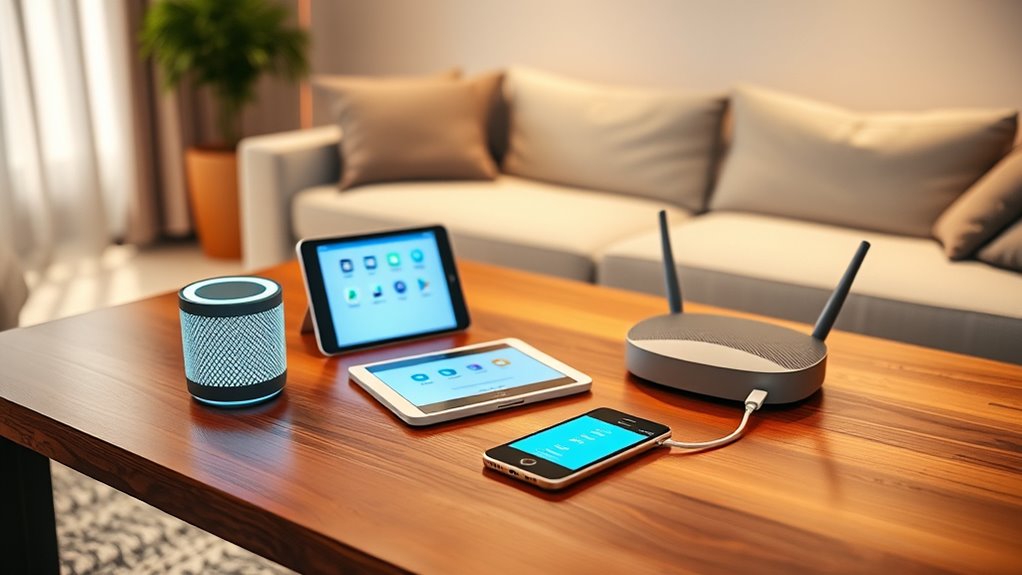
Before connecting new smart devices, you need to assess whether your existing equipment is compatible. Check the specifications of your current devices and see if they support the necessary protocols, like Wi-Fi, Zigbee, or Z-Wave. Look at your router and network setup to confirm they can handle multiple devices without slowdown. Review the app requirements for your smart gadgets—some may require specific platforms or updates. It’s also wise to verify that your smartphone or tablet is compatible with the device apps. If your equipment is outdated or incompatible, you might face connection issues or limited functionality. Taking this step upfront saves you time and frustration, ensuring your smart home setup runs smoothly from the start.
Choose a Central Hub or Platform

Choosing the right central hub or platform is key to seamless smart device integration. You should check compatibility carefully and explore platform options that support your devices. This way, you guarantee everything works smoothly together and meets your automation needs.
Compatibility Check Tips
When selecting a central hub or platform for your smart devices, verifying compatibility is essential to guarantee smooth operation. First, check the device specifications and see which protocols they support, like Zigbee, Z-Wave, or Wi-Fi. Make sure your hub is compatible with these protocols to avoid connectivity issues. Review the manufacturer’s list of supported devices to confirm your specific models are included. Look for any firmware or software updates that might improve compatibility. If possible, consult online forums or user reviews for real-world insights. Avoid assumptions—double-check compatibility details before purchasing. This step ensures your devices work seamlessly together, saving you time and frustration later. A little upfront research pays off by creating a reliable, integrated smart home ecosystem.
Platform Integration Options
Deciding on a central hub or platform is essential for integrating your smart devices seamlessly. Your choice impacts compatibility, control, and future expansion. Popular options include Amazon Alexa, Google Assistant, and Apple HomeKit, each with strengths and limitations. Consider which ecosystem best aligns with your existing devices and preferences. Some platforms support a wider range of brands, while others offer tighter security and privacy. Here’s a quick comparison:
| Platform | Compatibility | Ease of Use |
|---|---|---|
| Amazon Alexa | Wide device support | User-friendly |
| Google Assistant | Broad integrations | Intuitive |
| Apple HomeKit | Secure, seamless setup | Slightly complex |
| Samsung SmartThings | Versatile control | Moderate setup |
Choosing the right platform simplifies management and avoids frustration down the line.
Set Up Your Wi-Fi Network for Smart Devices
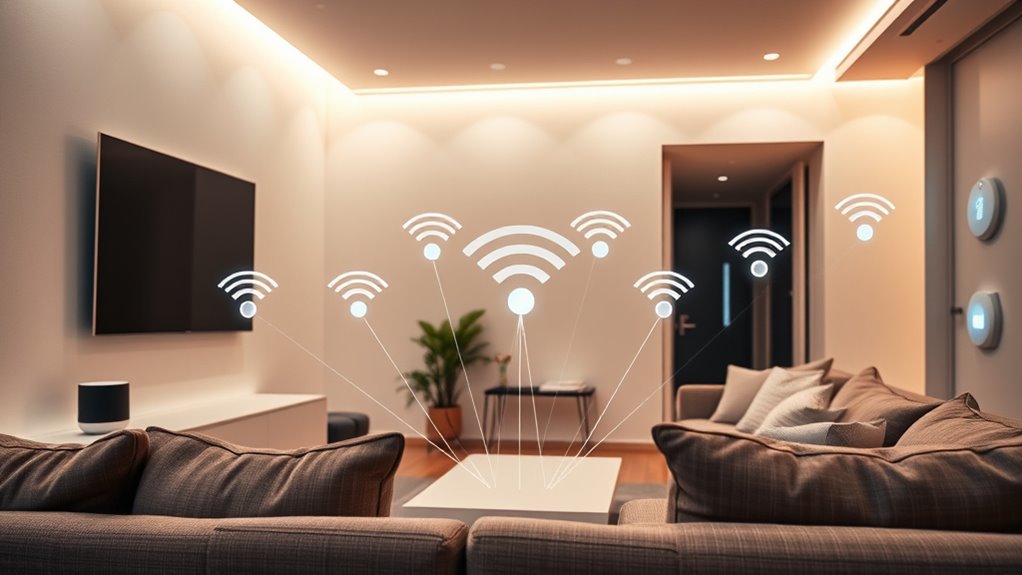
To guarantee your smart devices work seamlessly, you need a reliable Wi-Fi network. Start by placing your router in a central location, away from thick walls and metal objects, to assure good coverage throughout your home. Use the latest Wi-Fi standard, like Wi-Fi 6, for faster speeds and better device handling. Set a strong, unique password to keep your network secure and prevent unauthorized access. Consider creating a separate guest network for visitors to keep your primary network safe. Avoid overloading your Wi-Fi with too many devices; if needed, upgrade your router or add extenders to improve coverage. Regularly update your router’s firmware to fix bugs and enhance performance. A solid Wi-Fi setup is essential for smooth smart device operation.
Install and Configure Device Apps Properly
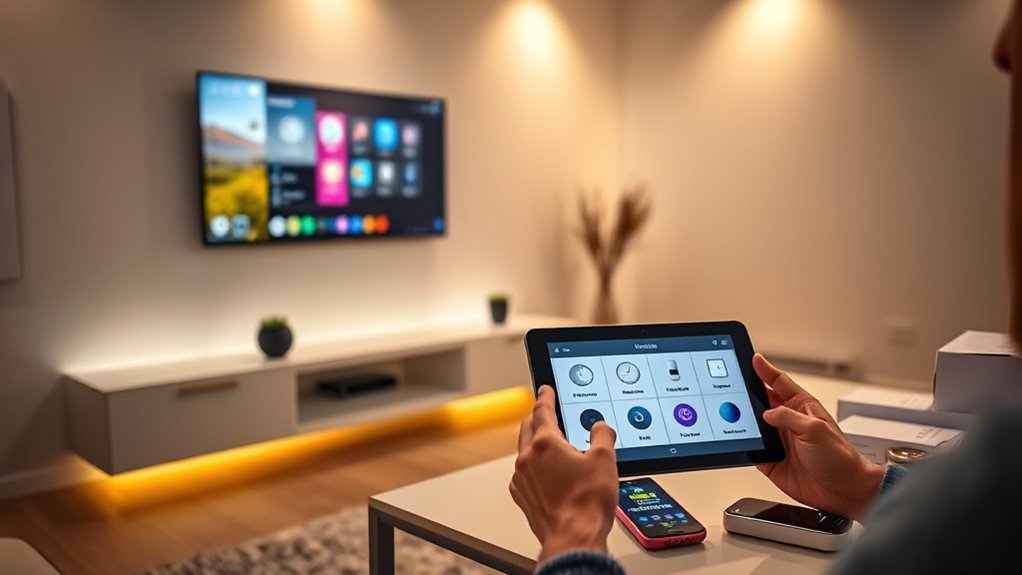
To get your smart device working smoothly, you need to install the official app designed for it. Make sure to follow all setup instructions carefully to avoid issues later. Proper installation and configuration guarantee your device operates as intended and stays secure.
Download Official Apps
Have you ever wondered how to guarantee your smart device functions smoothly? The first step is downloading the official app from a trusted source, like the Apple App Store or Google Play. Avoid third-party sites, which can pose security risks or cause compatibility issues. Once downloaded, open the app and ensure it’s the latest version — developers often release updates that fix bugs and improve performance. Turn on Bluetooth or Wi-Fi if needed, so the app can detect your device easily. Don’t rush through the installation; follow the prompts carefully to avoid errors. Using the official app ensures you get proper support and updates, making your setup process easier and your device more reliable. Proper app installation is key to a seamless smart device experience.
Follow Setup Instructions
Once you’ve downloaded the official app, carefully follow the setup instructions to install and configure your device correctly. Pay attention to each step, especially permissions and network settings, to guarantee smooth operation. Sometimes, apps ask for firmware updates or account creation—do these before proceeding. Double-check your Wi-Fi connection and make sure your device is powered on during setup.
Here’s a quick guide to common setup steps:
| Step | Action |
|---|---|
| 1 | Connect device to power |
| 2 | Follow app prompts for pairing |
| 3 | Update firmware if prompted |
Connect Devices to Your Smart Hub or Platform
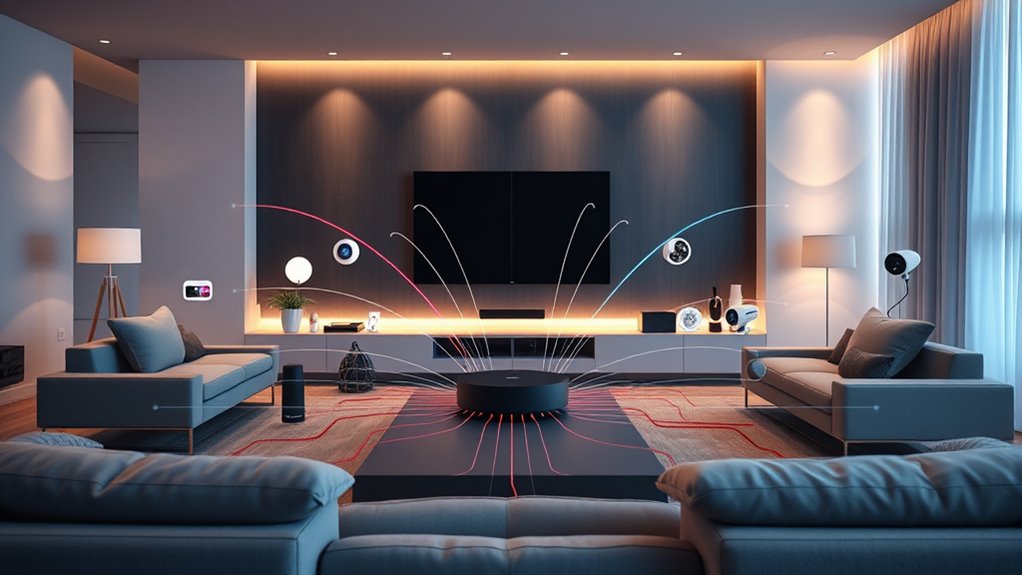
Connecting your devices to a smart hub or platform is a straightforward process that guarantees seamless control and automation. To get started, follow these simple steps:
Connecting devices to a smart hub is simple, ensuring seamless control and automation.
- Open your hub’s app and navigate to the device addition section.
- Select your device type from the list or scan for new devices if available.
- Follow on-screen instructions to connect, which may include entering Wi-Fi credentials or pressing a pairing button.
Once connected, your device will appear in the app, ready for automation. Double-check compatibility before starting, and ensure your hub is updated to support new devices. This method simplifies managing multiple devices from one central platform, making your smart home more efficient.
Use Voice Assistants for Simplified Control

Using voice assistants like Amazon Alexa, Google Assistant, or Apple Siri can make controlling your smart devices effortless. With just your voice, you can turn lights on or off, adjust your thermostat, or play music without lifting a finger. These assistants are designed to understand natural language, so you don’t need to remember specific commands. Simply say what you want, and they’ll handle the rest. This hands-free control is especially helpful when your hands are full or you’re busy multitasking. Plus, voice assistants can often integrate with multiple devices, providing centralized control through simple commands. Setting up voice control is straightforward—connect your devices to your chosen assistant, and you’re ready to manage your smart home effortlessly.
Organize and Name Your Devices Clearly
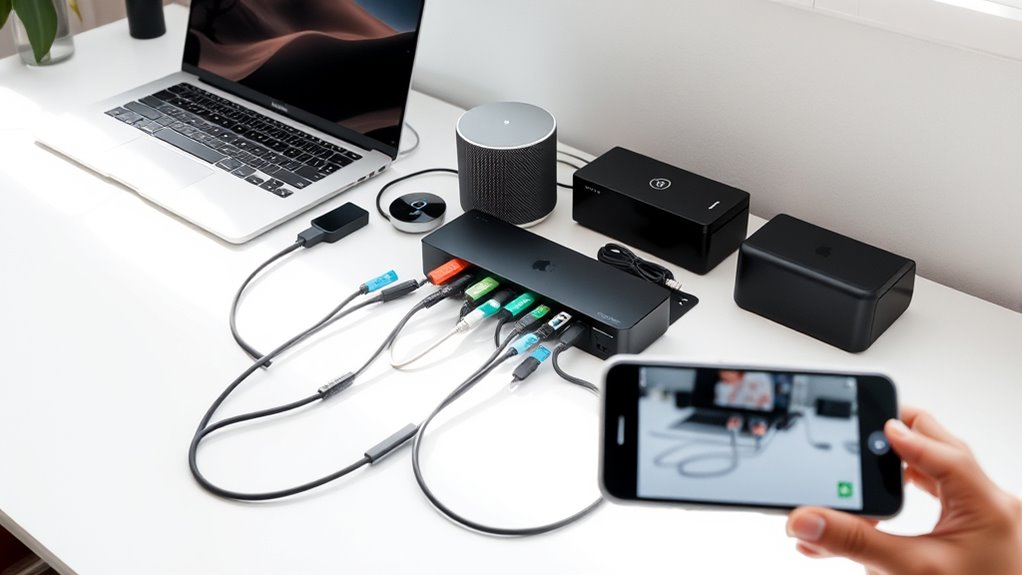
Organizing and naming your devices clearly is essential for easy management and quick identification. When everything has a clear label, you save time searching and avoid confusion. Here are three tips to help you stay organized:
- Use Descriptive Names: Name devices based on their function or location, like “Living Room Smart Light” or “Thermostat Upstairs.”
- Create Groupings: Group related devices together, such as all kitchen gadgets or bedroom accessories, for easier control.
- Keep Names Consistent: Use a uniform naming pattern throughout your system to make navigation intuitive and straightforward.
Automate Routines and Scenes for Seamless Operation
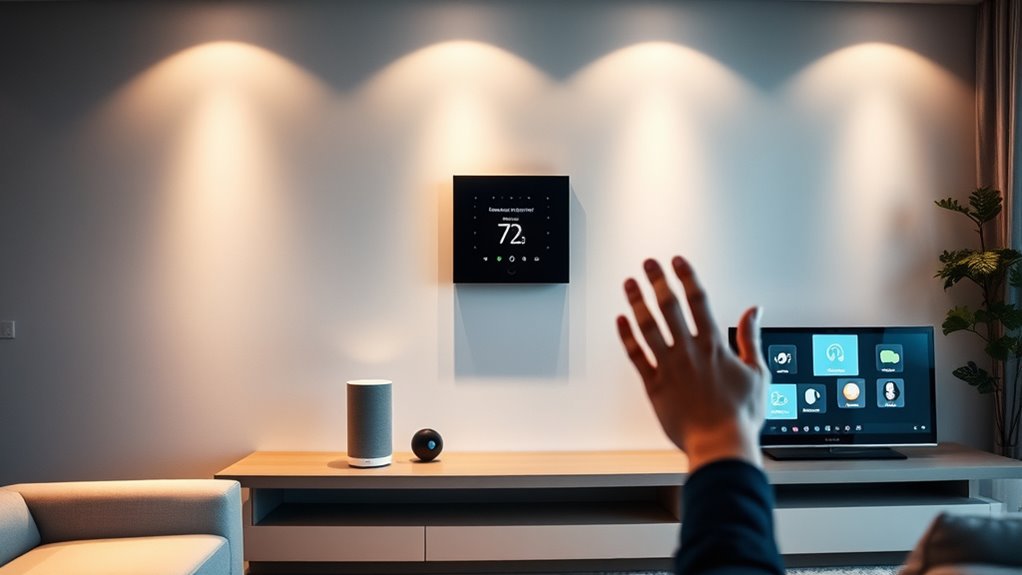
Once your devices are clearly named and organized, you can start automating routines and scenes to streamline your daily life. Routines are sequences triggered by specific events, like turning on lights when you arrive home or adjusting the thermostat at bedtime. Scenes let you control multiple devices with a single command, such as setting “Movie Night” to dim lights, close blinds, and power on your entertainment system. Use your smart hub or app to create these automations easily. Test each one to ensure they work smoothly and make adjustments as needed. Automating routines and scenes saves time, reduces manual control, and creates a more seamless, personalized environment. With consistent setup, your smart devices will work together intuitively, making your home smarter and your life simpler.
Troubleshoot Common Connectivity Issues
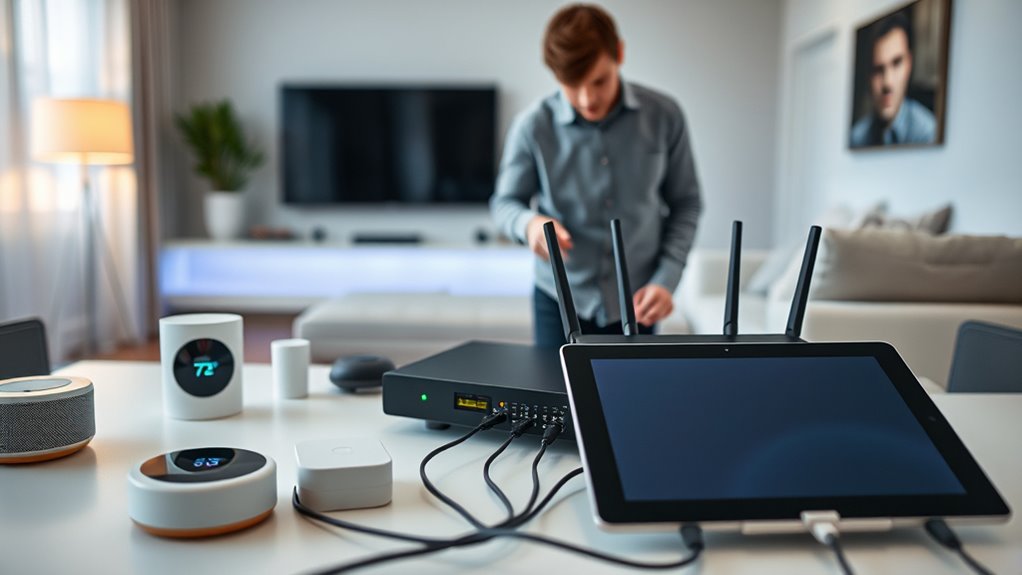
When your smart devices aren’t connecting properly, start by restarting them to refresh the connection. Make sure your internet is working smoothly, as a weak or unstable connection can cause issues. Additionally, keep your device firmware up to date to fix bugs and improve compatibility.
Restart Your Devices
Restarting your devices is often the simplest way to resolve connectivity issues. When a device isn’t responding or seems sluggish, a quick reboot can clear temporary glitches. Here are three steps to follow:
- Power off your device completely, then wait 10 seconds before turning it back on. This resets its memory and connections.
- Unplug your router or modem and wait 30 seconds. Plug it back in to refresh your network connection.
- Restart your smart devices individually, especially those experiencing issues, to ensure they reconnect properly.
This simple process often fixes minor hiccups, saving you time and frustration. If problems persist, consider exploring other troubleshooting options, but in most cases, a restart is all you need.
Check Internet Connection
If your devices still aren’t connecting properly after a restart, the next step is to verify your internet connection. First, check if your Wi-Fi or Ethernet is active and working on other devices. Open your router’s admin page or look for the indicator lights—if they’re off or blinking, there may be an issue. Restart your modem and router to refresh the connection. Make sure your device is within range of your Wi-Fi network and that your network isn’t overloaded with too many devices. If you’re using Wi-Fi, try switching to a wired connection for stability. Confirm your internet service isn’t down by contacting your provider or visiting their status page. A stable, active internet connection is essential for your smart devices to function properly.
Update Firmware Regularly
Updating your device firmware regularly is essential for maintaining a stable and secure connection. Firmware updates fix bugs, improve performance, and patch security vulnerabilities that could disrupt your smart device’s connectivity. To stay current, consider these steps:
- Check for updates frequently through your device’s app or settings menu. Manufacturers often release updates that enhance compatibility.
- Automate updates when possible, so your devices stay current without manual effort.
- Restart devices after updating to ensure changes take effect and connections are refreshed.
Ignoring firmware updates can lead to connectivity hiccups and security risks. Staying proactive keeps your smart devices running smoothly and securely, simplifying your connected home experience.
Keep Firmware and Apps Updated for Optimal Performance

Keeping your firmware and apps up to date is essential for ensuring your smart devices run smoothly and securely. Updates often include bug fixes, security patches, and new features that improve performance and stability. To stay current, regularly check for updates through your device’s app store or settings menu. Enable automatic updates whenever possible so you don’t have to remember to do it manually. Outdated firmware or apps can cause devices to lag, disconnect, or even become vulnerable to security threats. Staying on top of updates guarantees compatibility with other devices and integrations, providing a seamless smart home experience. Make it a habit to review updates weekly, and you’ll keep your smart devices functioning at their best without any headaches.
Frequently Asked Questions
How Do I Ensure My Devices Stay Secure From Hacking?
To keep your devices secure from hacking, you should use strong, unique passwords for each device and update them regularly. Enable two-factor authentication whenever possible, and keep your firmware and software up to date to patch vulnerabilities. Avoid connecting devices to public Wi-Fi networks, and consider setting up a separate network for your smart devices. Regularly monitor your device activity and disable any features you don’t need.
Can I Connect Devices From Different Brands Seamlessly?
Imagine your smart devices as a bustling city, each with its own language. Yes, you can connect devices from different brands seamlessly, but you’ll need a universal translator—like a smart home hub or compatible app. These tools act as bridges, helping diverse gadgets communicate smoothly. Just make certain your hub supports all devices and keep firmware updated to prevent miscommunications, turning your tech city into a harmonious metropolis.
What Should I Do if Devices Keep Disconnecting Unexpectedly?
If your devices keep disconnecting unexpectedly, start by checking your Wi-Fi signal strength and router placement. Restart both your router and devices to refresh the connection. Verify your firmware is up to date and reduce network congestion by limiting the number of connected devices. Consider switching to a 5GHz network if possible, as it offers a more stable connection for smart devices. These steps should improve stability and reduce disconnections.
How Do I Prioritize Network Bandwidth for Smart Devices?
You should prioritize your smart devices by setting up Quality of Service (QoS) on your router. Access your router’s admin panel, locate QoS settings, and assign higher bandwidth to your smart home devices or specific applications like security cameras or streaming. This guarantees they get the necessary bandwidth, reducing disconnects and lag. Regularly update your router firmware to improve performance and stability for all connected devices.
Is It Possible to Set up Remote Access Securely?
Yes, you can set up remote access securely, so hackers don’t turn your smart home into a digital ghost town. Think of it like locking your front door with a biometric lock—only trusted devices get in. Use strong, unique passwords, enable two-factor authentication, and keep your firmware updated. Virtual private networks (VPNs) are like secret tunnels, ensuring your data stays hidden from prying eyes.
Conclusion
Think of your smart home as a symphony orchestra—each device a essential instrument. When they’re all in harmony, your home runs smoothly and effortlessly. Keep your devices organized, updates current, and routines seamless. With a little patience and planning, you’ll conduct your smart devices with confidence, creating a harmonious space that responds to your every command—without losing your mind. After all, a well-tuned home is a happy home.