
To save areas on Google Maps for offline use, sign in to your account, search for your desired location, tap the menu (three lines), and select “Offline maps.” Choose “Select your own map” to customize the area, zoom to adjust boundaries, then tap “Download.” You can also include landmarks and details to make navigation easier. Keep your maps updated regularly—continuing below will guide you through detailed steps for a seamless offline experience.
Key Takeaways
- Sign in to Google Maps, search for your area, then select “Offline maps” and “Select your own map” to customize.
- Adjust map boundaries by zooming and dragging to include all relevant routes before downloading.
- Customize map details by toggling landmarks, transit lines, and labels to focus on important information.
- Regularly update offline maps to include new roads and changes, ensuring accurate navigation.
- Use offline maps without internet to save data, navigate confidently, and prevent getting lost during trips.
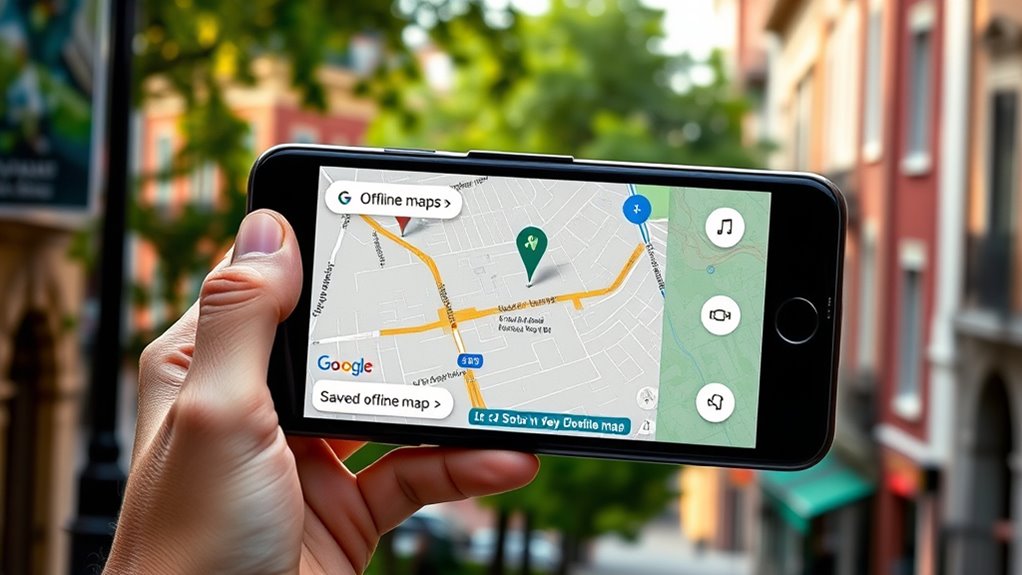
Having access to directions without an internet connection can save you from getting lost or stuck in areas with poor signal. When you’re traveling or exploring new places, relying solely on live data isn’t always practical. That’s where offline maps come in handy. To make the most of them, you should familiarize yourself with essential guidance tips, especially how to customize your map for your specific journey. Customizing your map ensures you have all the necessary information readily available, reducing stress and improving your overall experience.
First, open Google Maps on your device and make sure you’re signed in. Find the area you plan to visit, then tap on the location or search for the city or region. Once you have the right area displayed, tap the menu button (the three horizontal lines) in the top-left corner. Select “Offline maps” from the menu, then tap “Select your own map.” You can now zoom in or out to frame the specific area you want to save. Be precise with your selection because Google Maps allows you to customize the map’s boundaries. When satisfied, tap “Download.” Now, this area will be available offline, and you can access guidance tips and directions without an internet connection.
Map customization doesn’t end there. Before saving, you can explore options to include or exclude certain details, like landmarks, parks, or transit lines, depending on what’s relevant for your trip. This helps declutter the map, making it easier to read while guiding you. You might also want to label key locations or add personal notes if your device allows. Customizing the map ensures you’re not overwhelmed by unnecessary details, and it helps you focus on routes and landmarks that matter most. Additionally, understanding the importance of contrast ratio can help you better interpret visual information on your device, ensuring clarity when viewing your saved maps.
Once your offline map is saved, it’s vital to keep it updated. Google Maps prompts you to refresh offline areas periodically, especially if you’re planning a longer trip. Regular updates ensure your guidance tips remain accurate, and your map includes any new roads or changes. When guiding, keep your device’s GPS enabled to maximize the accuracy of directions, even without Wi-Fi or mobile data.

Google Maps Made Simple: The Complete Step-by-Step Guide to Navigation, Directions, Offline Maps, and Hidden Features for Beginners and Seniors (Made … and Software Running Modern Work and Life)
As an affiliate, we earn on qualifying purchases.
As an affiliate, we earn on qualifying purchases.
Frequently Asked Questions
Can I Update Offline Maps Automatically?
Yes, you can enable automatic updates for your offline maps. When you set up offline maps, Google Maps can automatically refresh them when you’re connected to Wi-Fi, ensuring your map data stays current. To do this, open Google Maps, go to your offline maps, tap the three-dot menu, and select “Automatic updates.” This way, your map refreshes happen seamlessly, keeping your offline navigation accurate without extra effort.
How Much Storage Space Do Offline Maps Typically Require?
You open your phone to find offline map size varies, typically requiring 100MB to 2GB depending on the area. Map storage requirements fluctuate with map detail and coverage, so larger regions demand more storage space. It’s like packing a suitcase; the more detailed and extensive your offline maps, the more storage space they need. Always check your device’s available storage before downloading to make certain of smooth navigation without interruptions.
Are Offline Maps Available in All Countries?
Offline map availability varies by country, and some regions might have country restrictions that limit access. You can generally download offline maps in most countries, but certain areas with limited internet infrastructure or government restrictions may not support this feature. Before traveling, check Google Maps’ coverage for your destination to verify offline map availability, so you’re not caught without navigation in remote or restricted locations.
Can Multiple Users Access the Same Offline Map?
No, multiple users can’t access the same offline map directly. Google Maps doesn’t support sharing permissions or map synchronization for offline maps. Each person needs to download the map individually on their device. However, you can share your downloaded map via file transfer or screenshots, but real-time access or synchronization isn’t available. To guarantee everyone has the map, guide them to download it separately before traveling.
What Features Are Limited When Using Google Maps Offline?
When using Google Maps offline, you face limited features like map update restrictions and offline map sharing. You can’t get real-time traffic updates, transit info, or alternate routes. Map updates only happen when you reconnect online, and sharing offline maps with others isn’t possible. You need an internet connection for live info and updates, so plan ahead and verify your offline maps are current before heading out.

GPS Navigator for Car Truck RV, 7-Inch Portable GPS for Car with 2026 Maps Free Lifetime Updates, Voice-Guided Turn Directions, Speed Camera Alerts, Custom Truck Routing
- Lifetime Map Updates: Free updates with 2026 North America maps
- Voice-Guided Navigation: Turn-by-turn voice directions for safe driving
- Real-Time Alerts: Speed, intersection, turn, and school zone alerts
As an affiliate, we earn on qualifying purchases.
As an affiliate, we earn on qualifying purchases.
Conclusion
Think of saving maps offline as planting a sturdy tree in your digital landscape. When you need guidance, you can rest beneath its shade without worrying about losing signal or draining your data. With your offline map as your trusted shelter, you can explore new territories confidently, knowing it’s always there—ready to guide you through the thick and thin, like a loyal compass that never leaves your side. Your adventures just became smoother and more reliable.

Kuuleyn Waterproof Map Case,Map Pouch,Map Case Waterproof Military, Hiking Map Pouch Holder Transparent Storage Bag Folding Storage for Outdoor Camping
- Waterproof Double Zipper: Protects maps from water damage
- Removable Waist Belt: Easy to carry and attach
- Versatile Use: Suitable for hiking, camping, and more
As an affiliate, we earn on qualifying purchases.
As an affiliate, we earn on qualifying purchases.
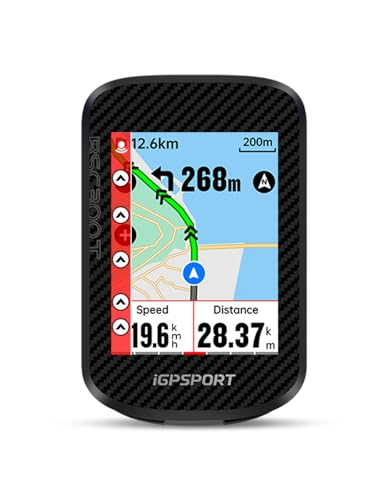
iGPSPORT BSC300T Wireless Bike Computer GPS, Touchscreen Offline MAP Navigation Off Course Warning Compatible with Insta360, for Ebike Road Bike MTB (Touch Screen&Button)
- Large Touchscreen Display: 2.4-inch touch screen with 6 buttons
- Versatile Riding Modes: Supports road, mountain, and e-bikes
- Accurate Global GPS: Supports 5 satellite systems for precise positioning
As an affiliate, we earn on qualifying purchases.
As an affiliate, we earn on qualifying purchases.